This tutorial will guide you through the updated features panel, explaining how to use it effectively.
When you open your features panel, you'll find the main worksheet in the middle.
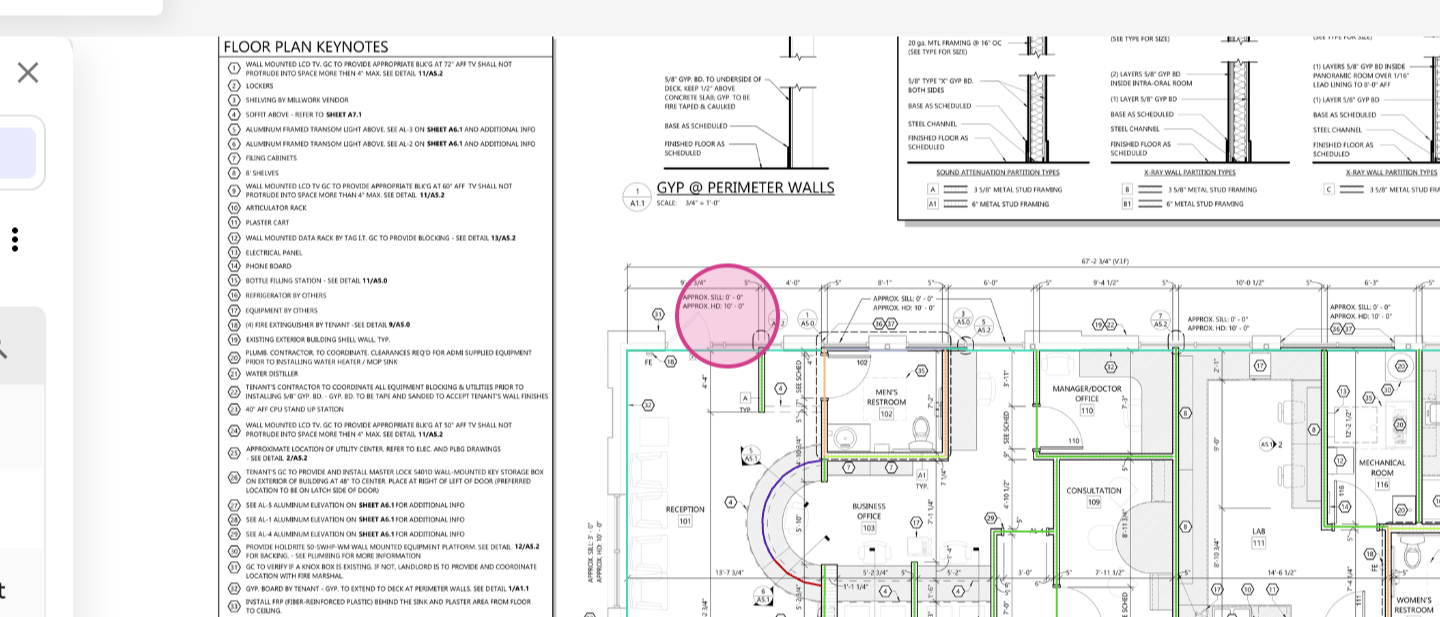
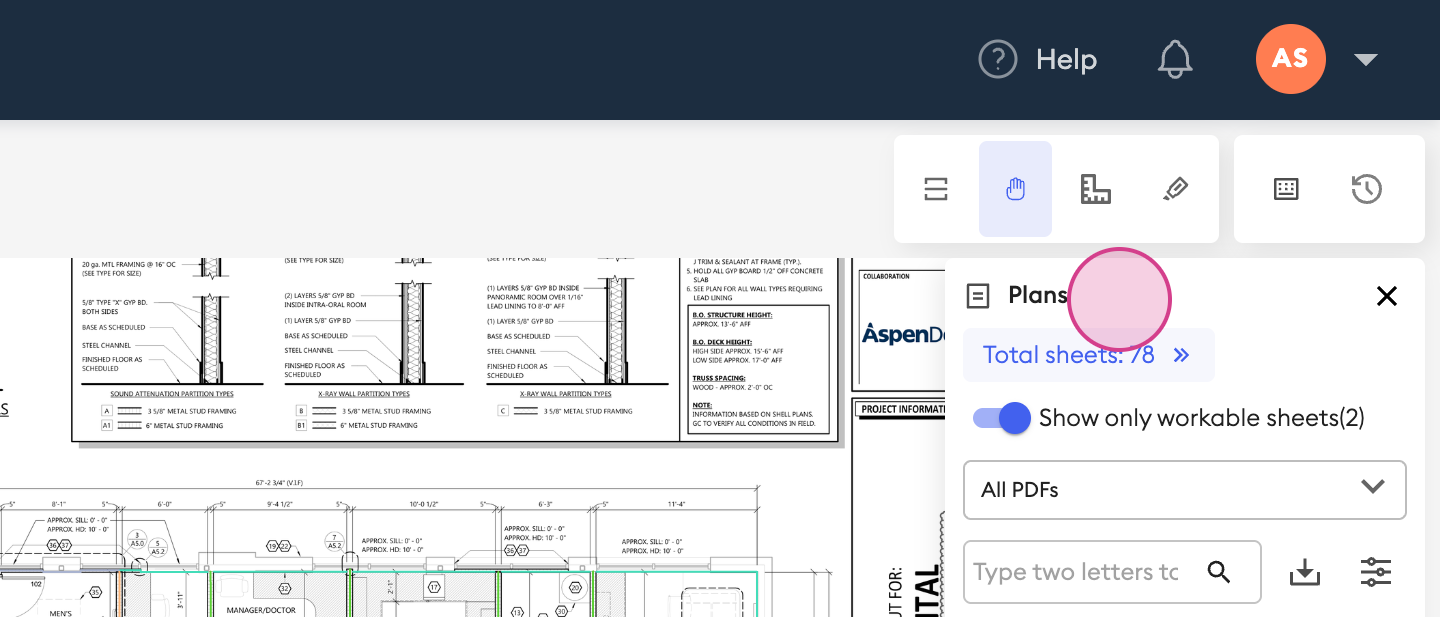
Move to the right and you'll find the plans panel.
And finally on the left we have the features panel.
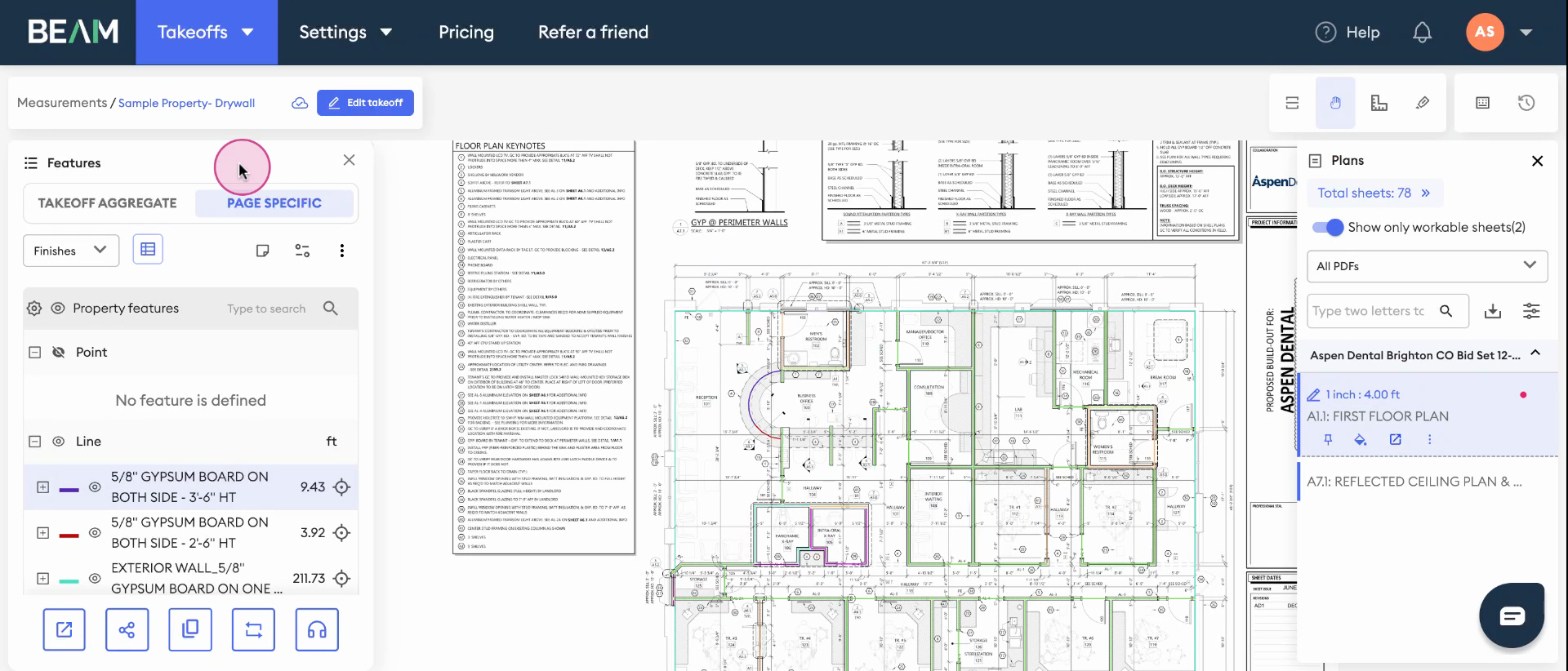
The features panel is divided into two parts.
Page Specifc: which displays all the elements currently visible on the worksheet.
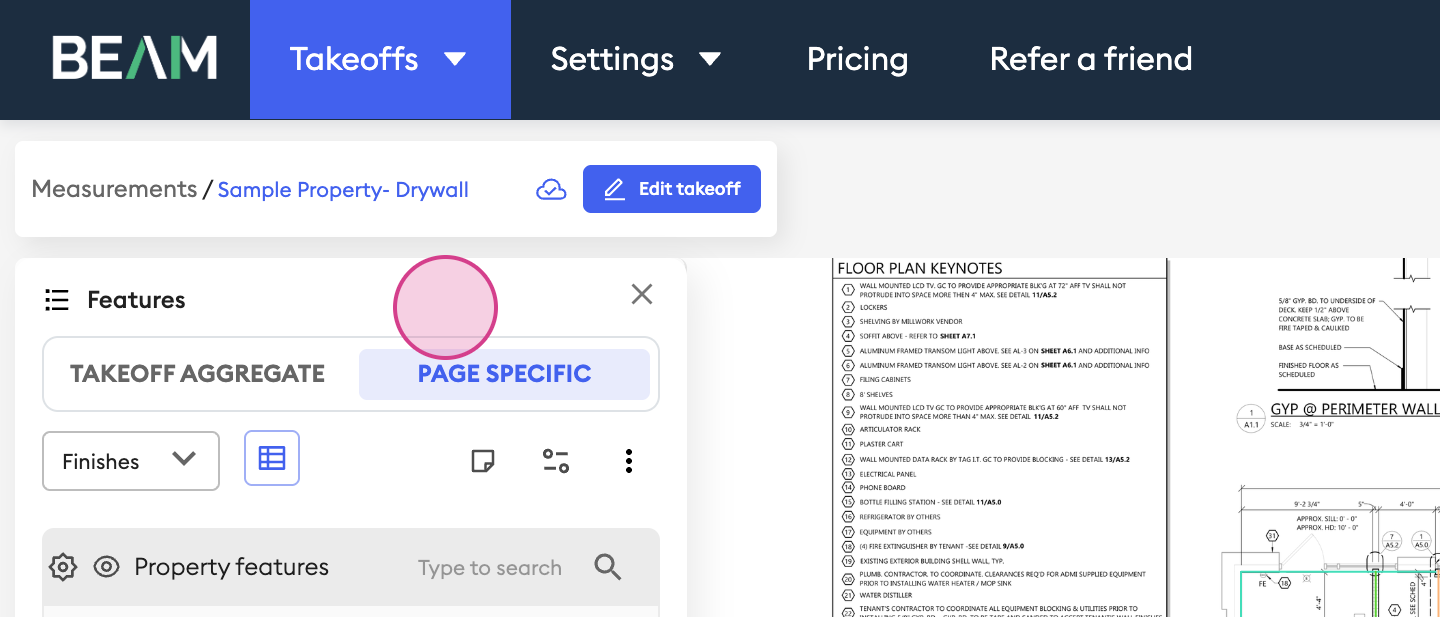
Takeoff Aggregate: Contains all the specifics from the entire take-off.
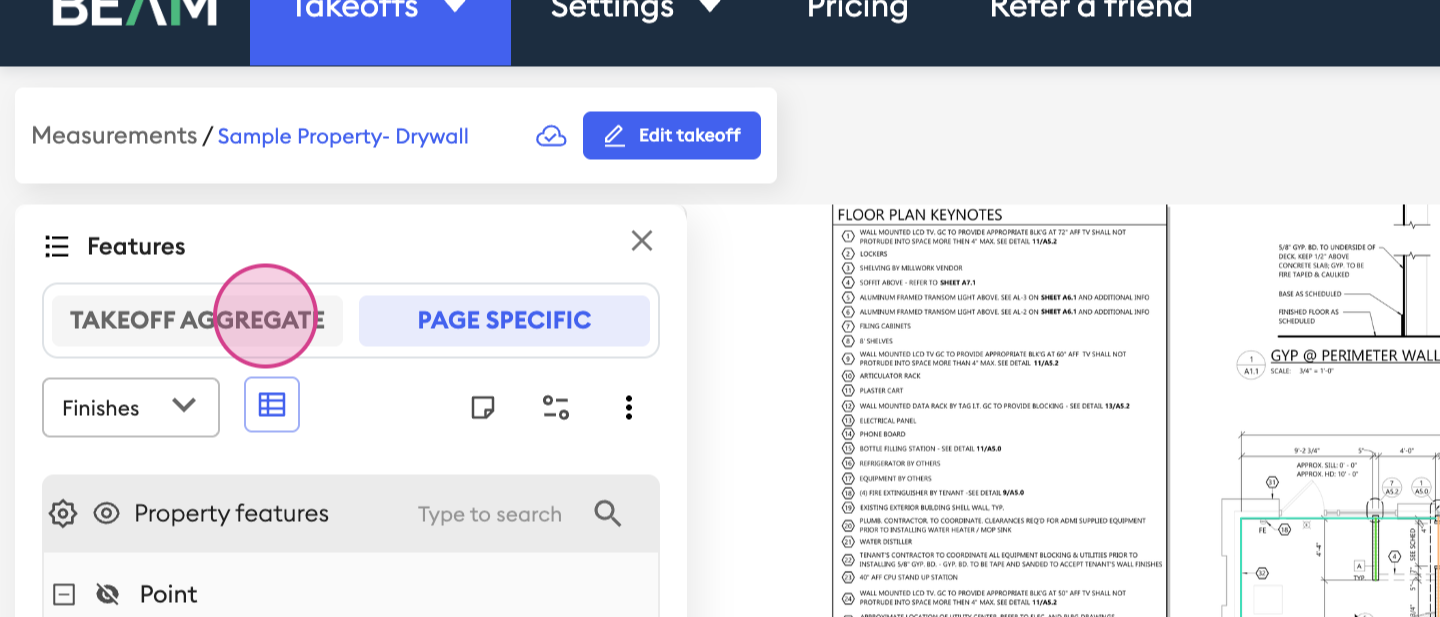
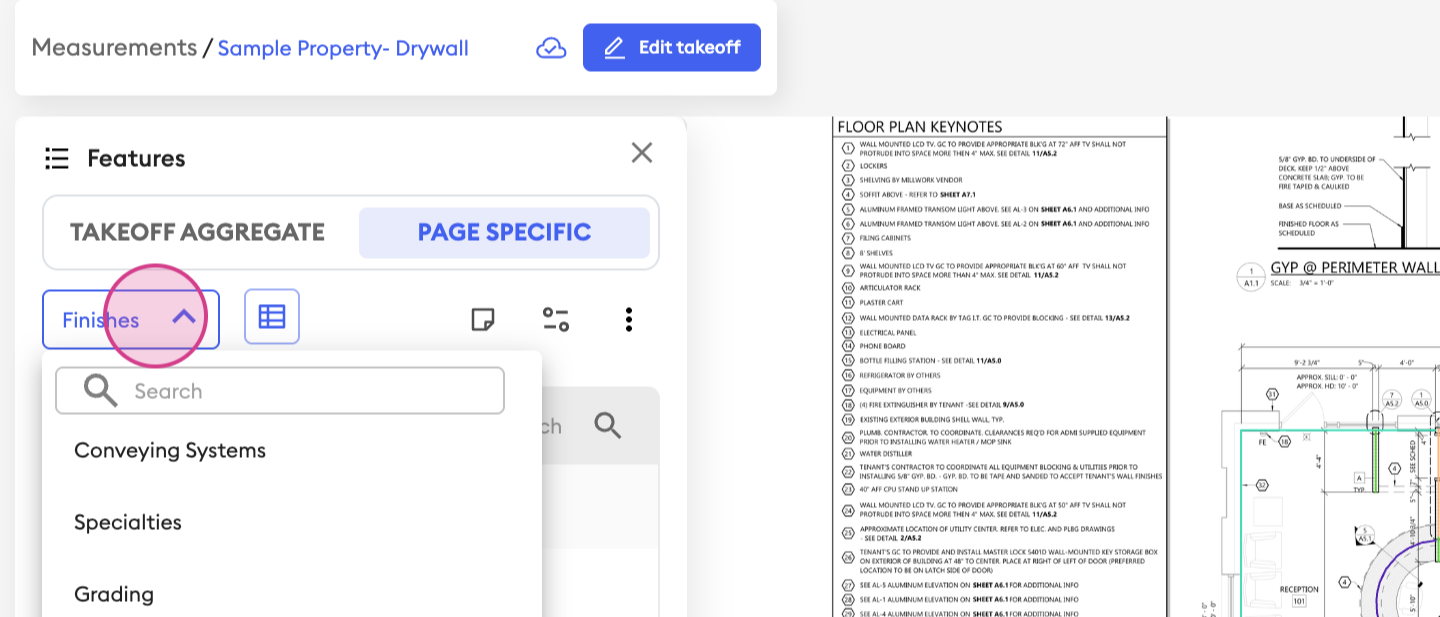
The drop-down menu shows the category of the currently selected worksheet
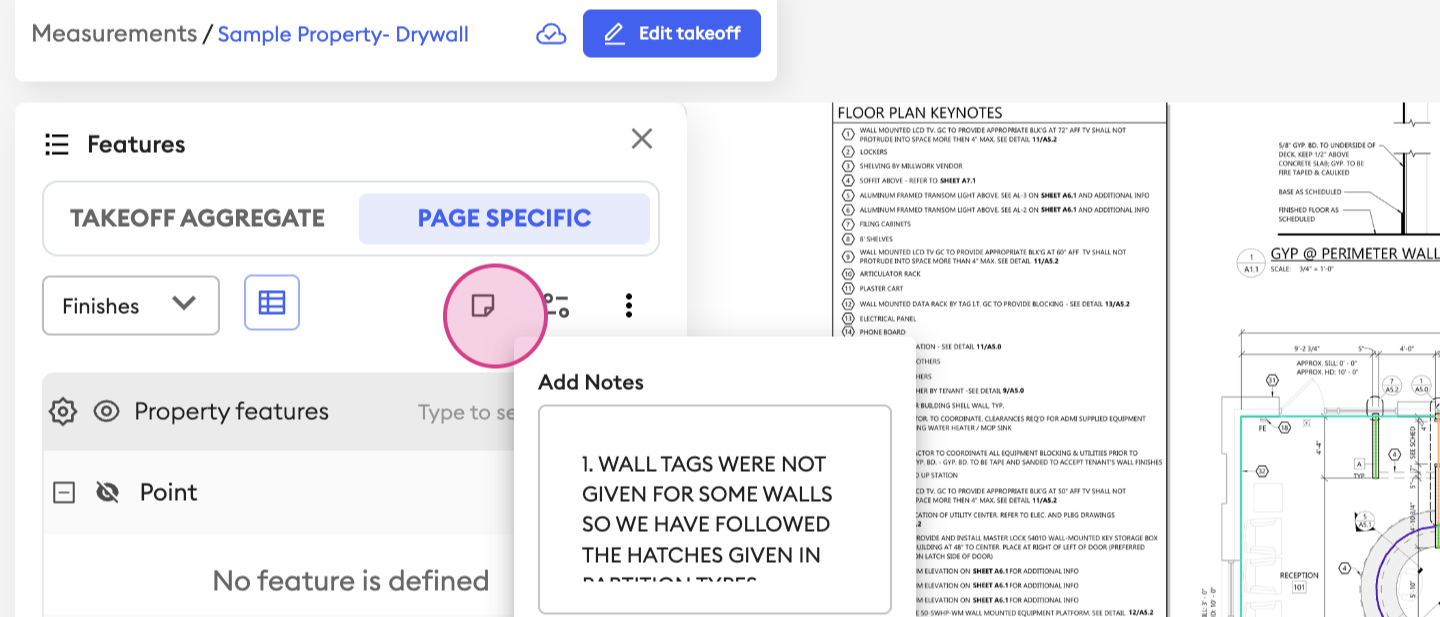
Here, you're able to make any notes that you need.
And this icon will help you filter features in this worksheet.
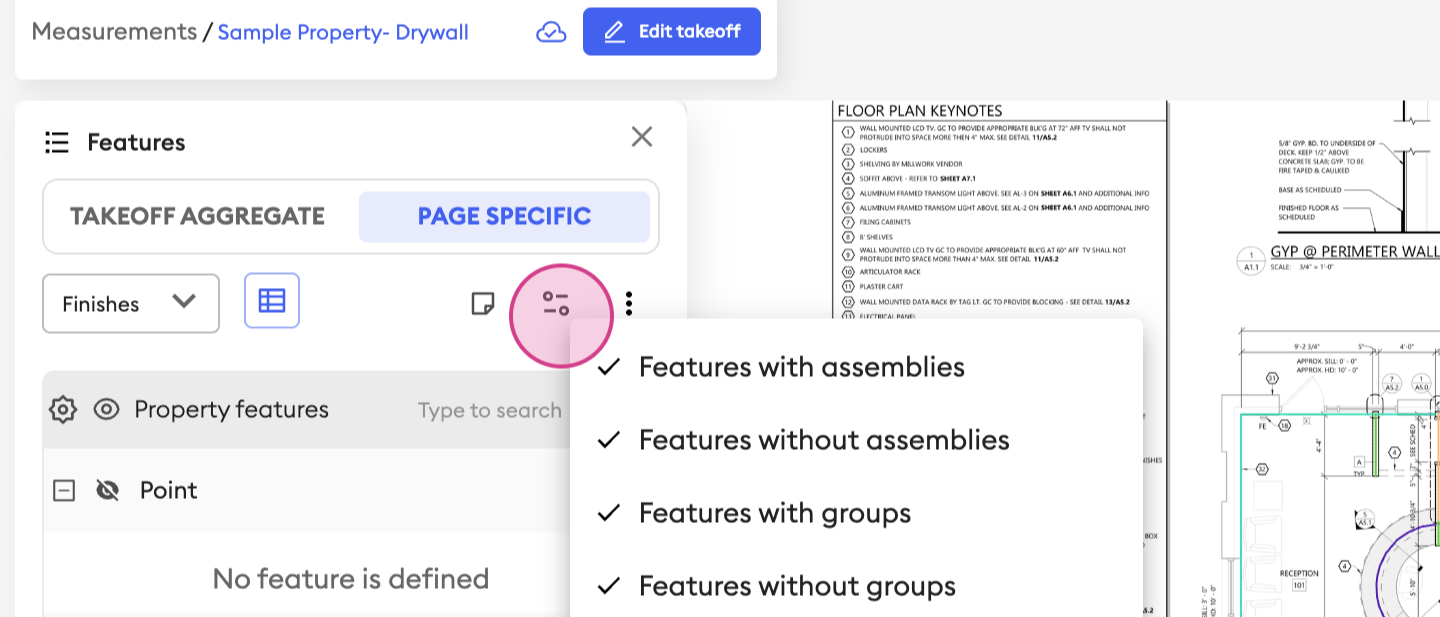
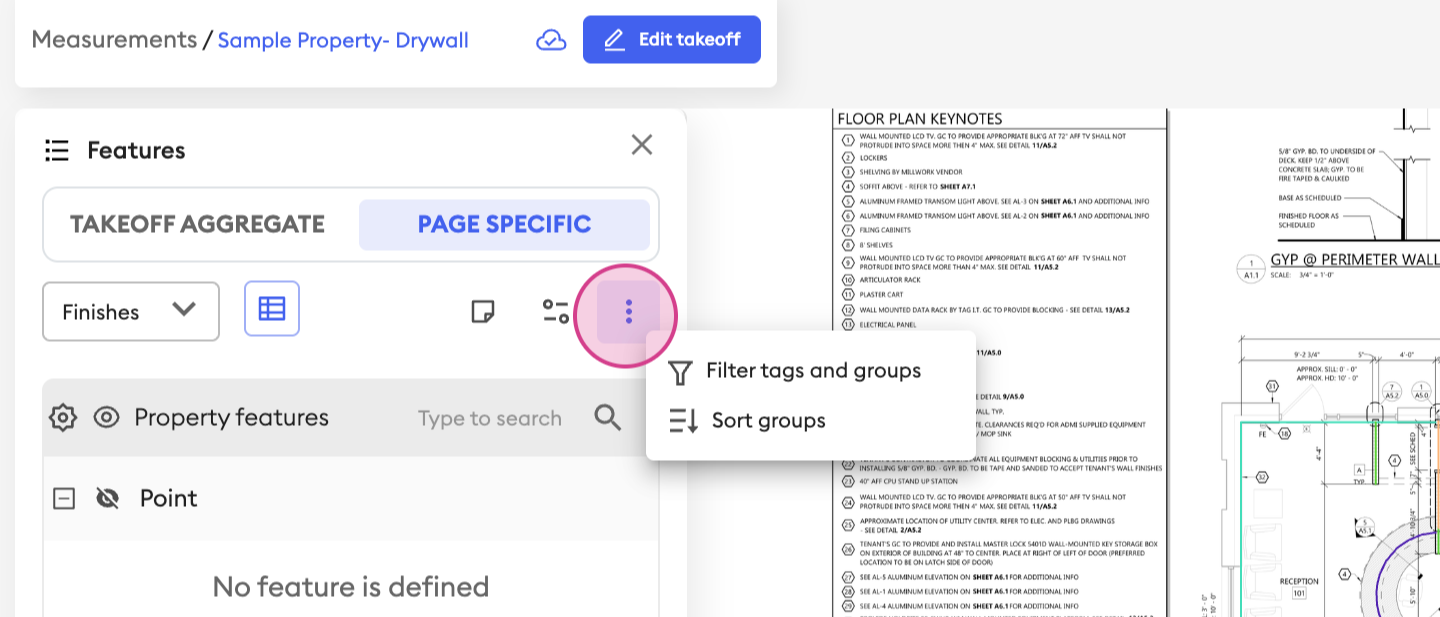
With the 3 dots to the right of the panel, you’ll be able to be more specific with your filters. You have the option to filter or sort by tags, groups, or feature types.
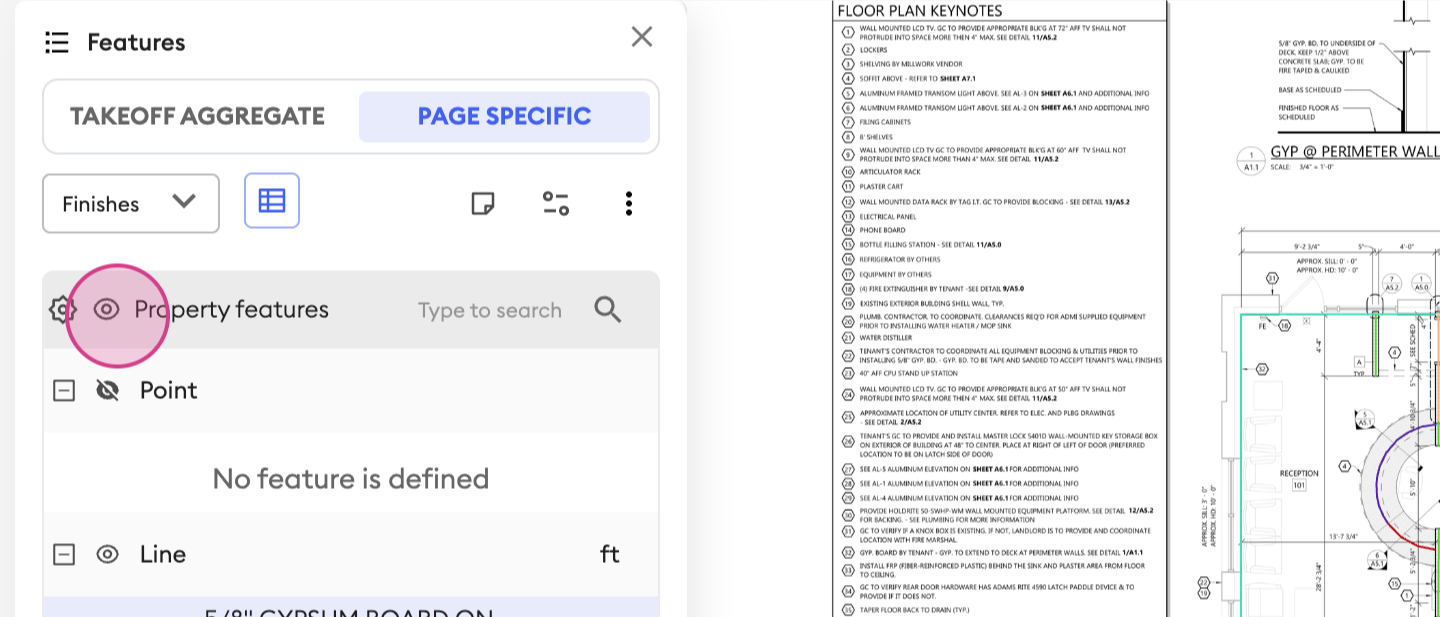
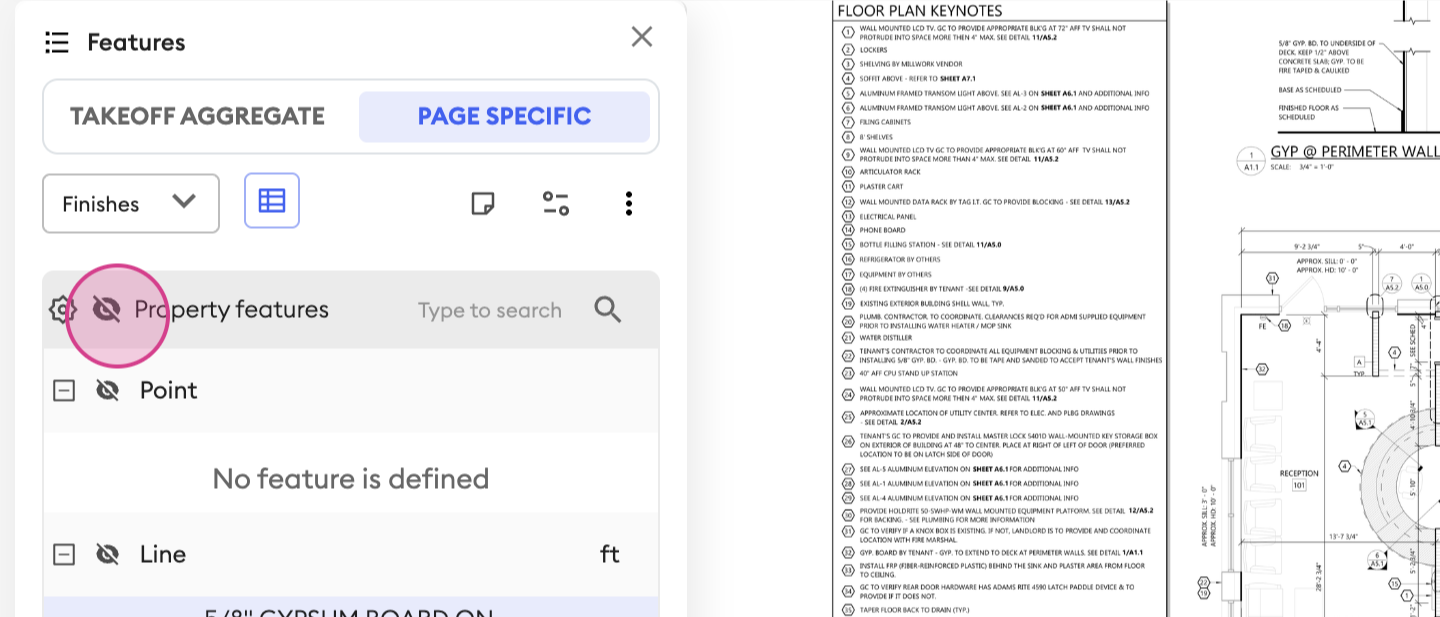
The 'eye' icon is used to toggle the visibility of any of the features.
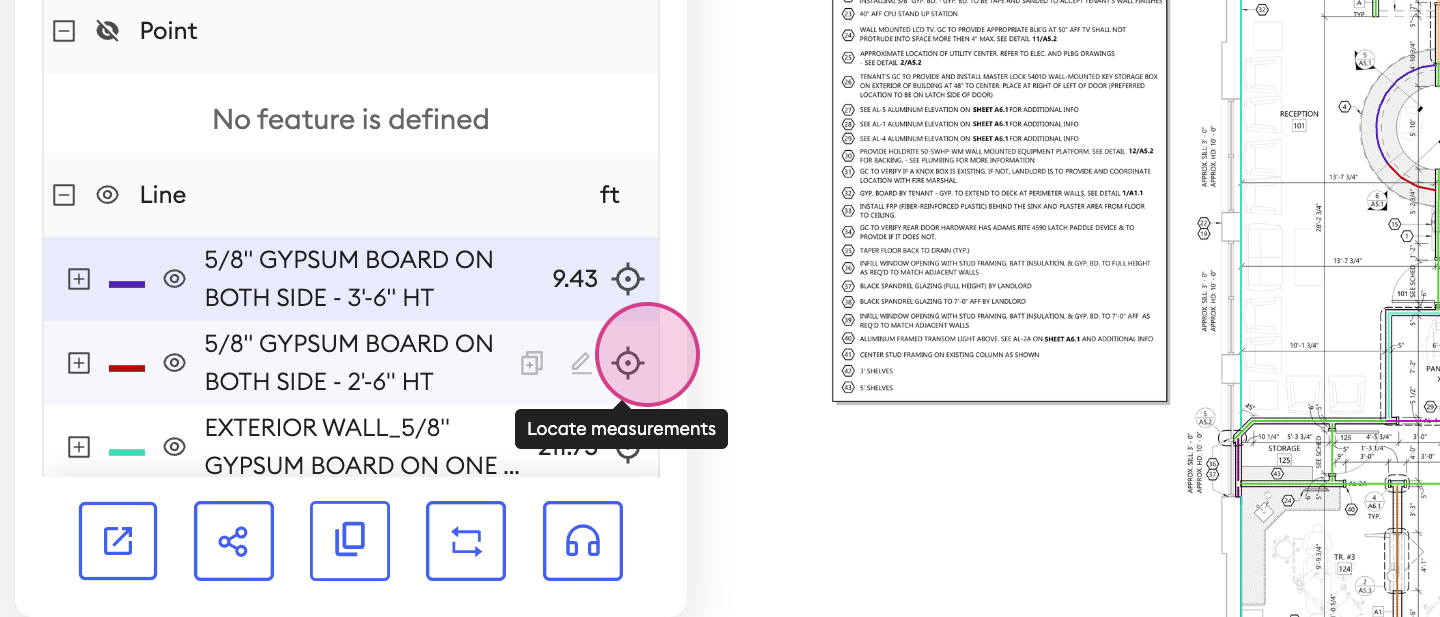
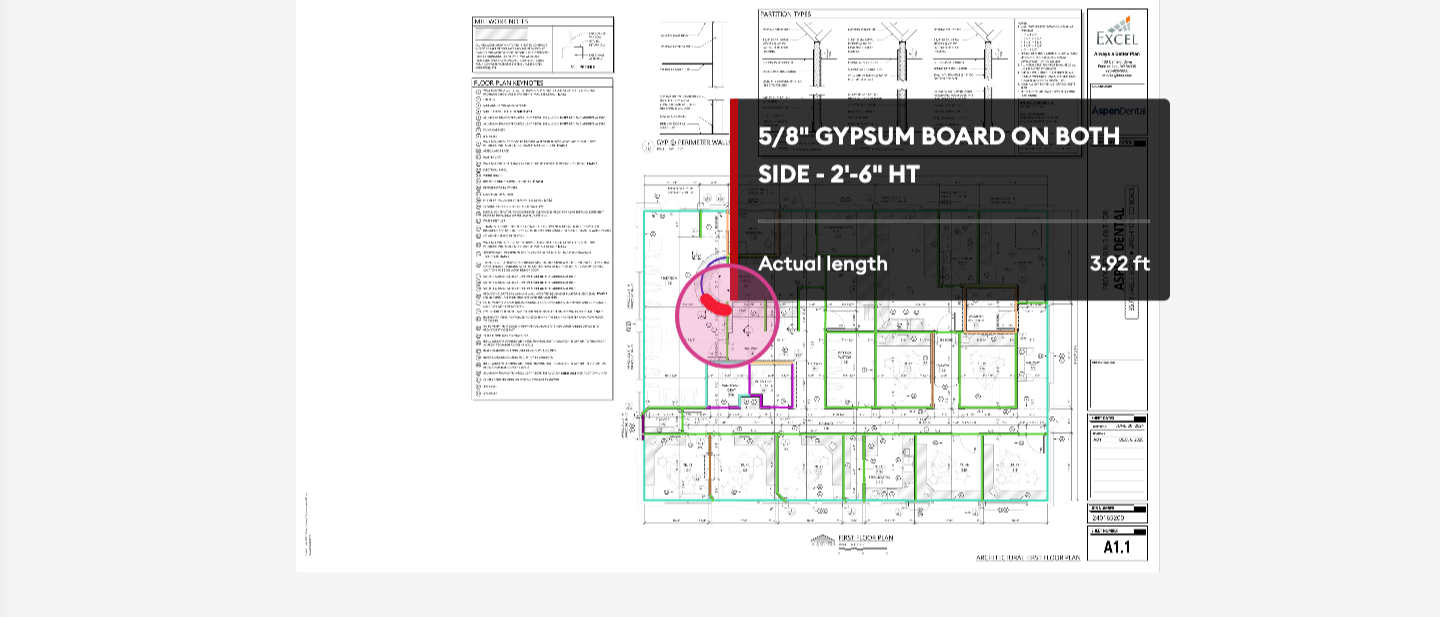
The 'locate' icon will highlight the selected feature.
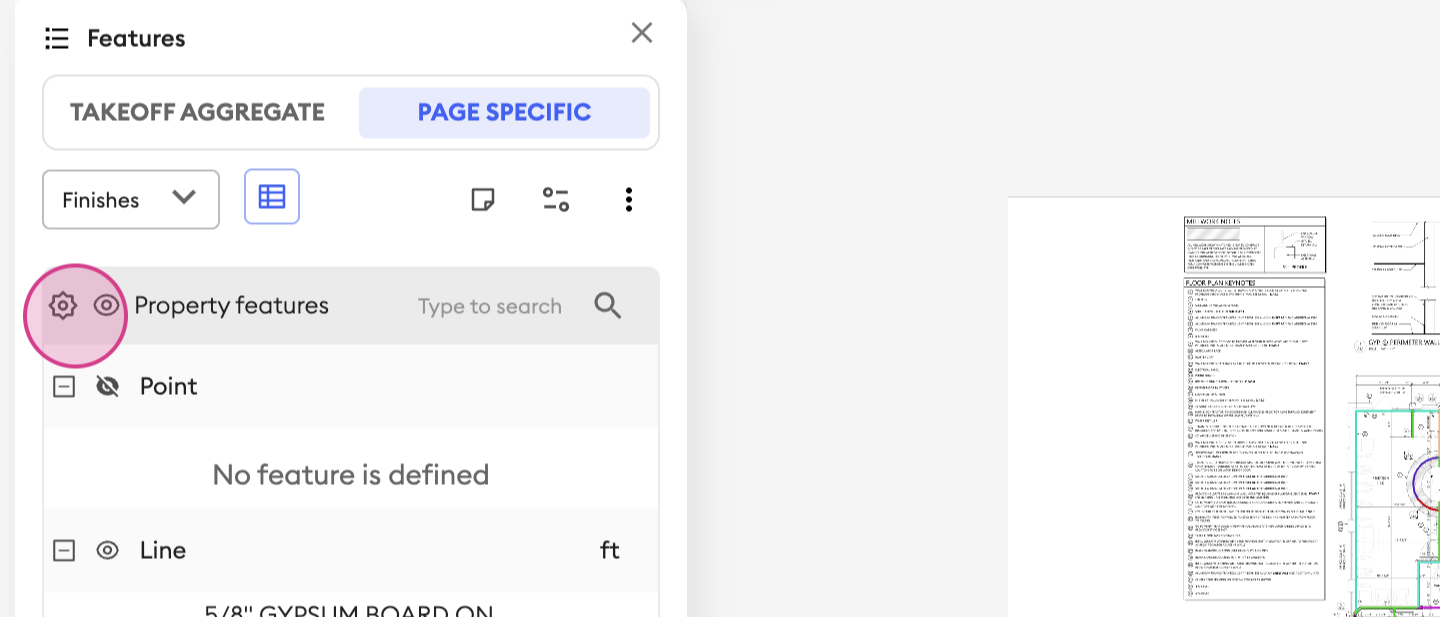
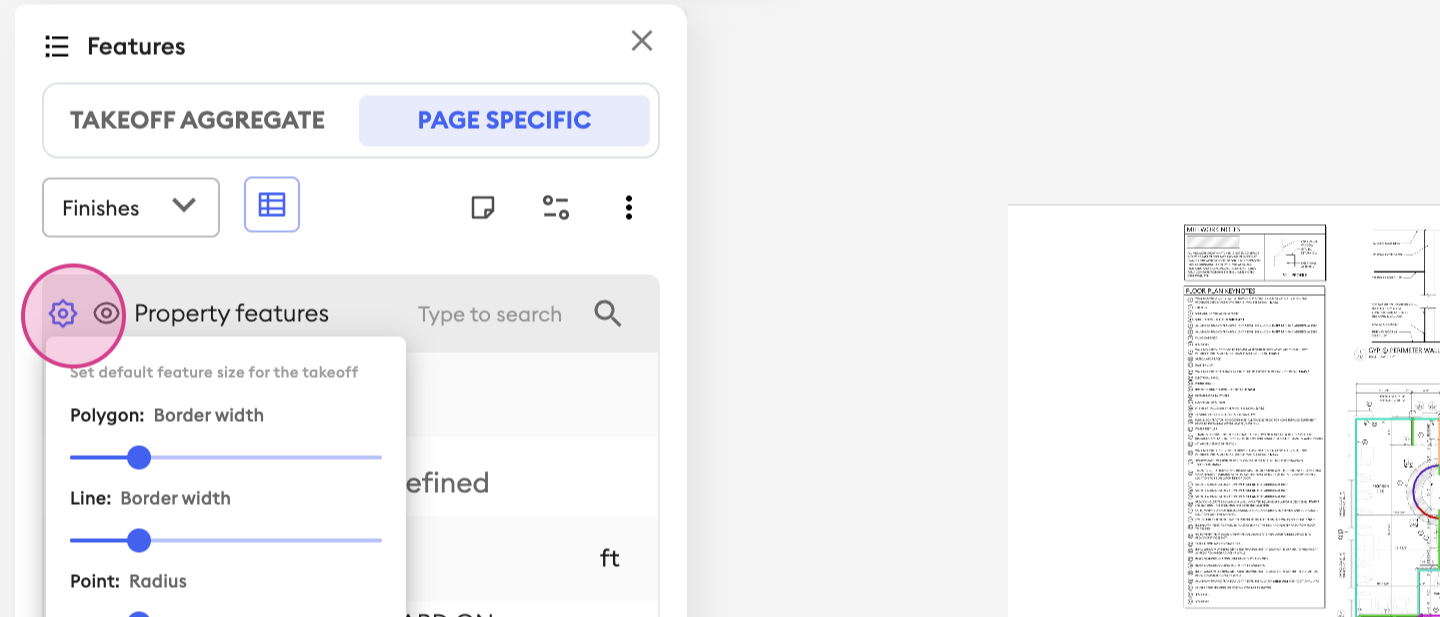
The 'gear' icon can be used to adjust the size of any of the features in the panel.
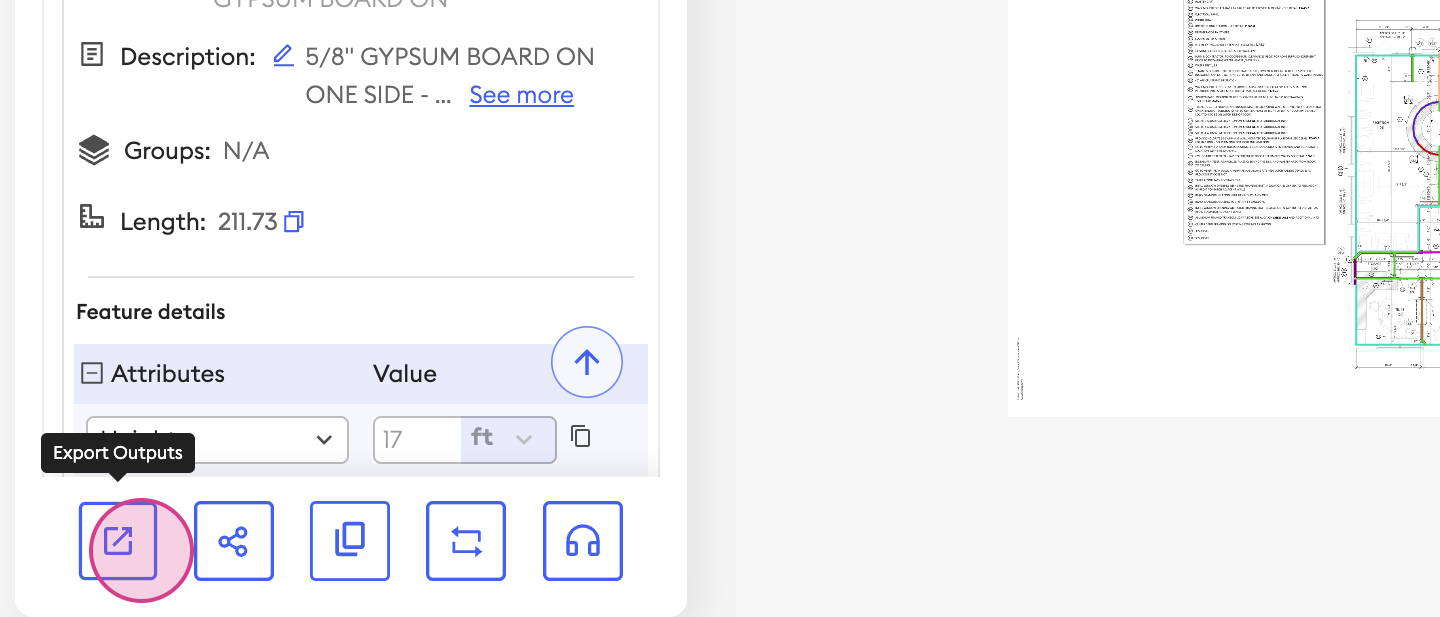
On expanding any of these features, all of the information, in detail, is available.
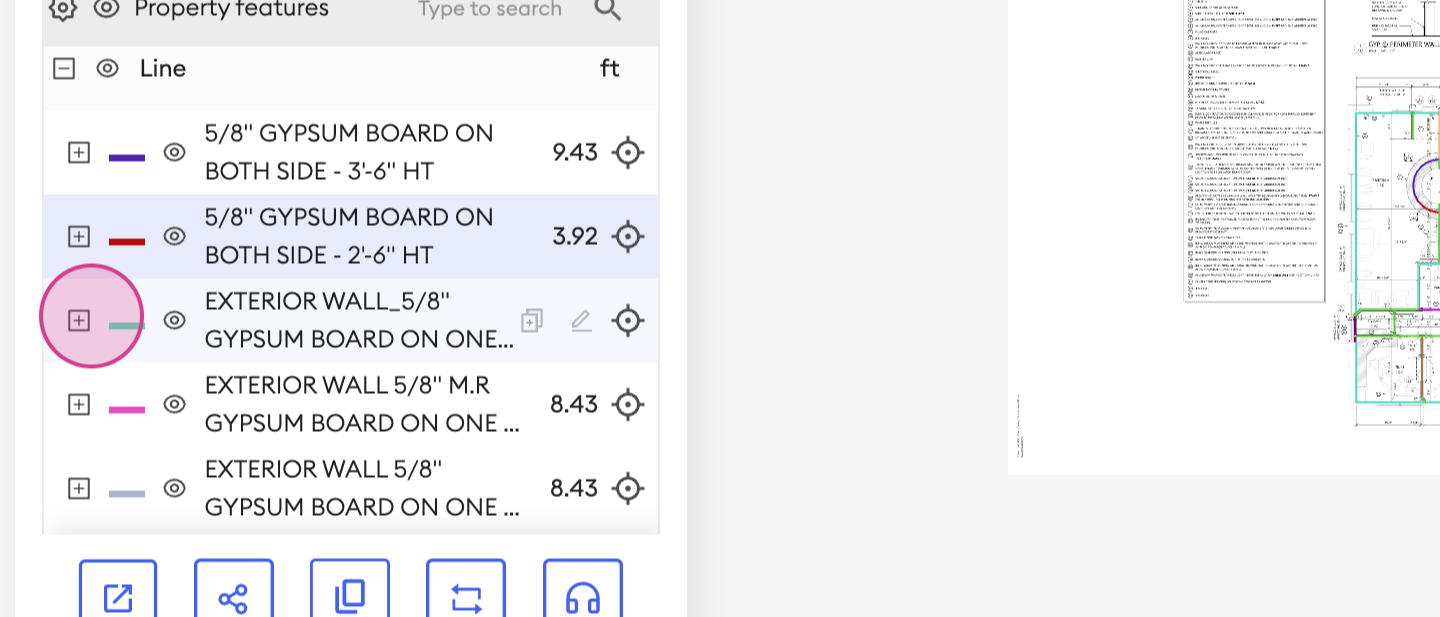
Finally, the actions at the bottom of the screen remain the same, and act like they always have.
Was this article helpful?
That’s Great!
Thank you for your feedback
Sorry! We couldn't be helpful
Thank you for your feedback
Feedback sent
We appreciate your effort and will try to fix the article