Hi everyone, welcome to Beam AI. In this quick video walkthrough, we’re diving into the new Markup Tool in the updated UI of the Beam AI platform.
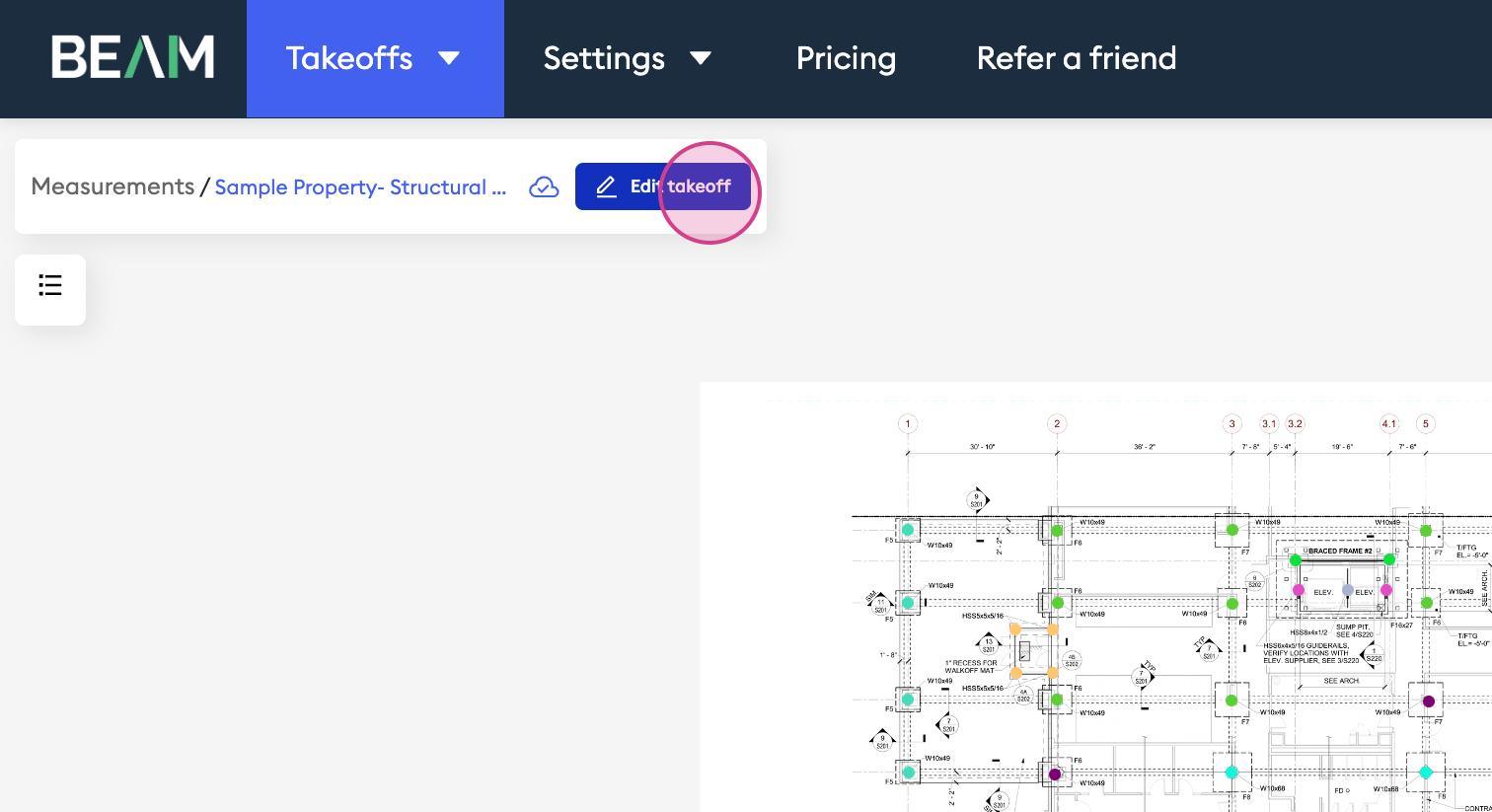
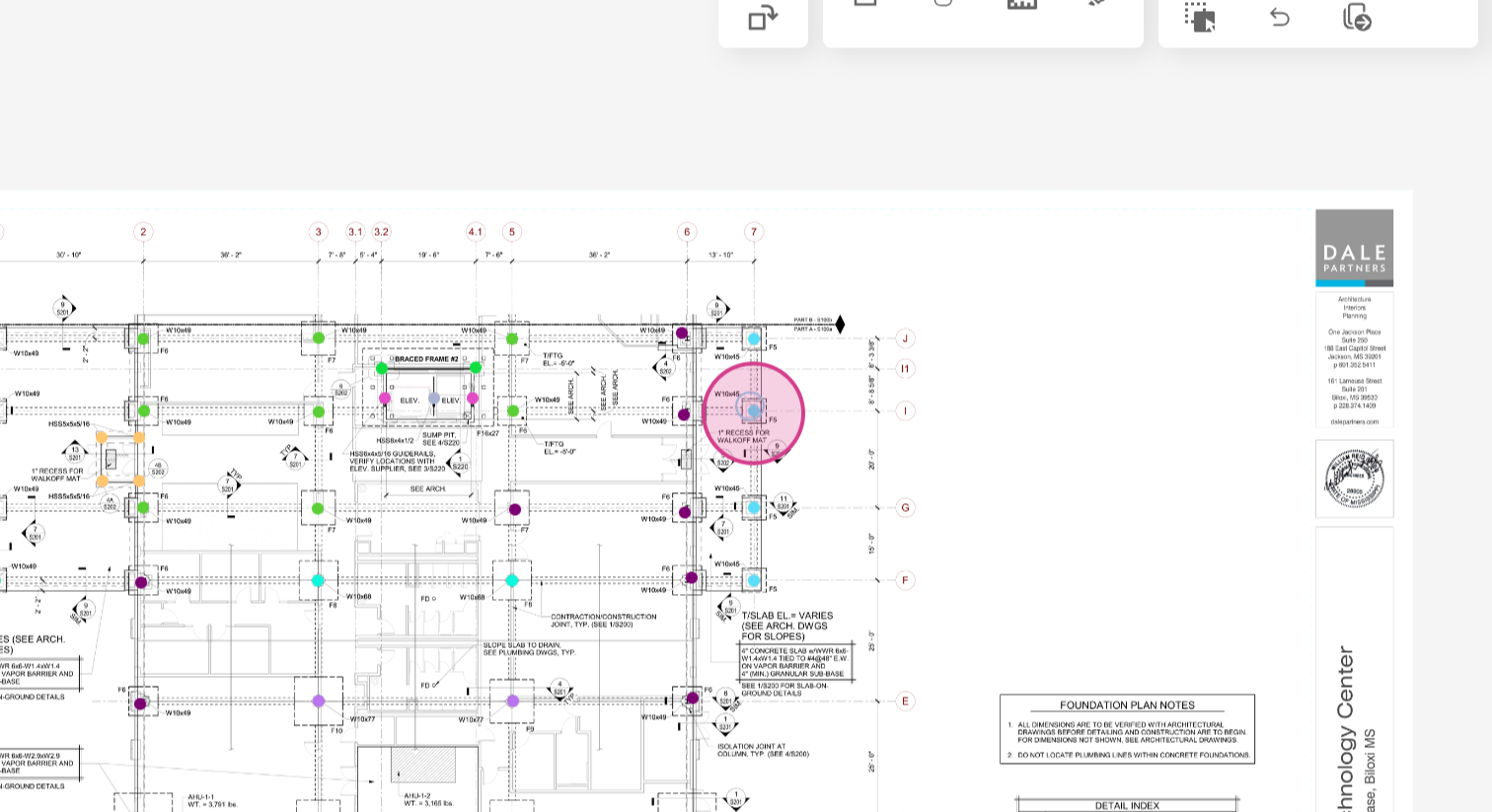
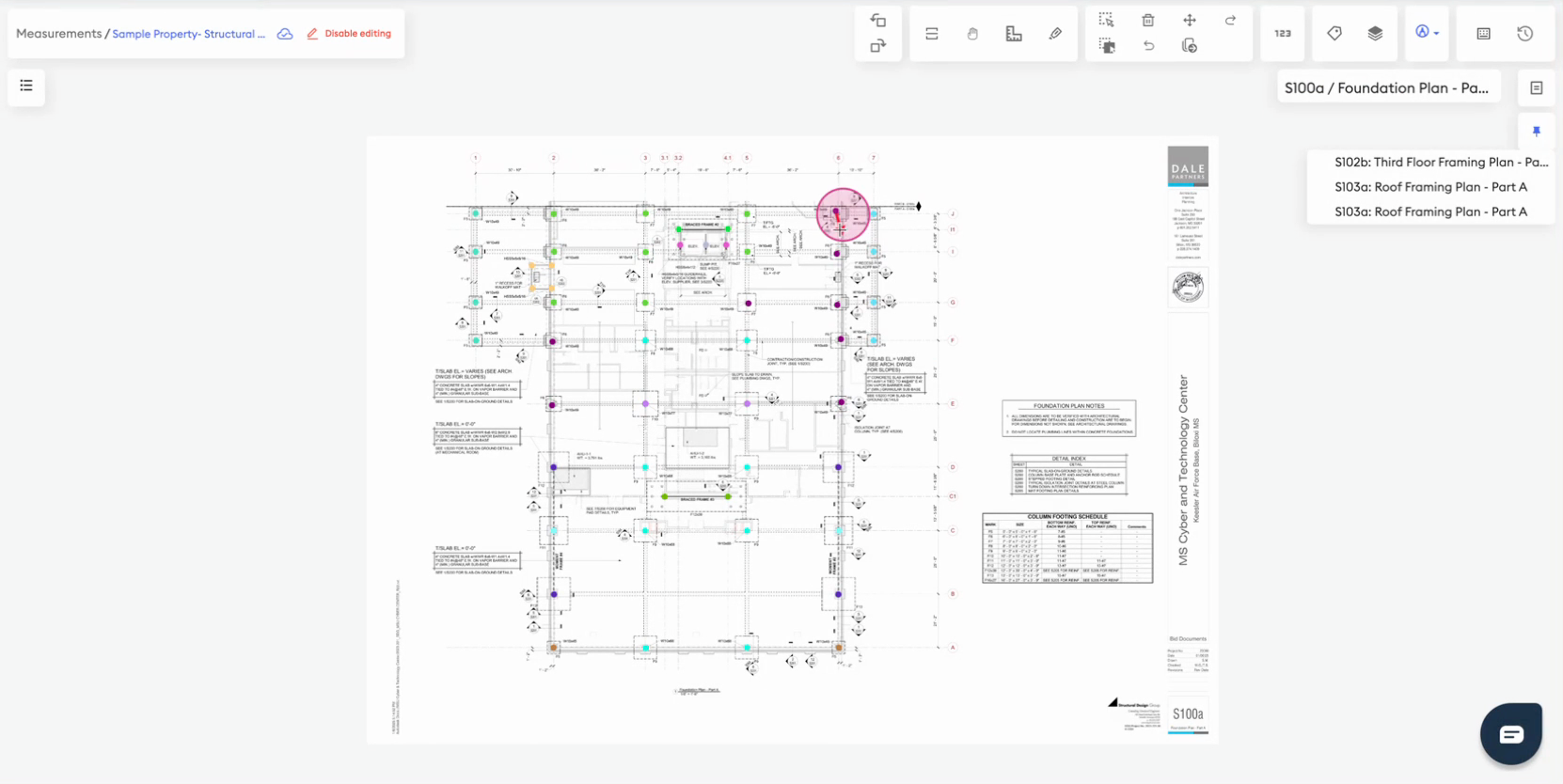
Step 1:To get started, simply open up your takeoff and enable the editing takeoff option.
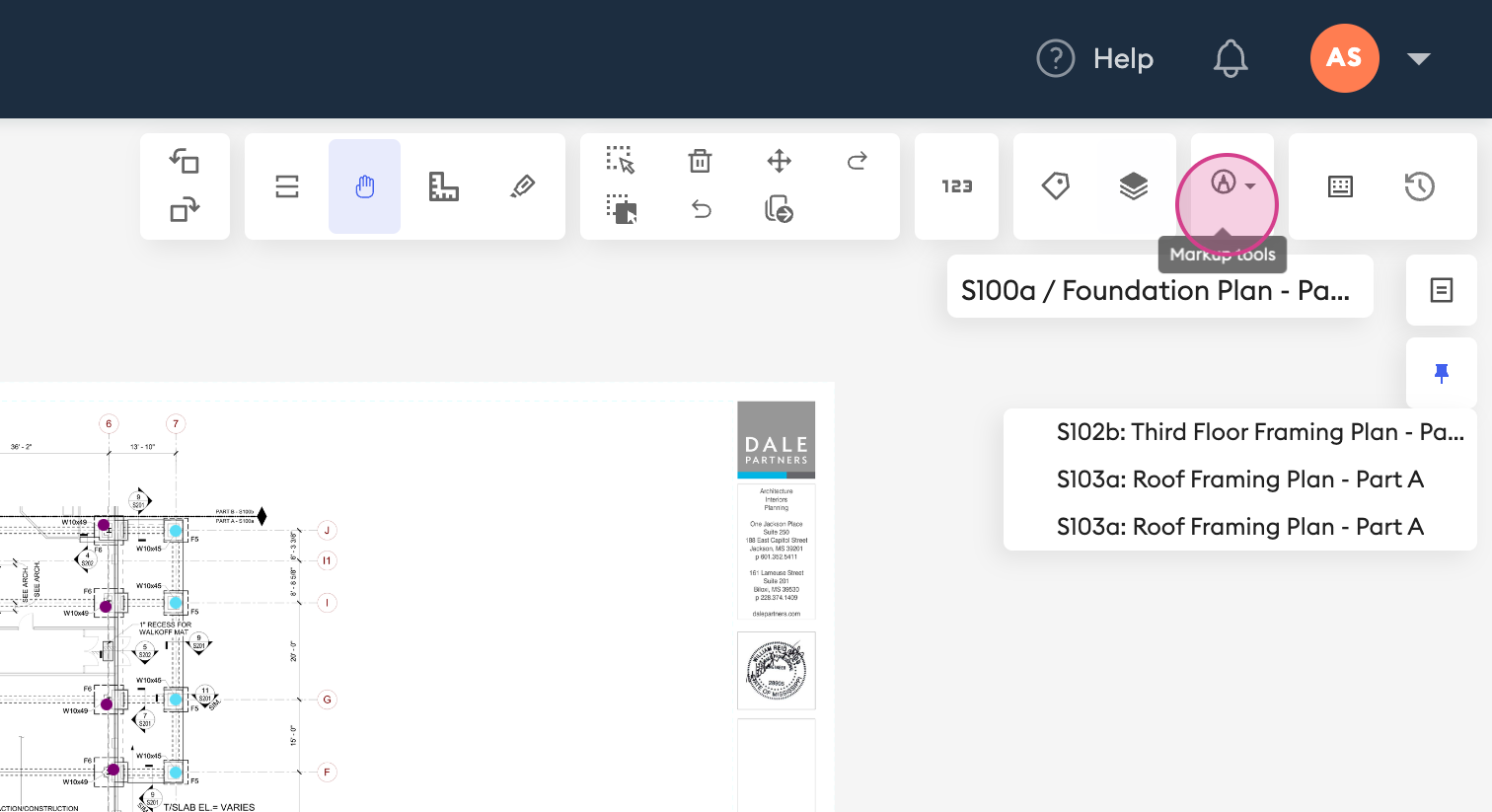
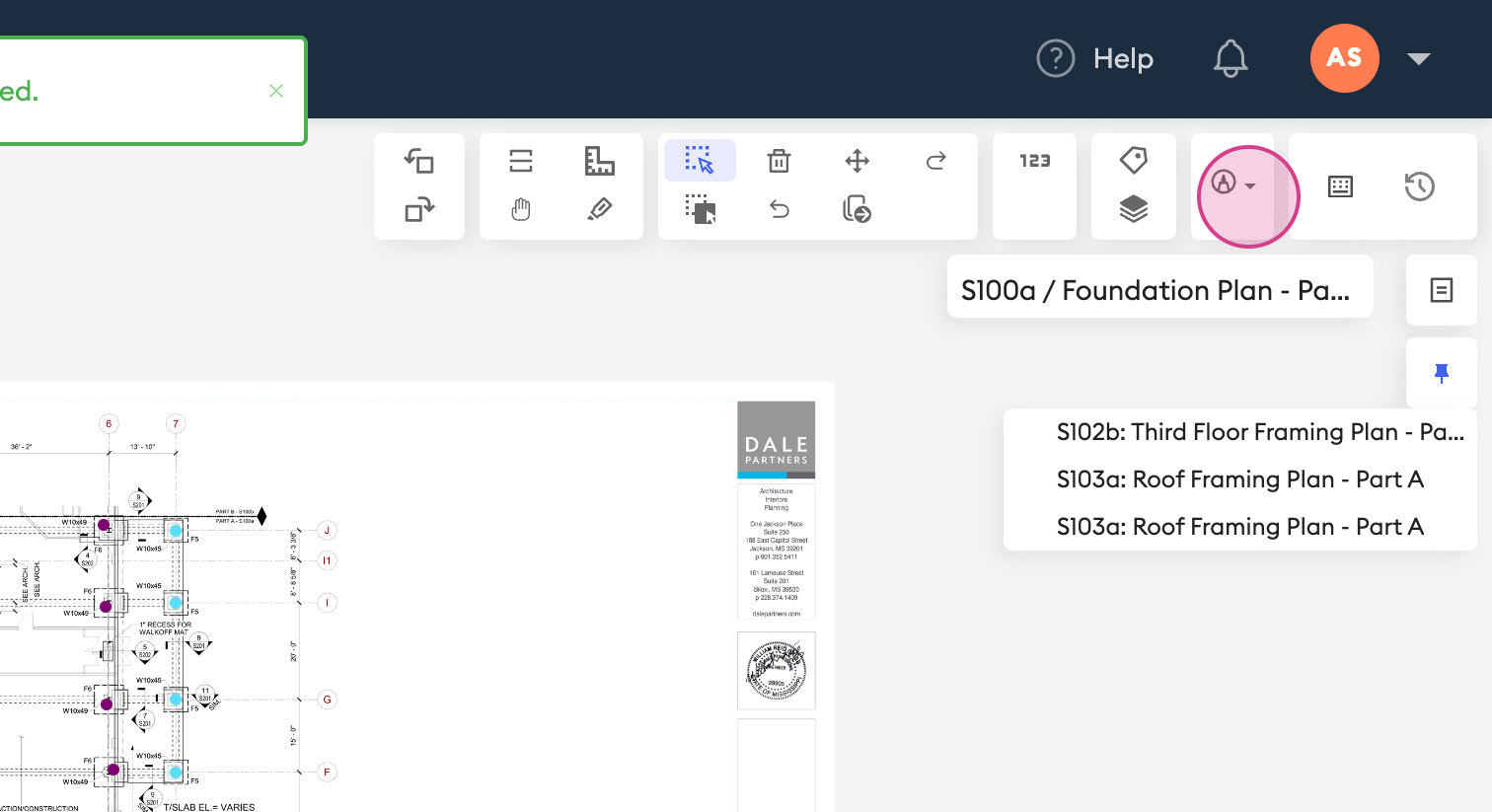
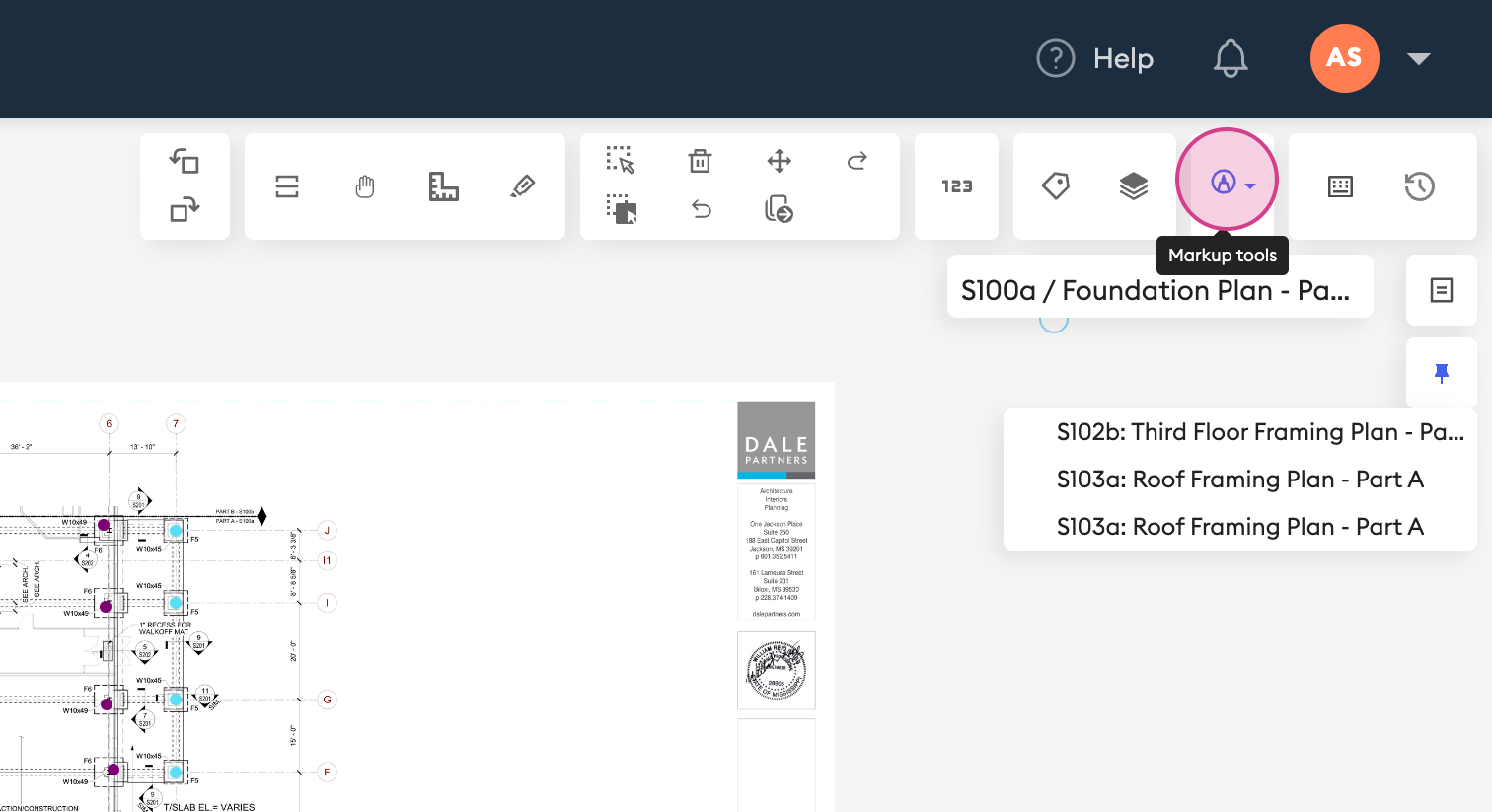
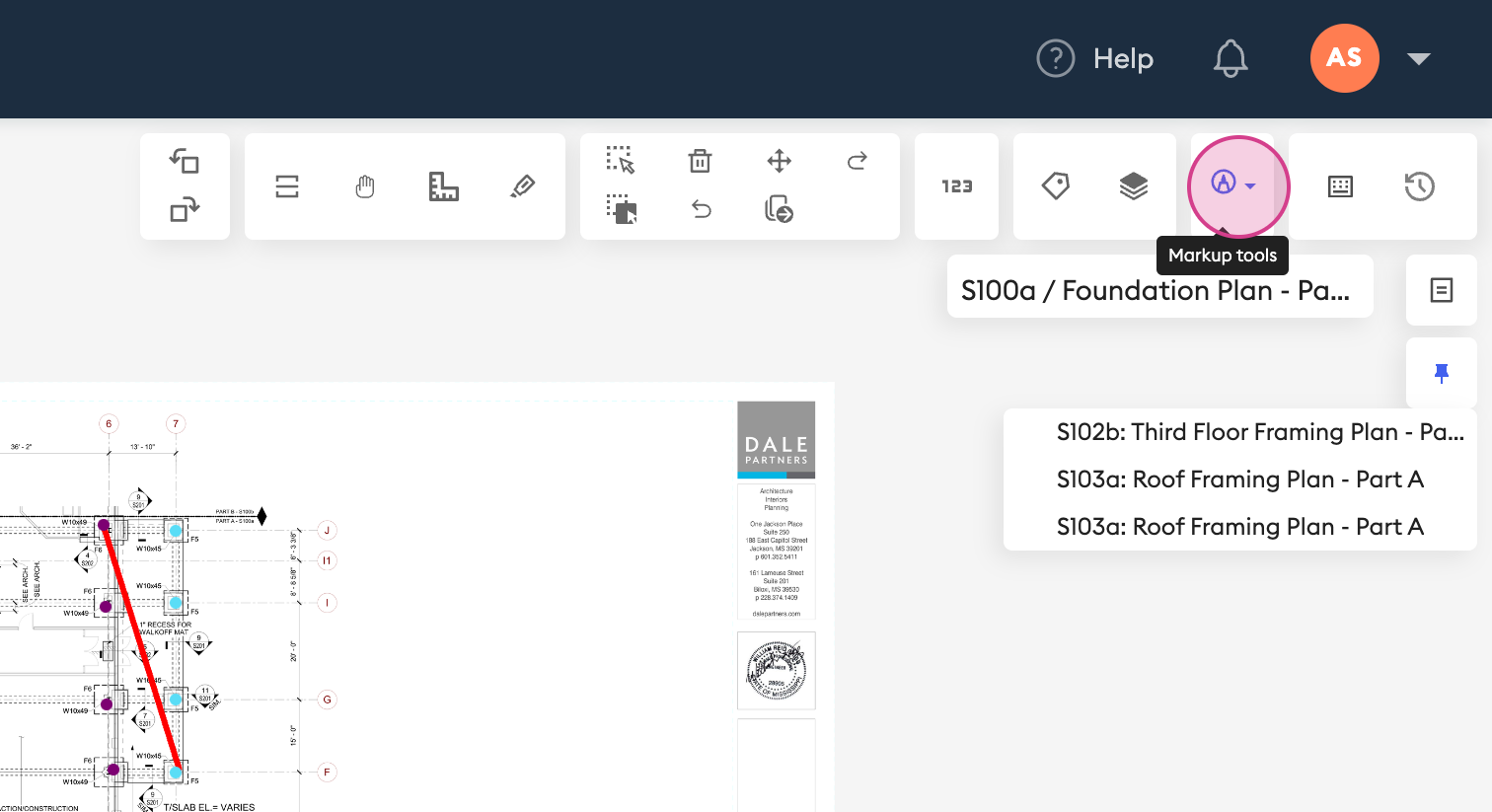
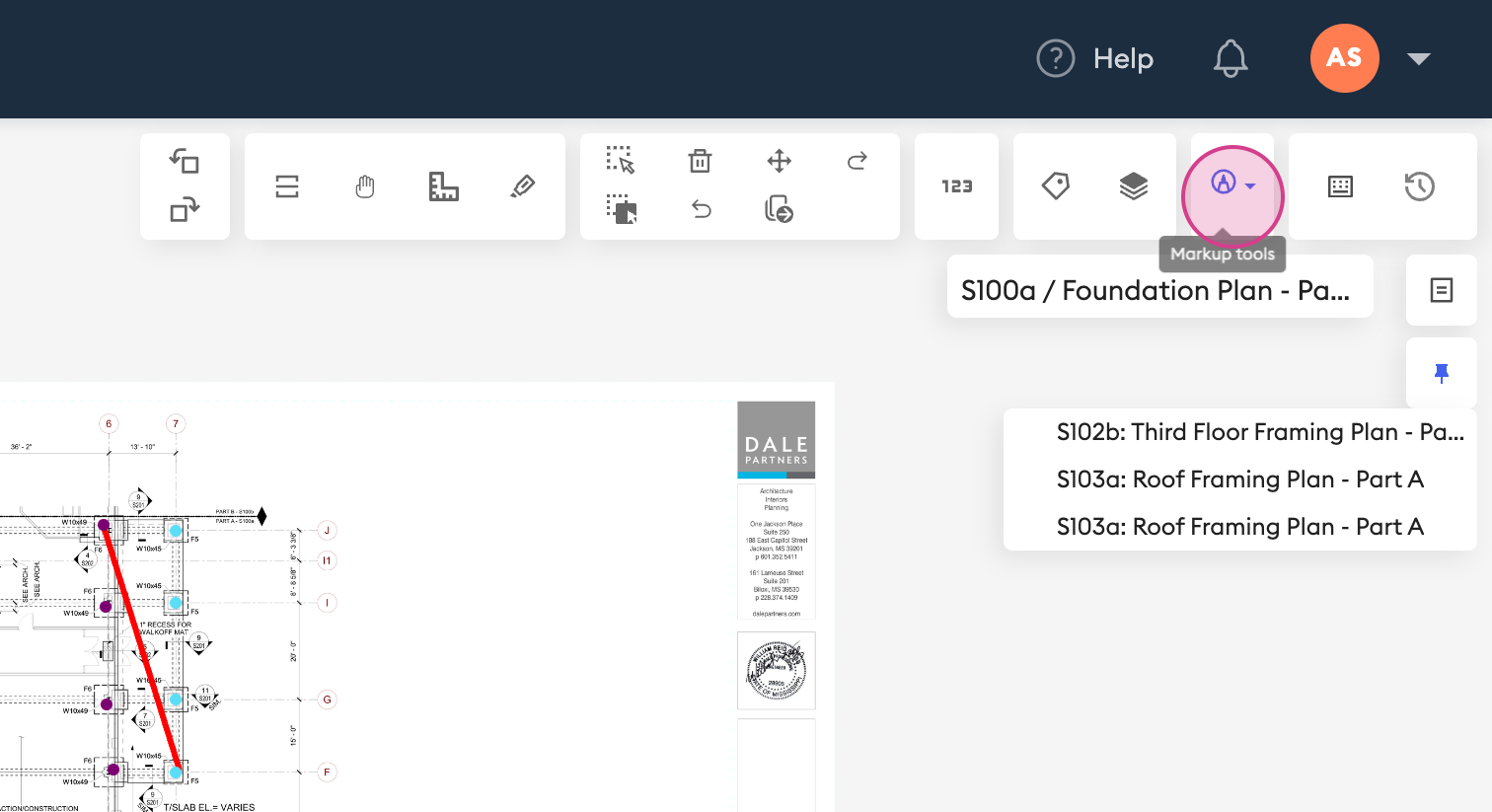
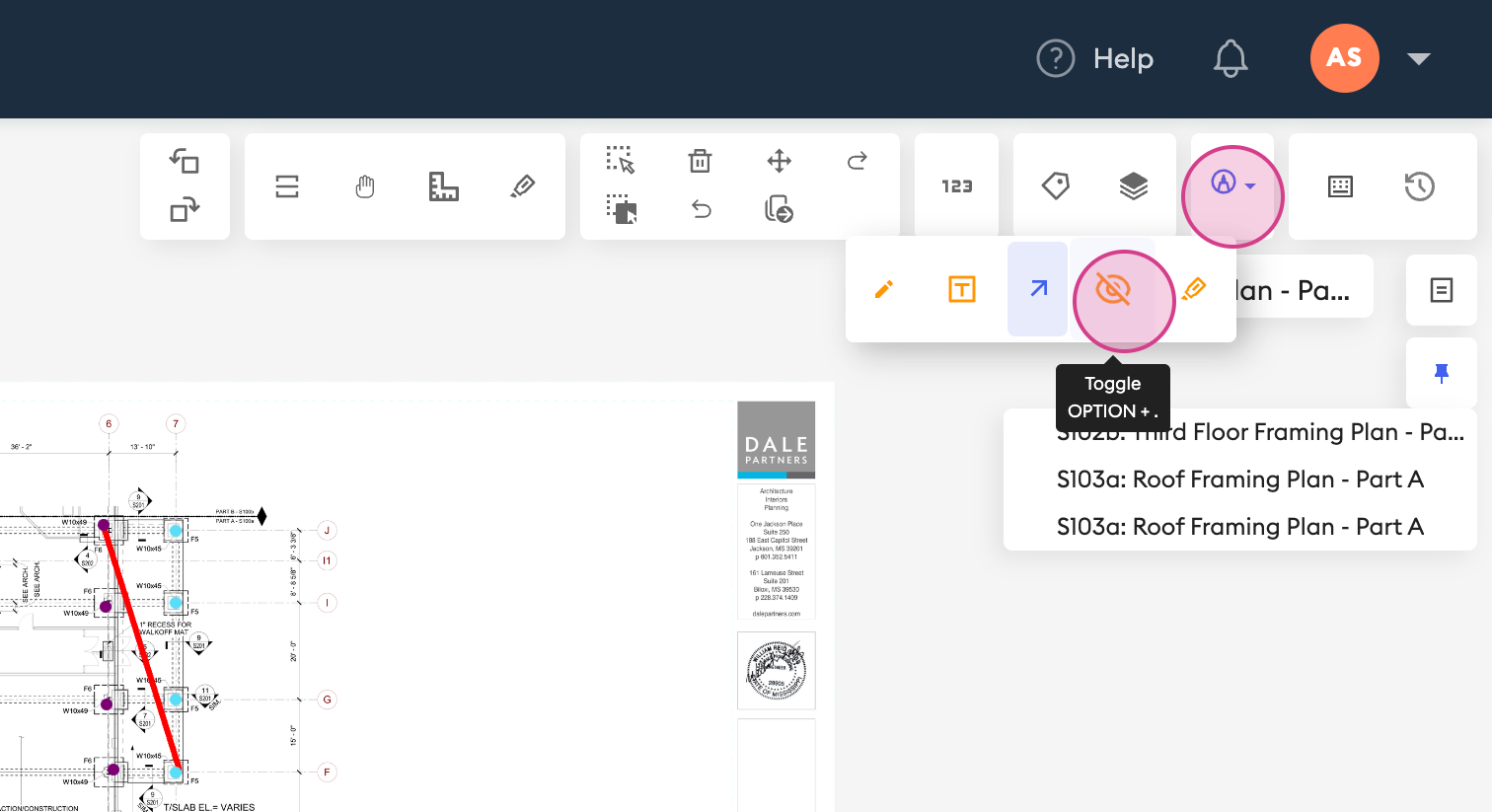
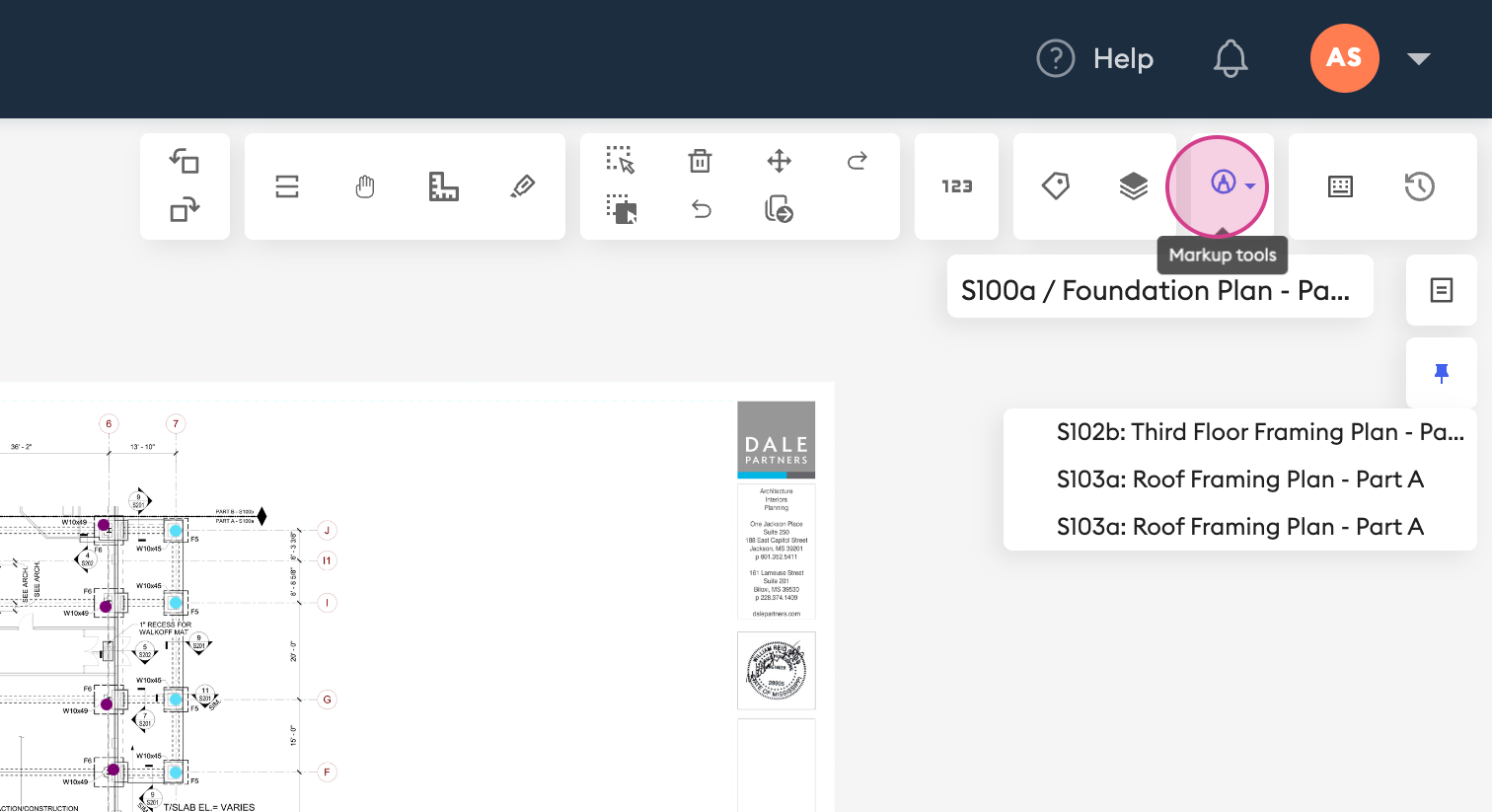
Step 2: This reveals the full toolbar, including your new Markup tool option. Firstly, let’s explore the draw tool.
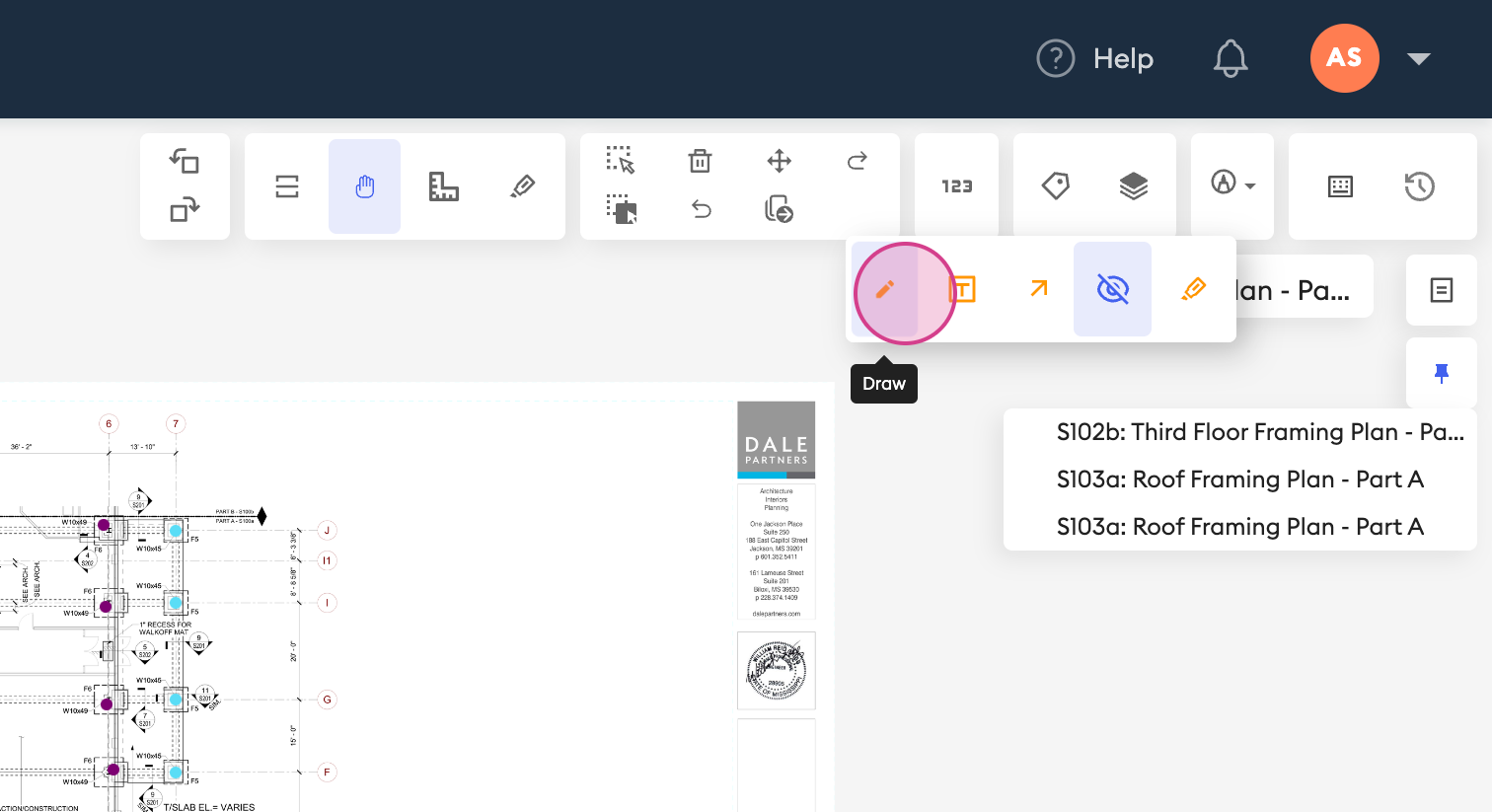
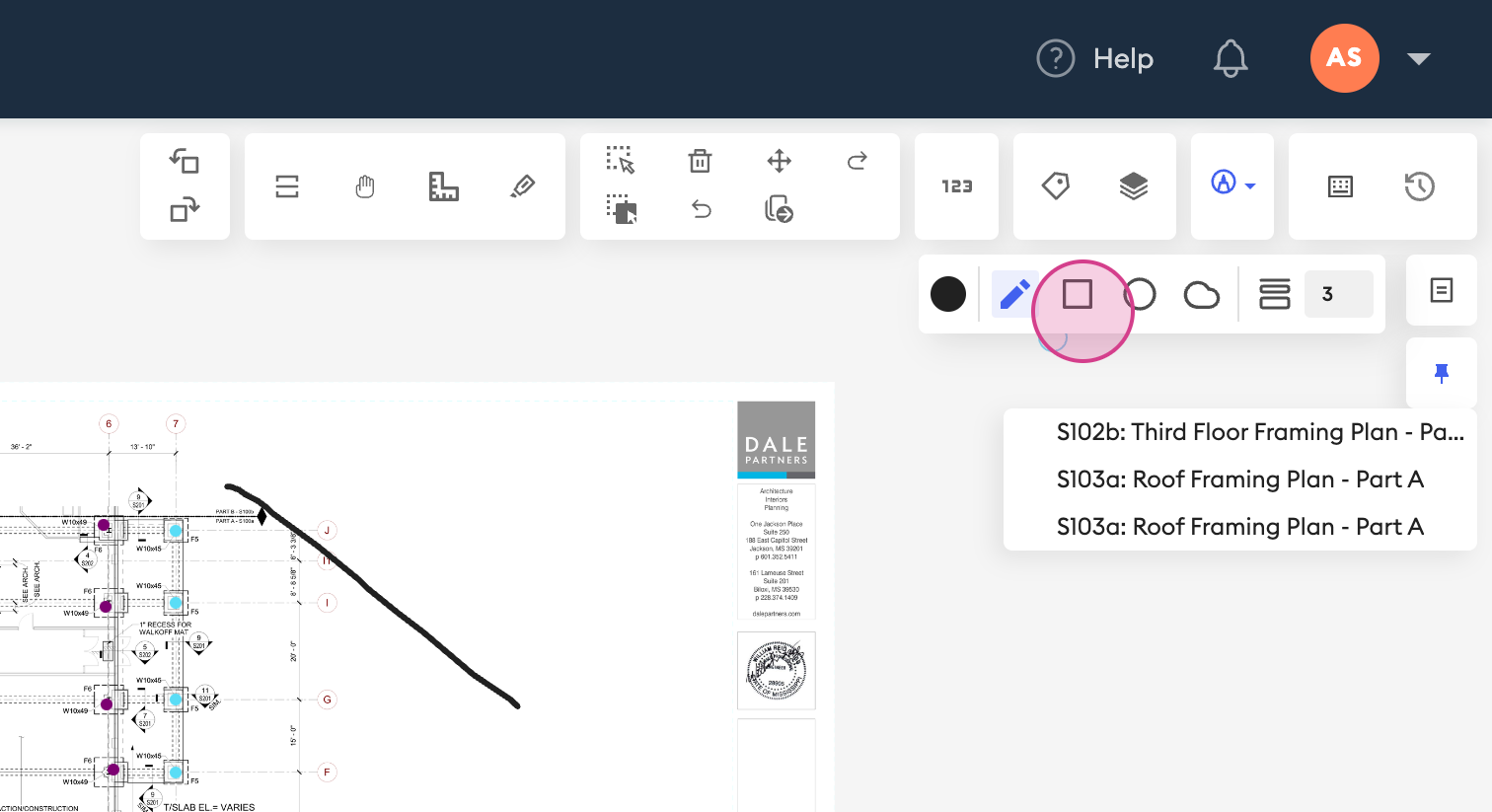
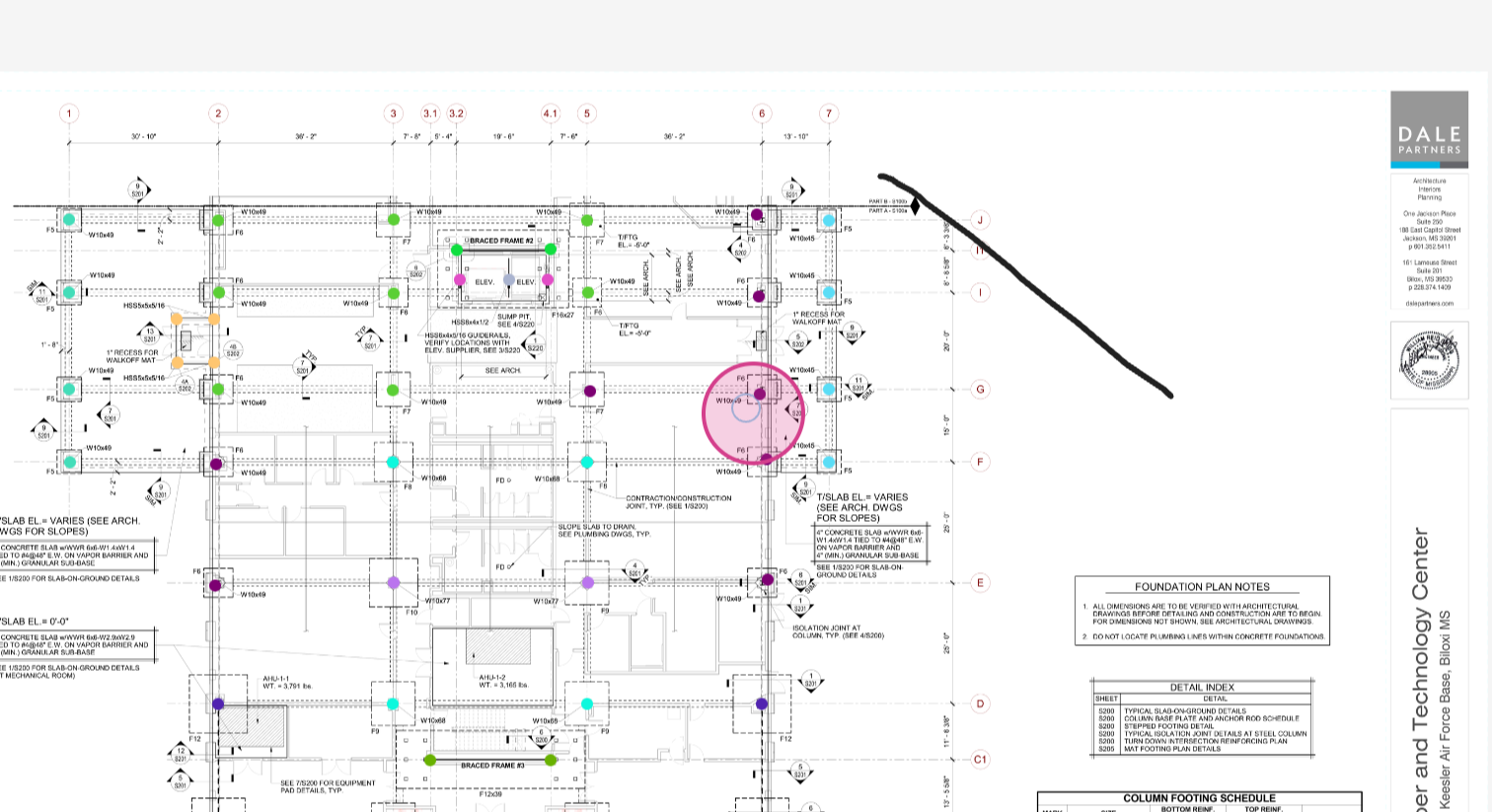
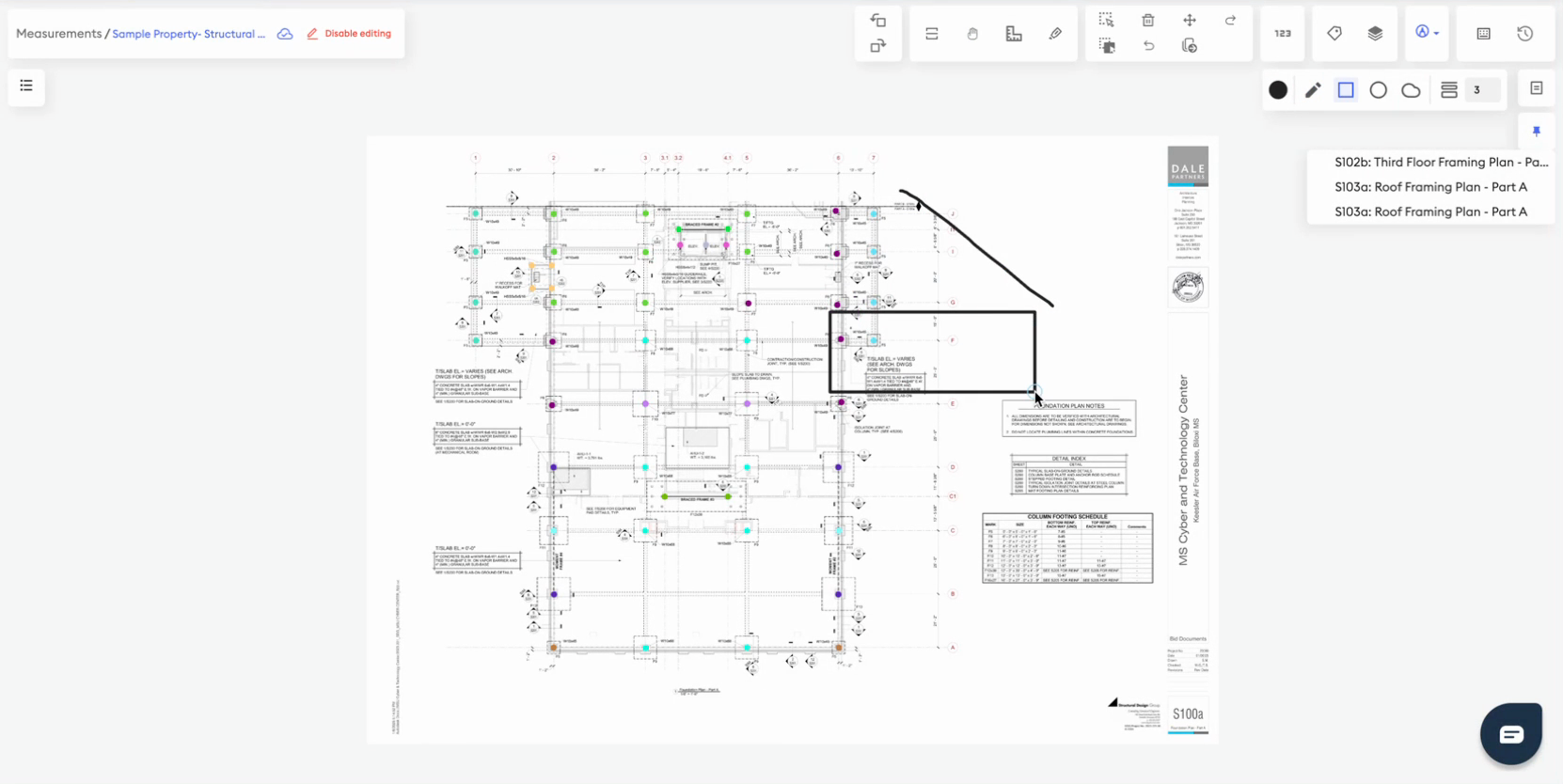
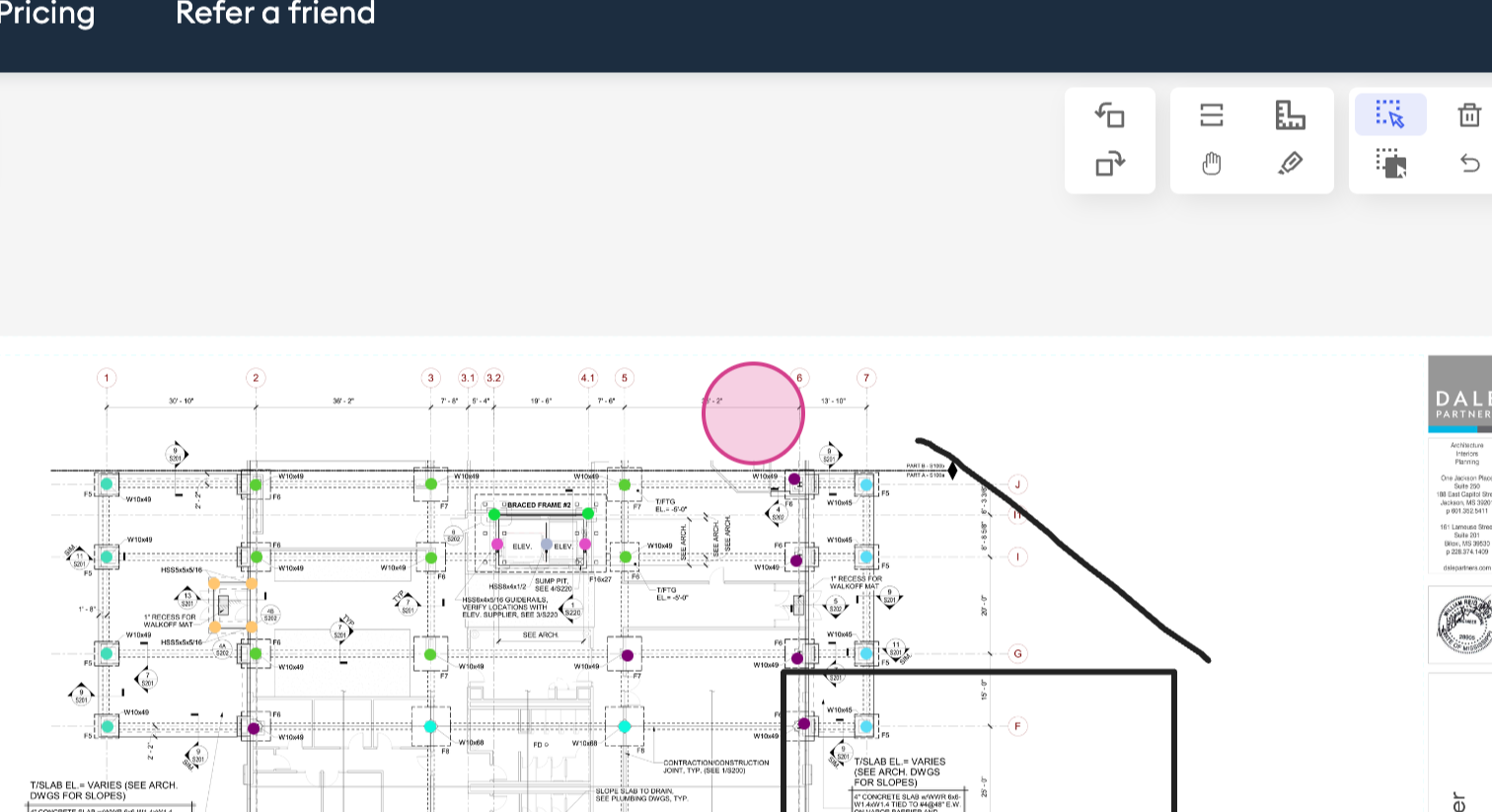
Step 3: Use this to sketch freeform lines or shapes directly on your sheet. Please note: These aren’t measurements, they’re just for visual notes or quick highlights.
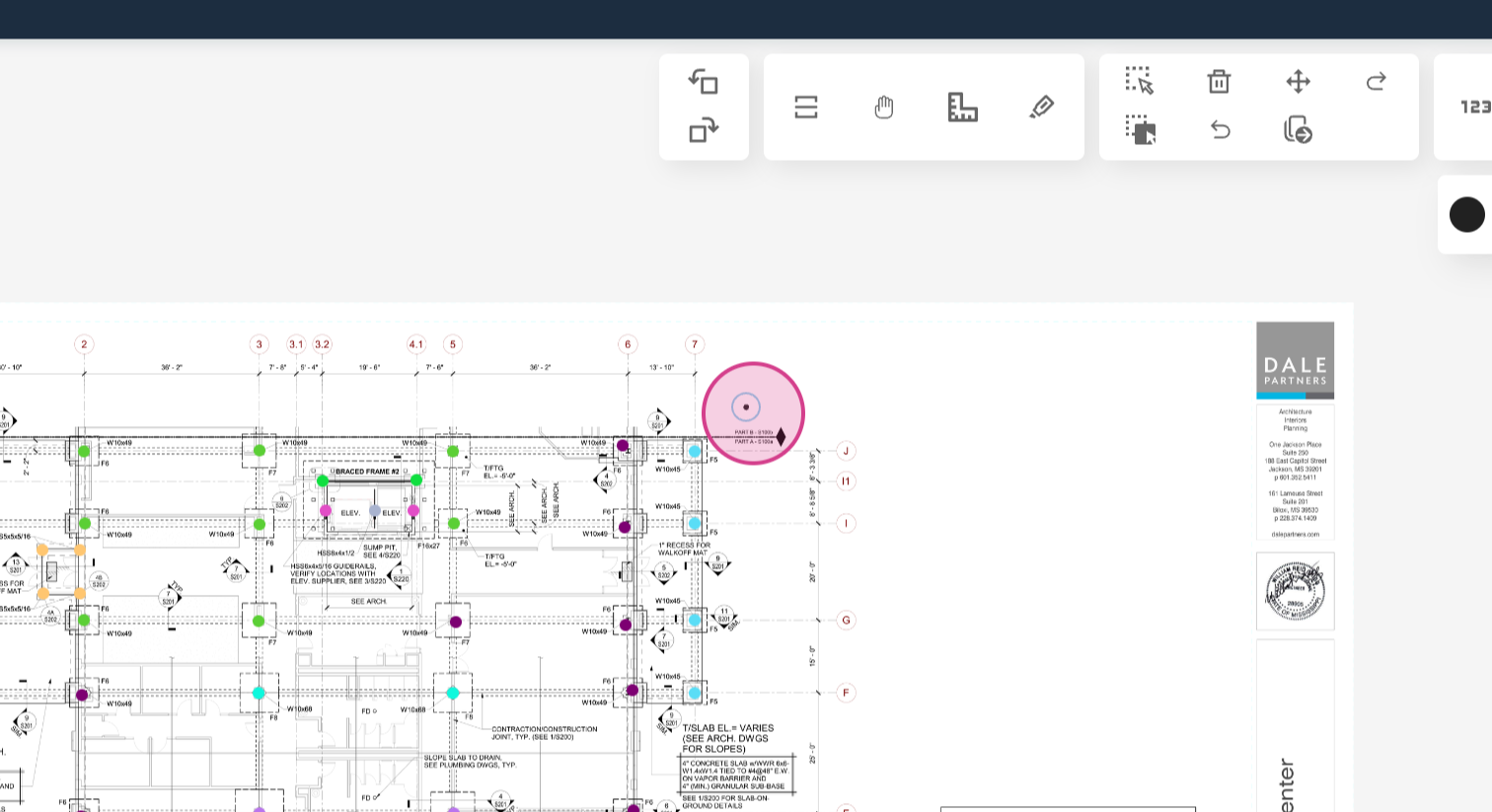
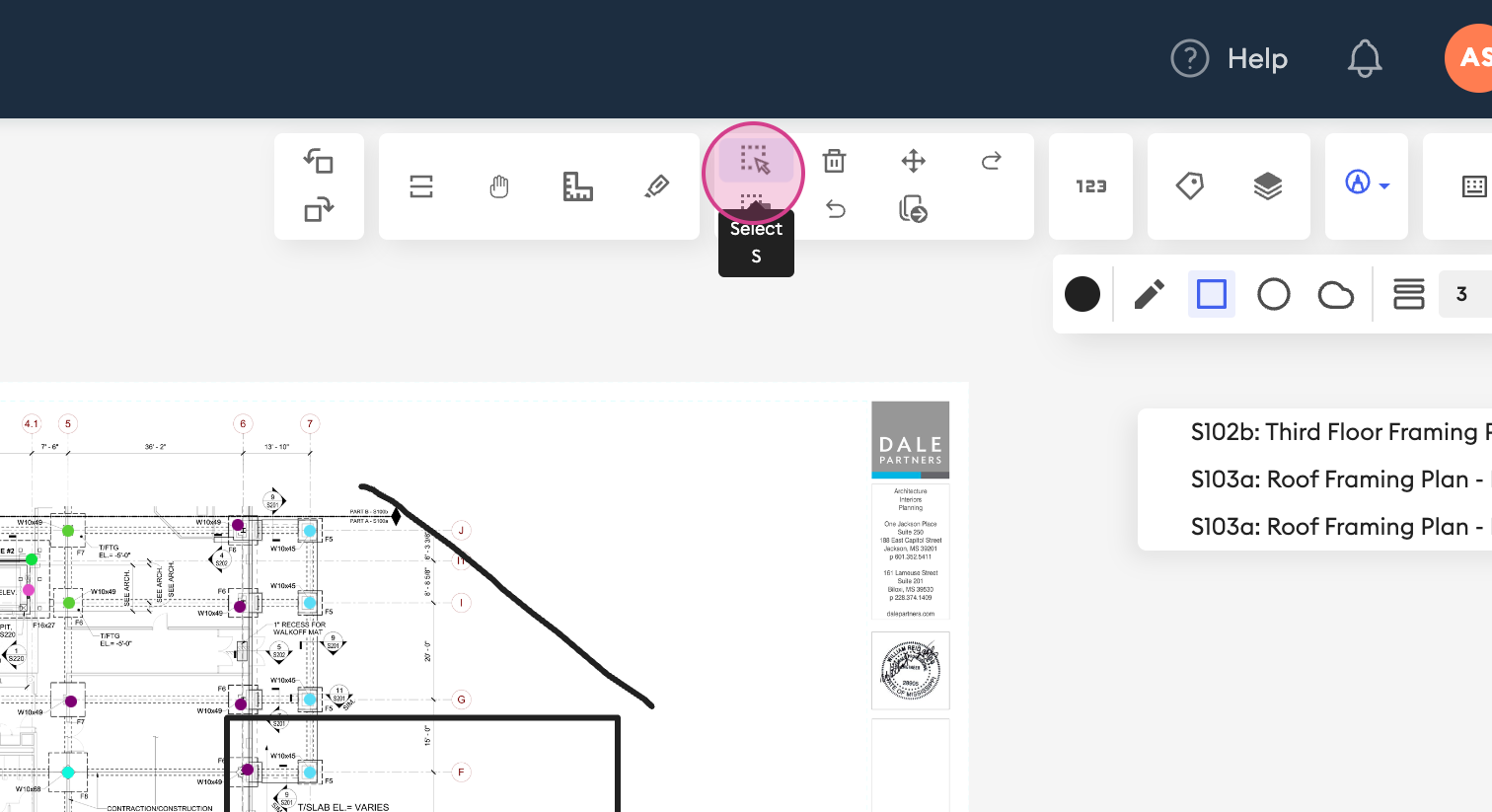
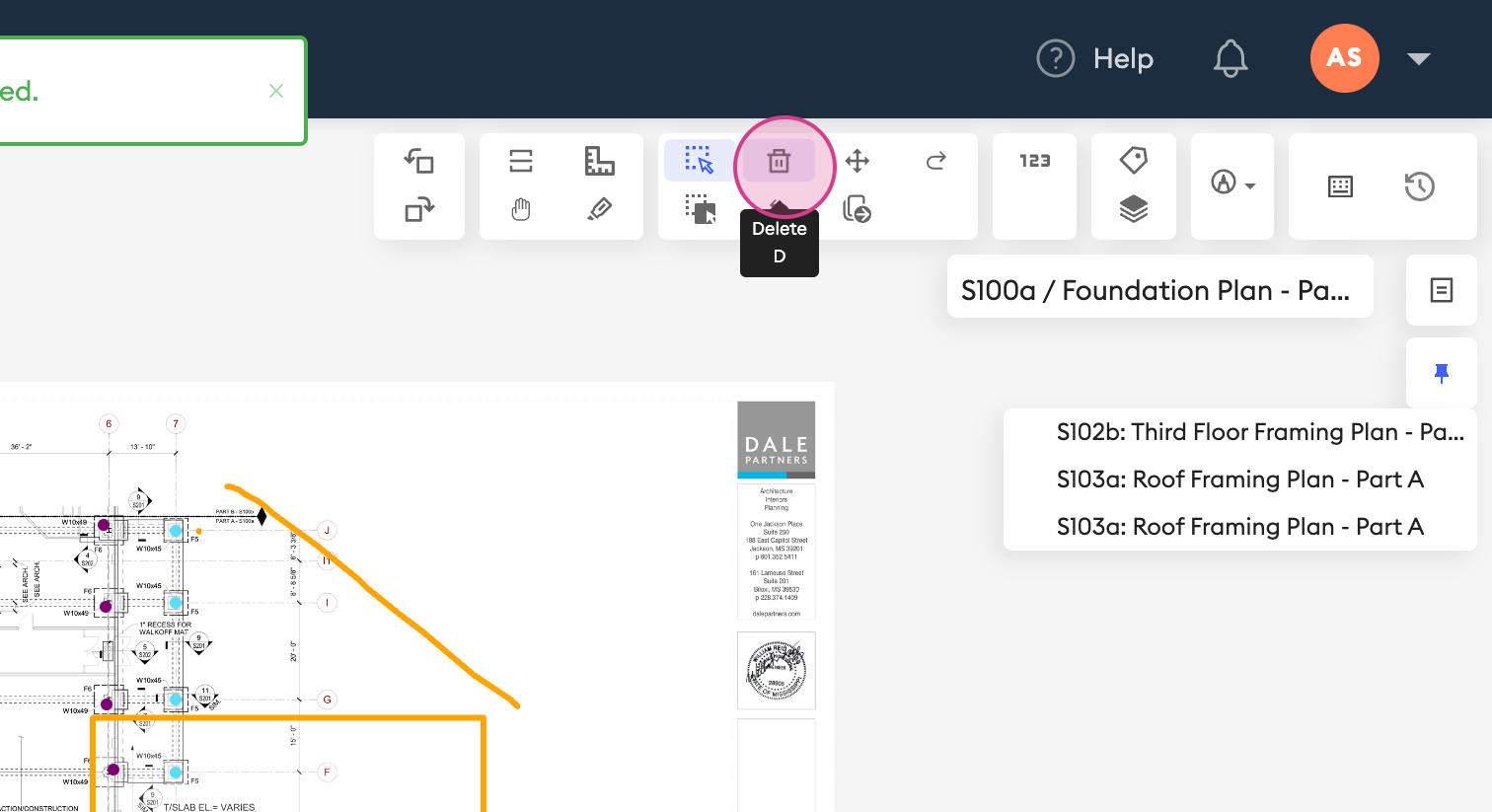
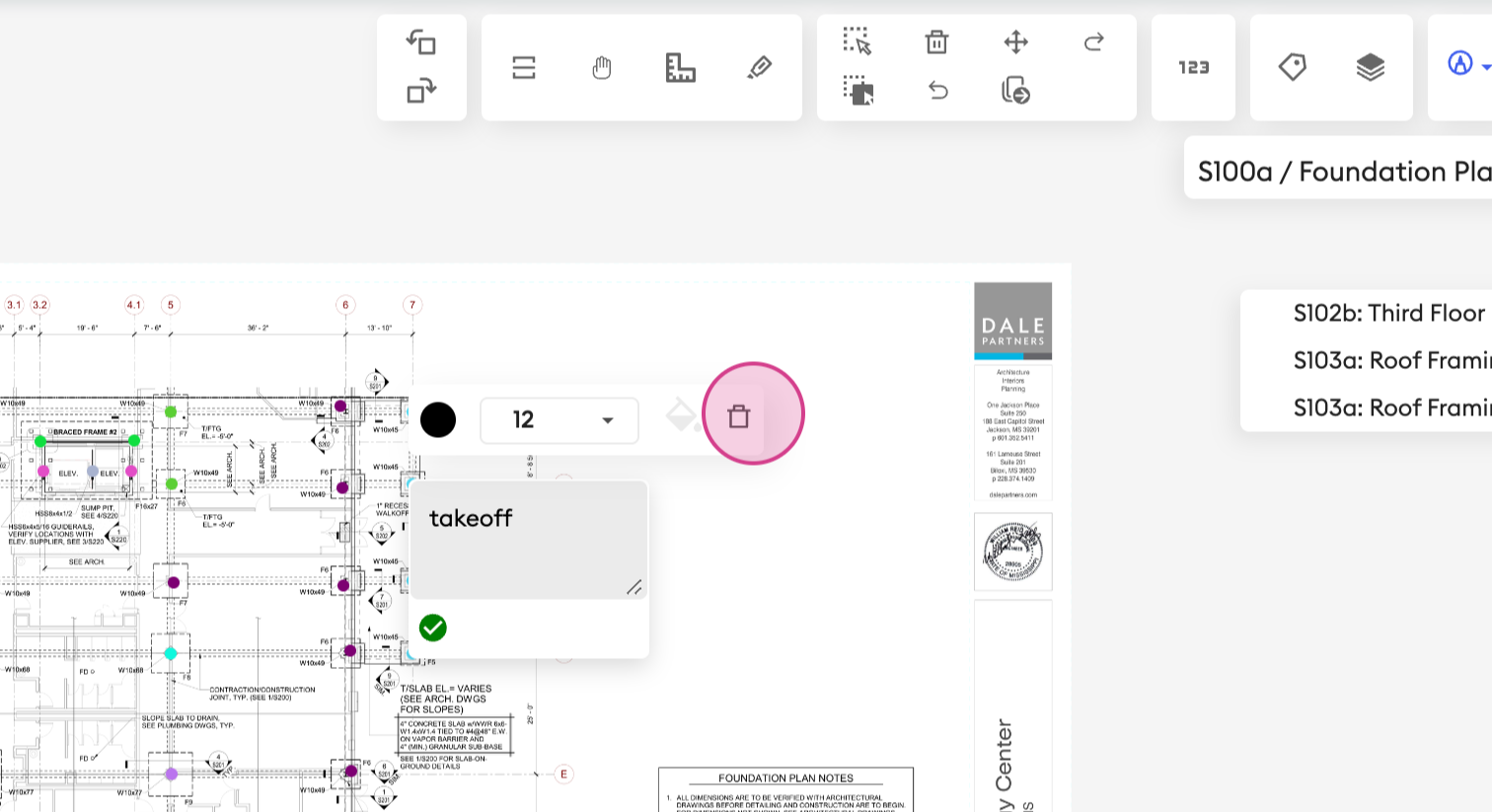
Step 4: Additionally, you can delete them by selecting the elements you wish to remove by clicking on the delete option.
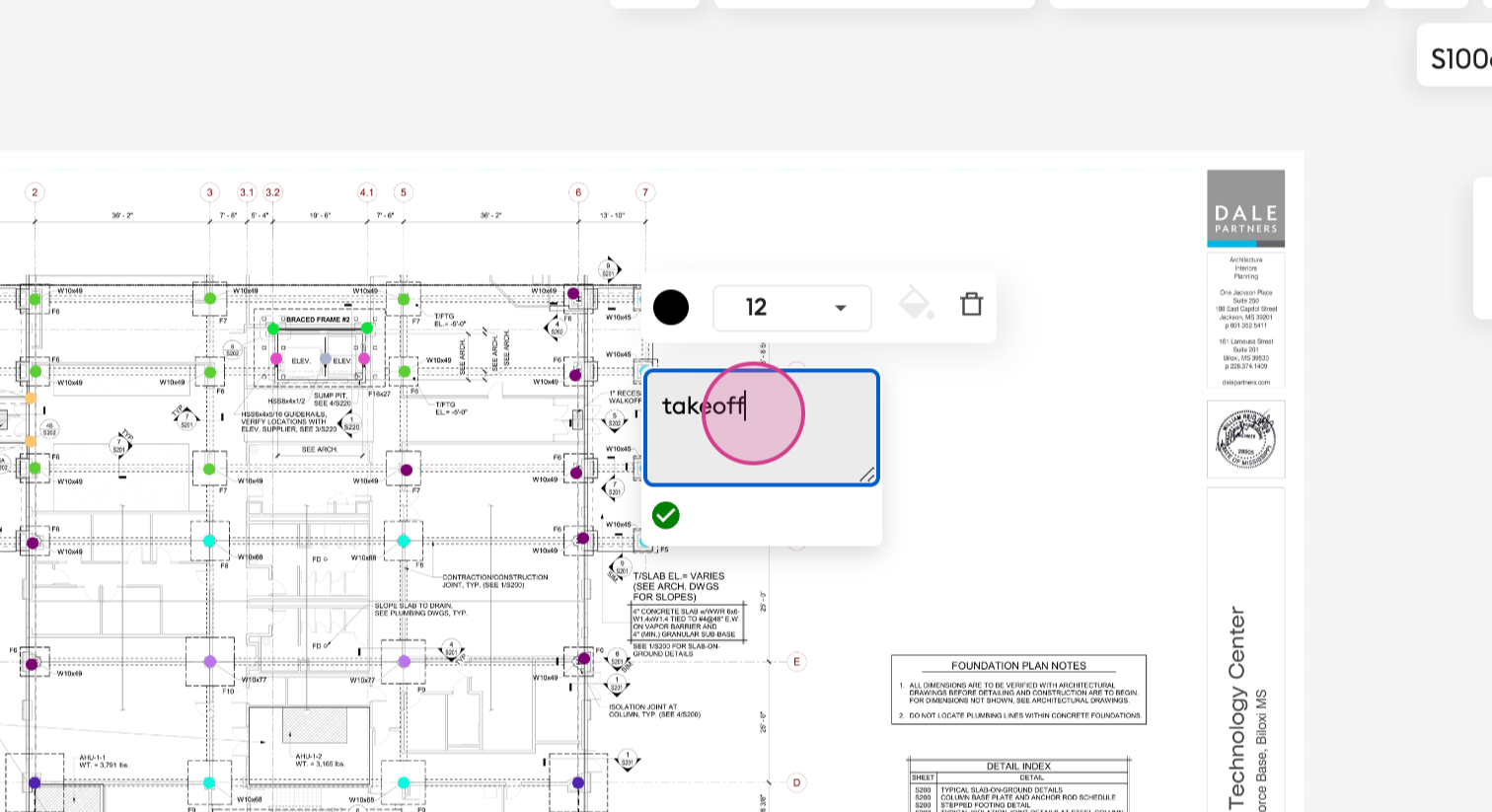
Step 5: Next is the Text Box tool. Click anywhere to place a text box and start typing. This feature is perfect for adding comments, instructions, or quick reminders.

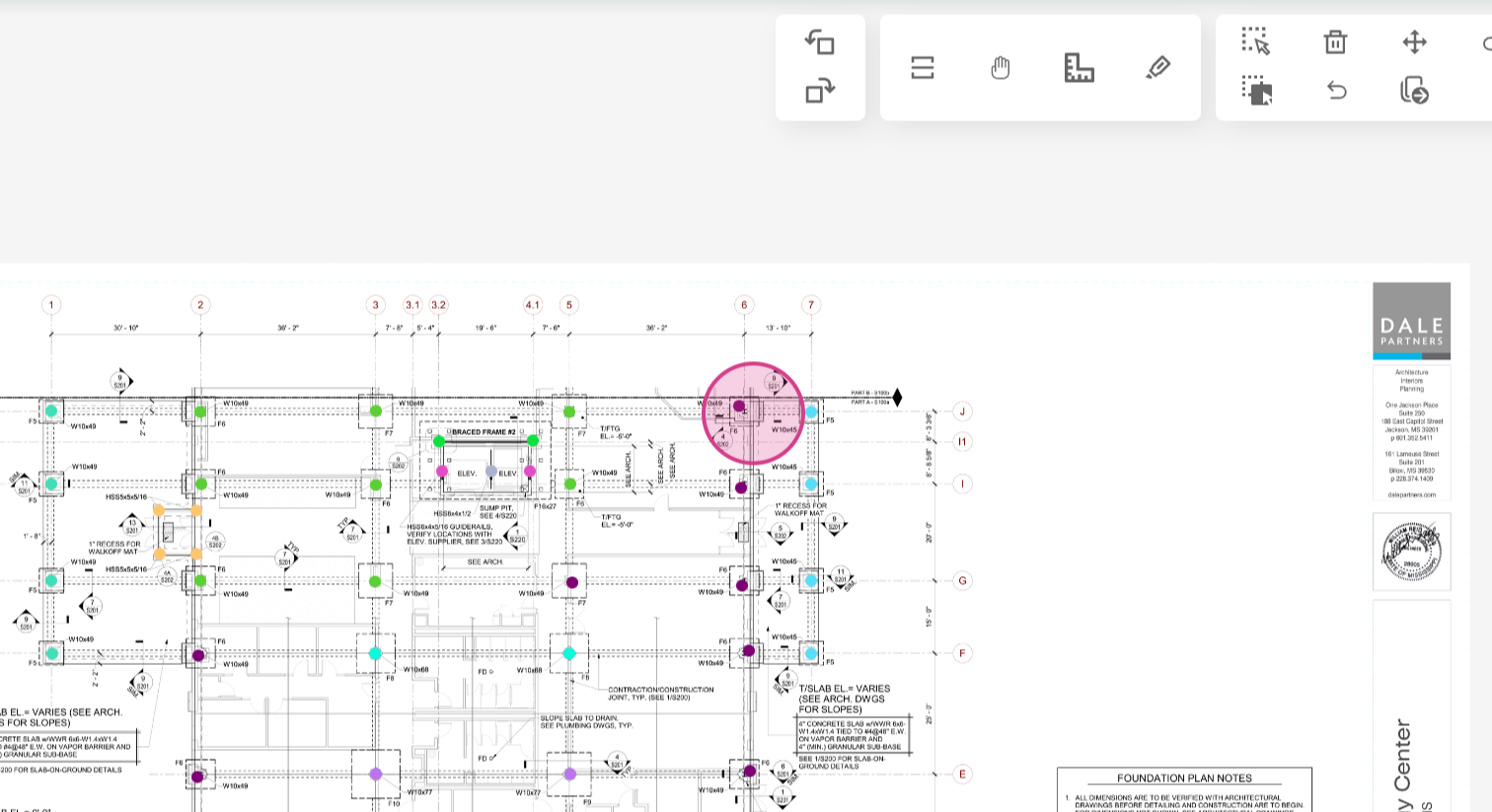
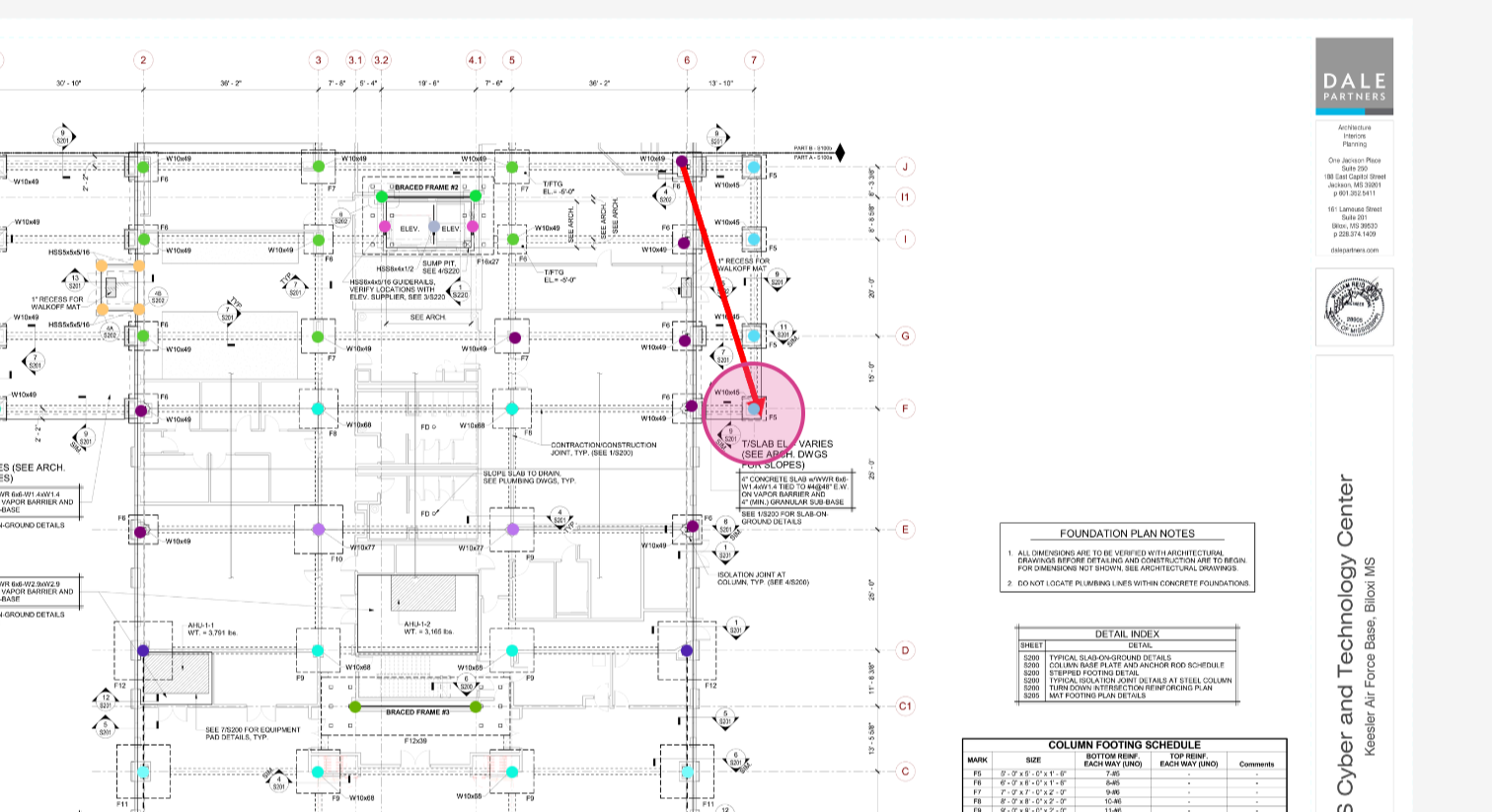
Step 6: Need to point something out within the takeoff quickly. You can use the Arrow Tool for it. Just click and drag, and get it done.
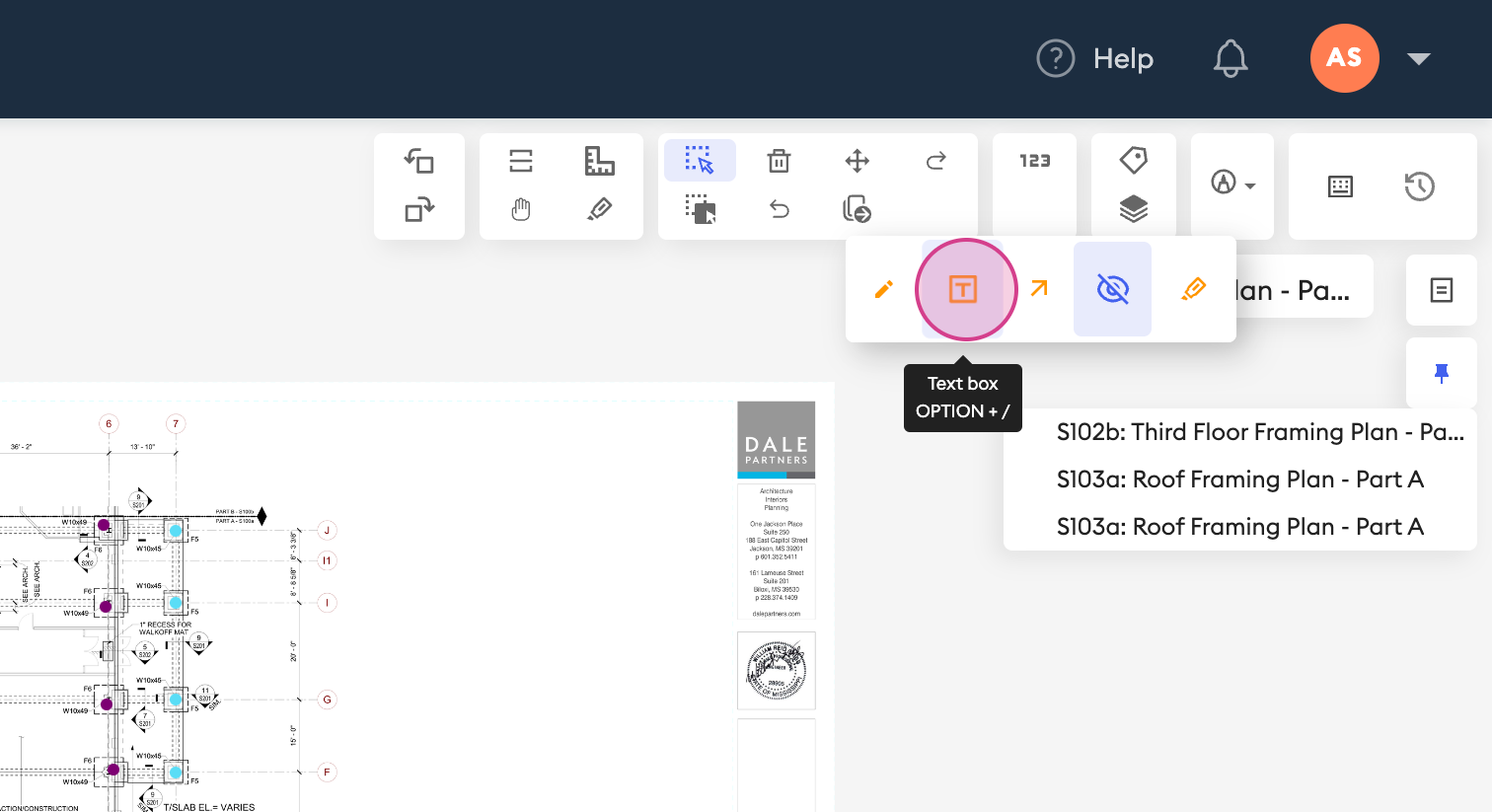
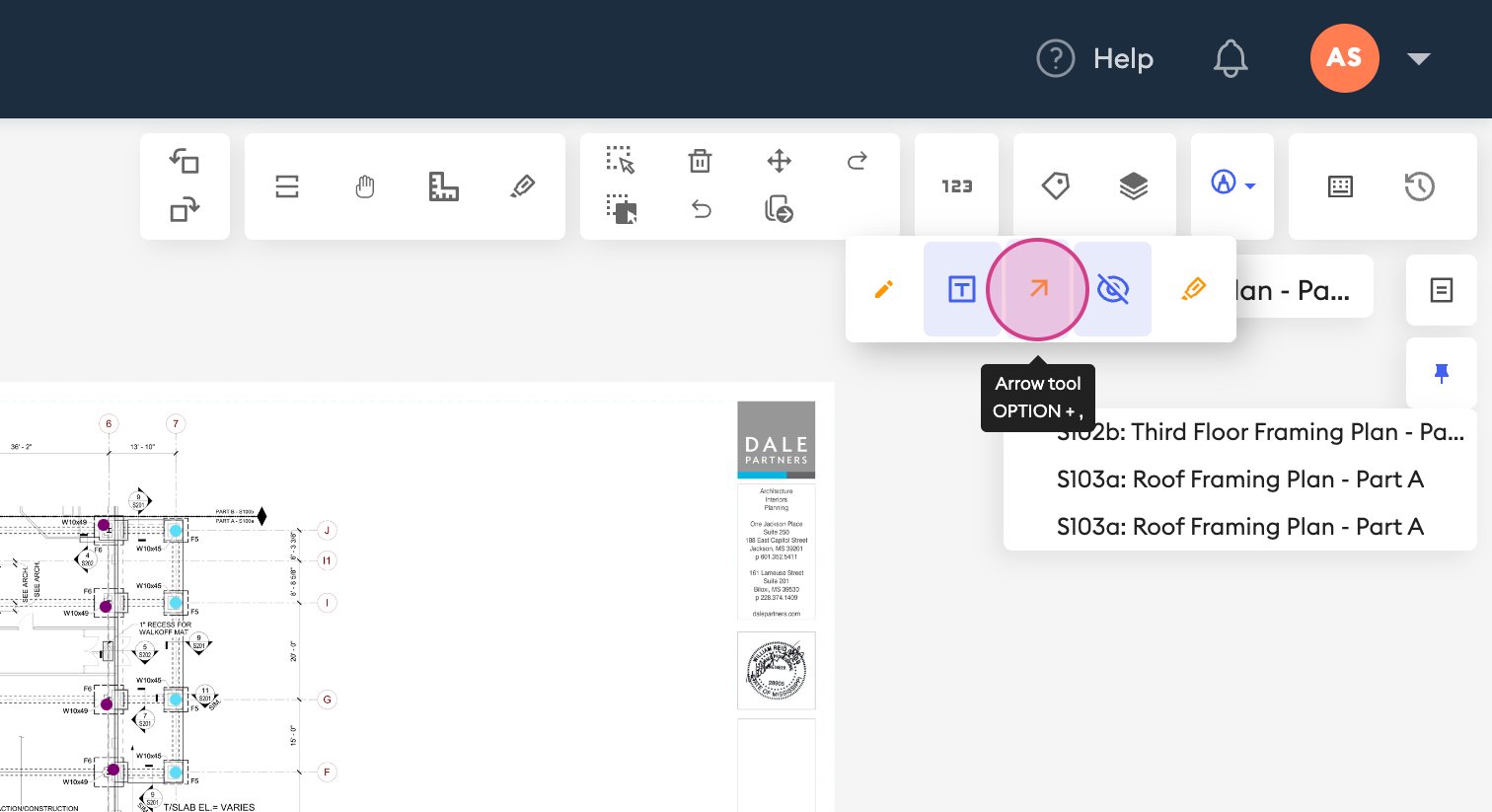
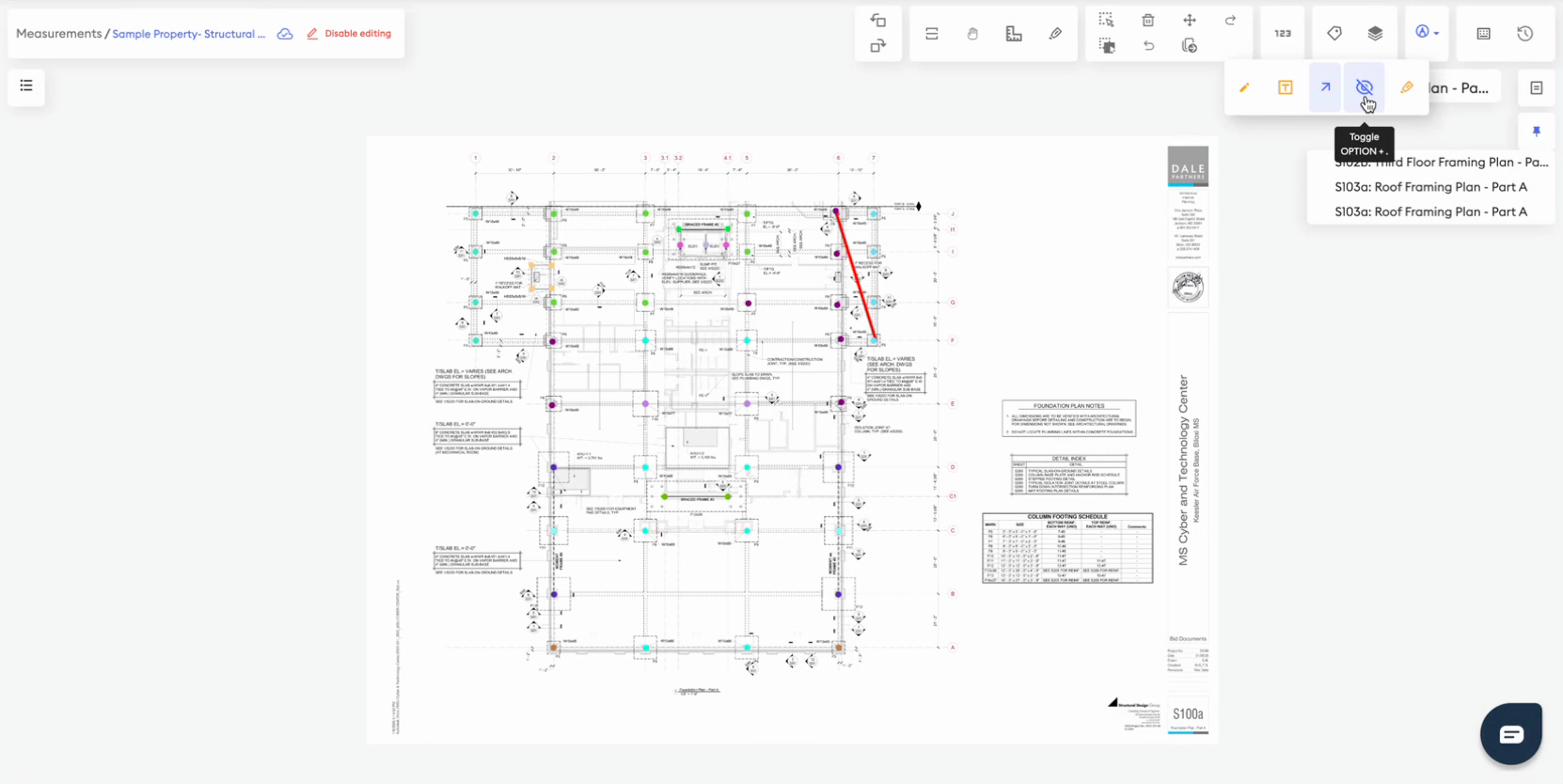
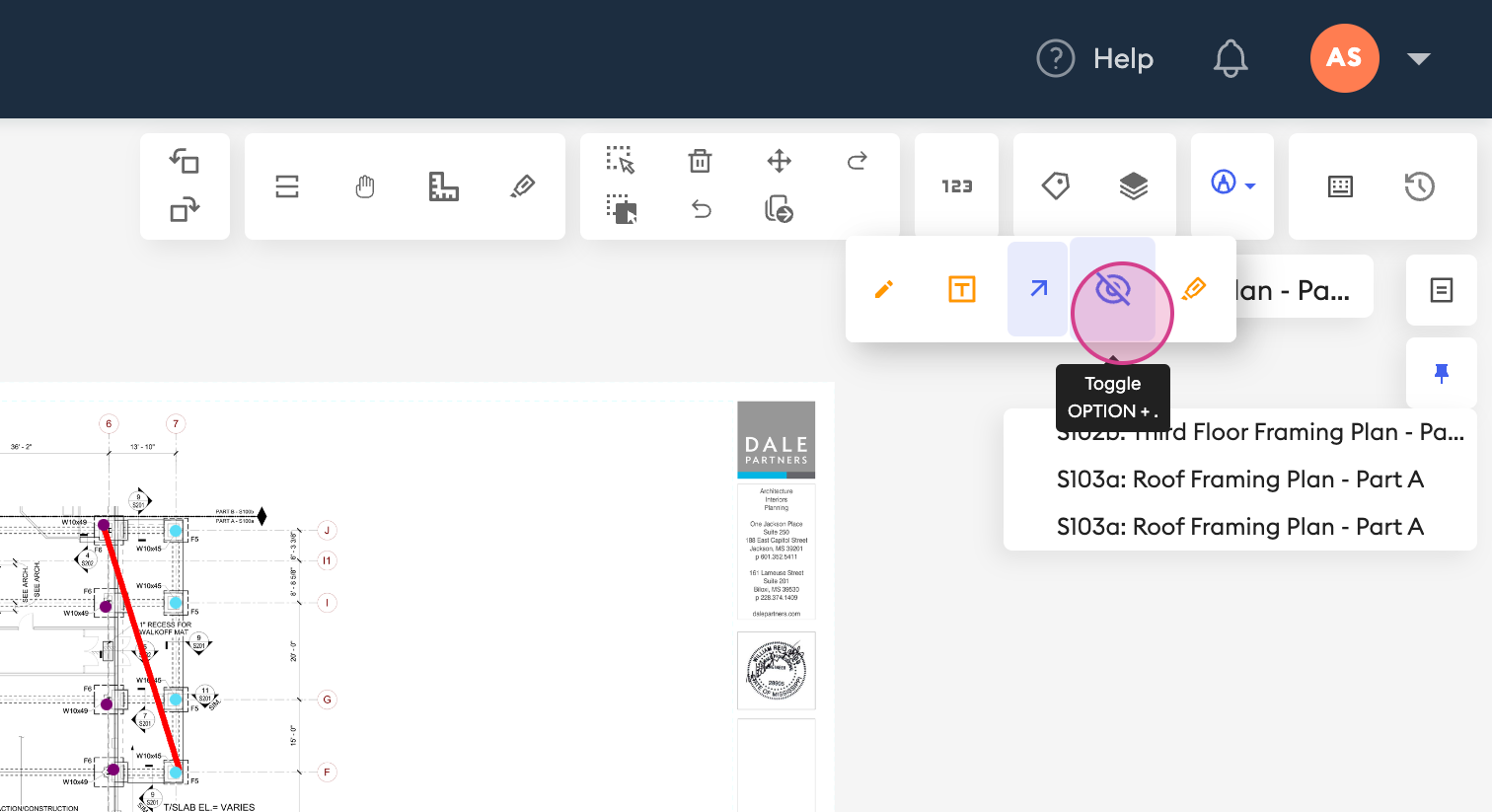
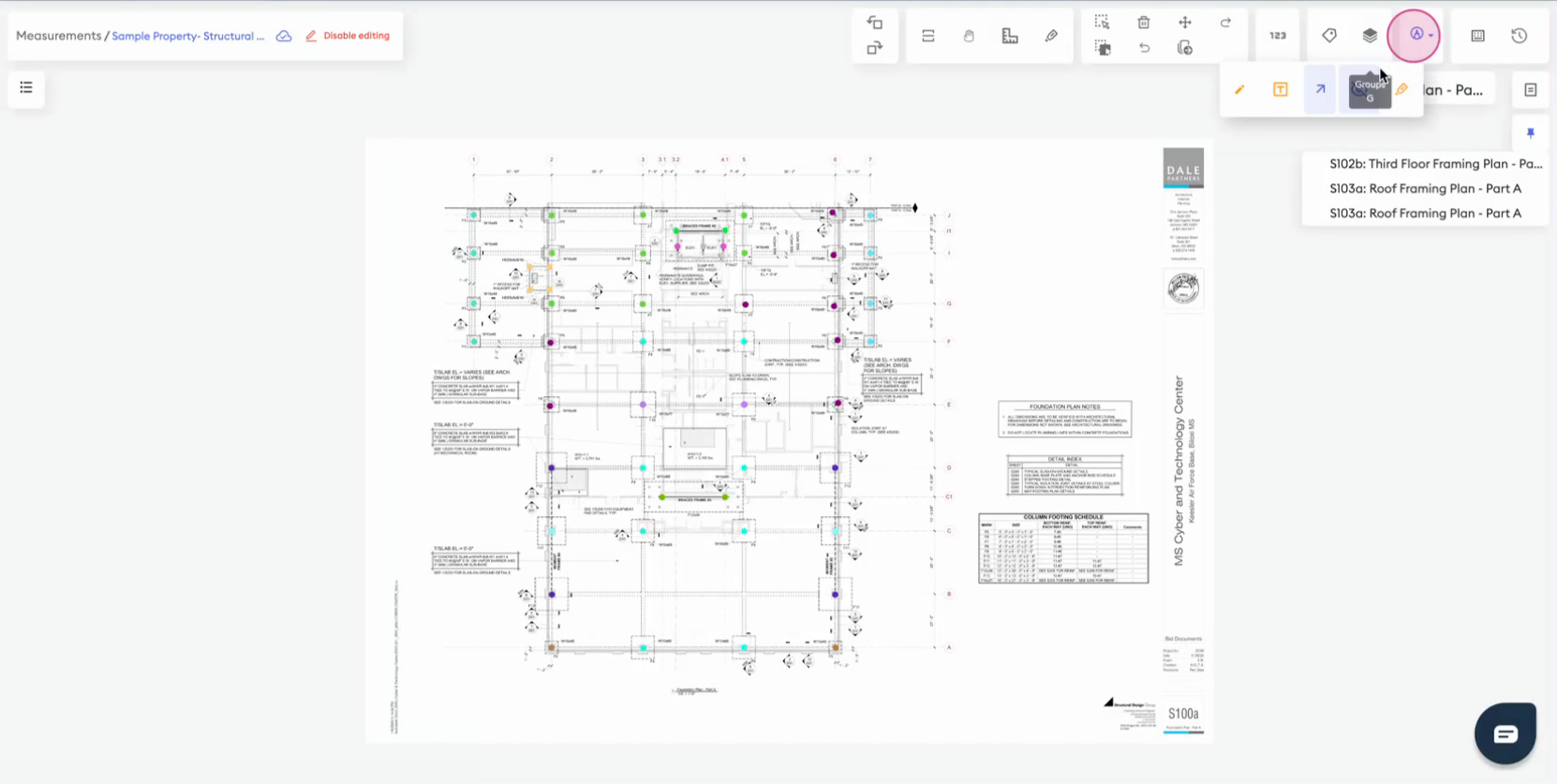
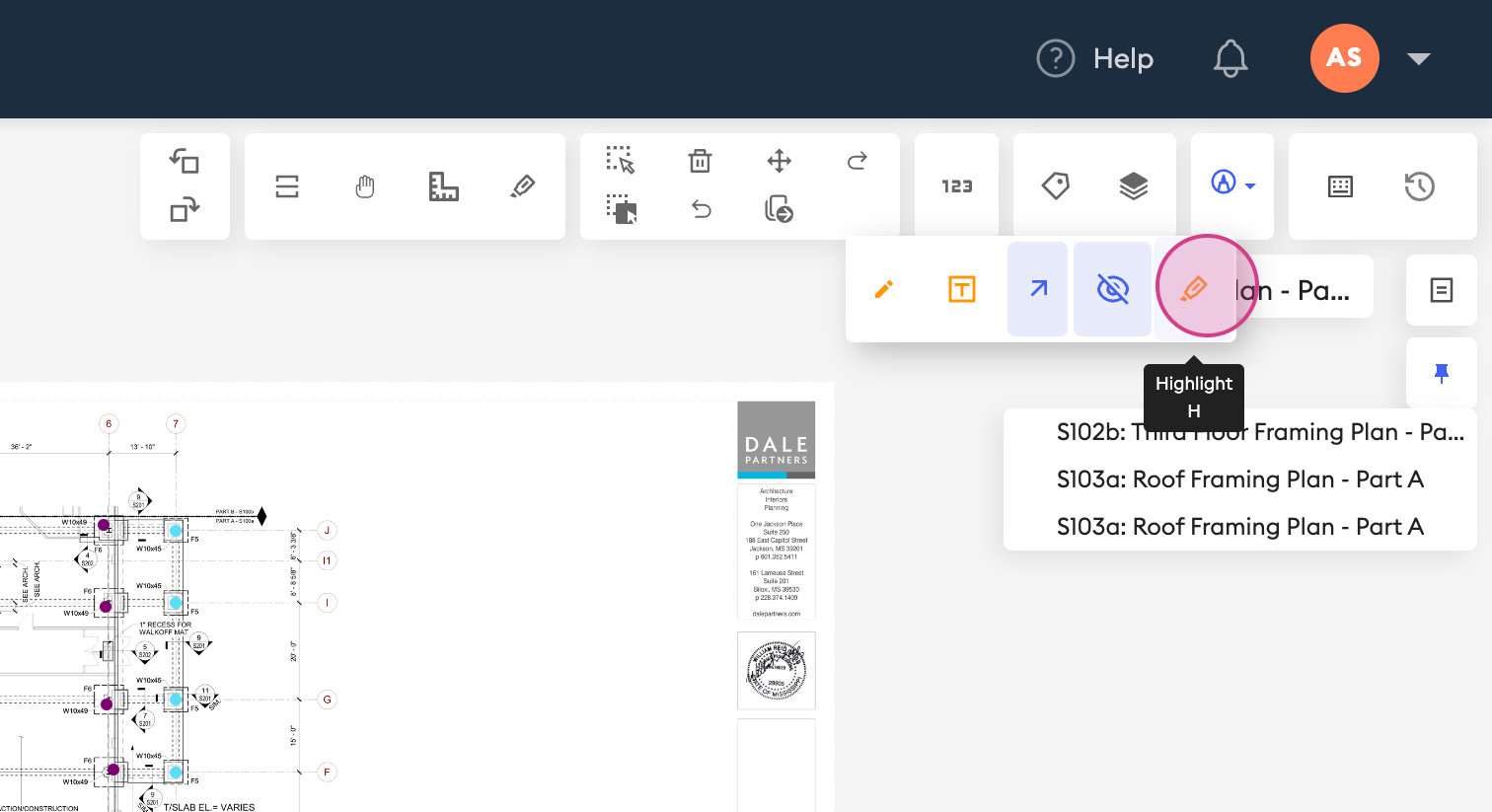
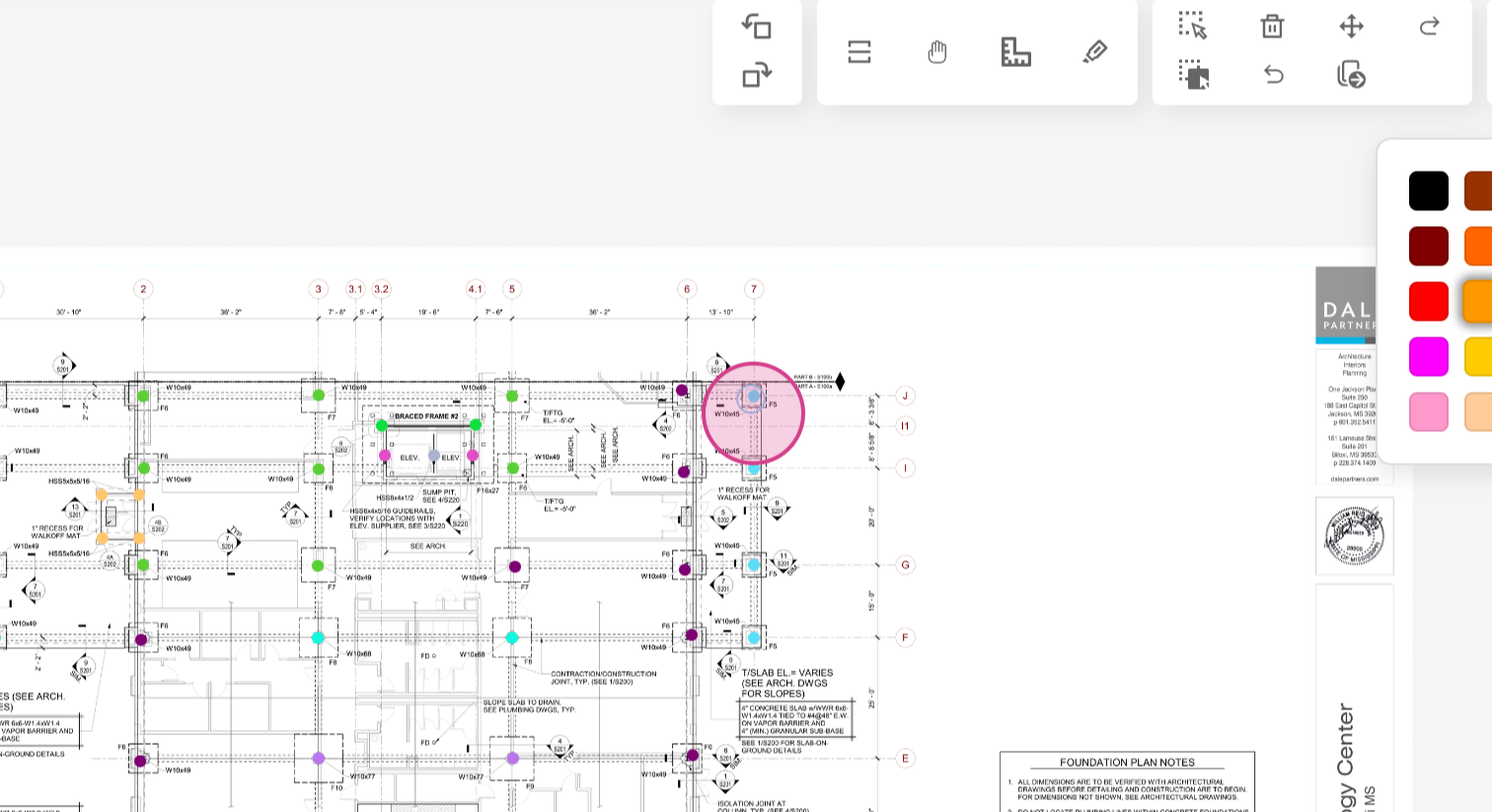
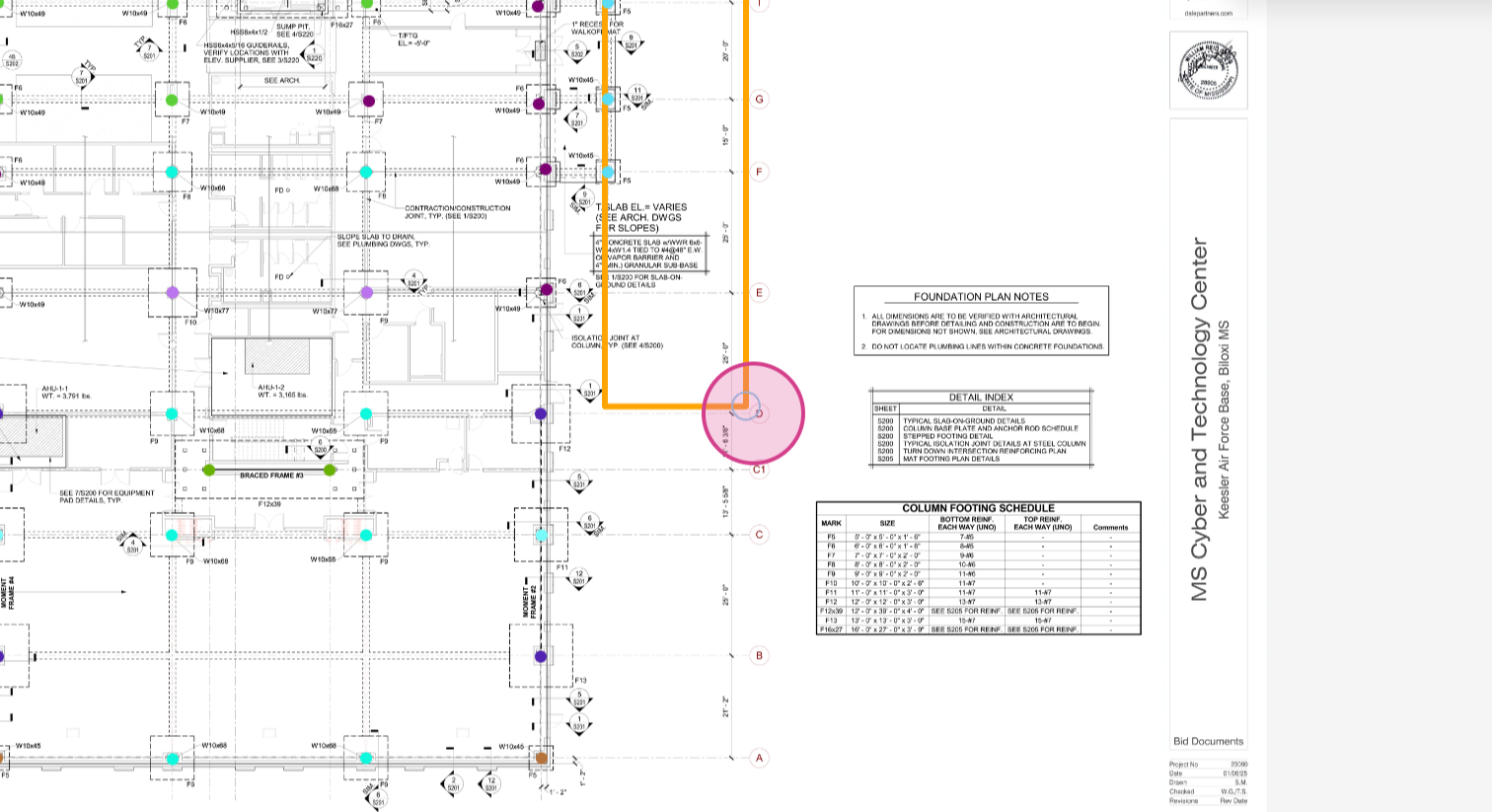
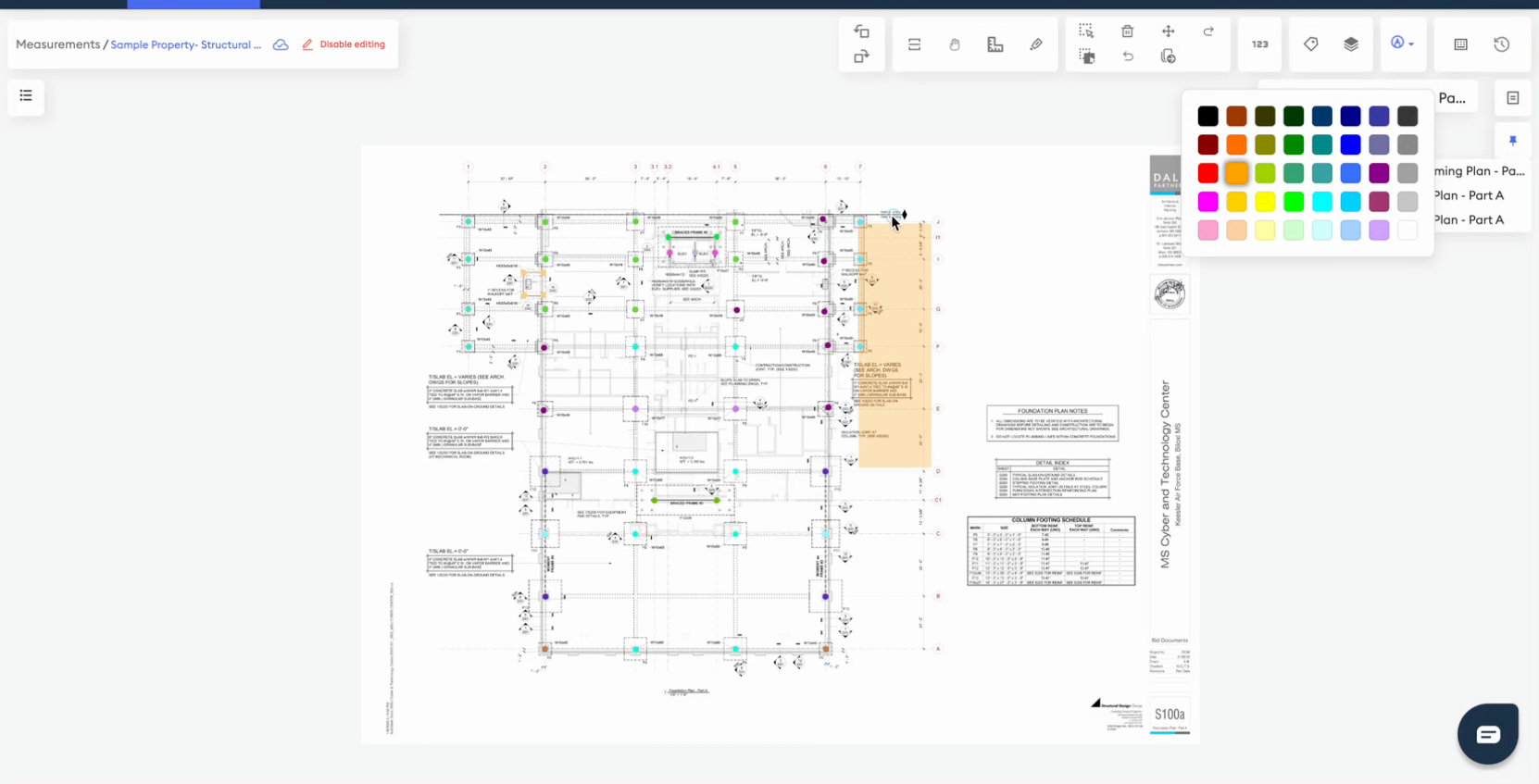
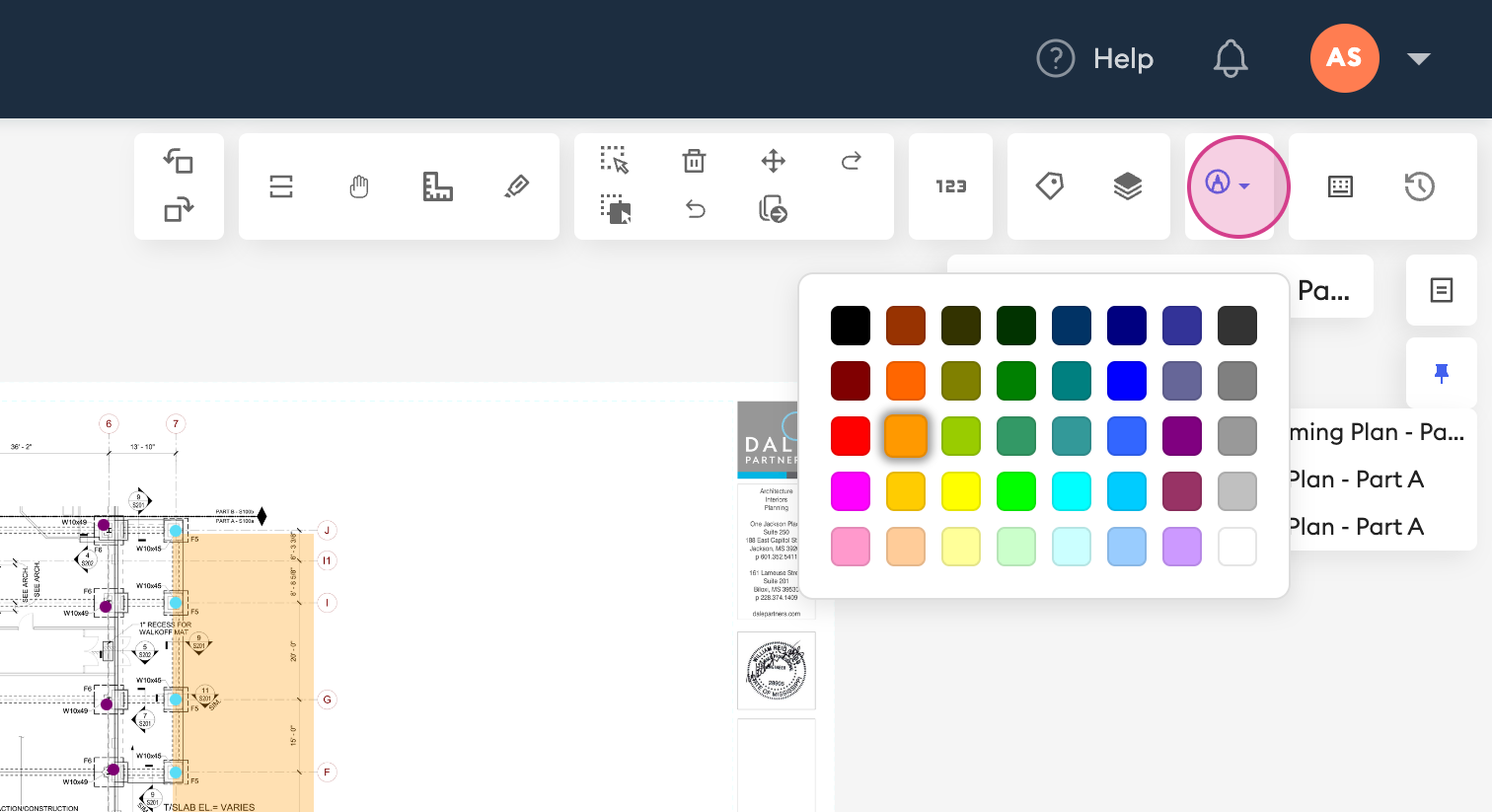
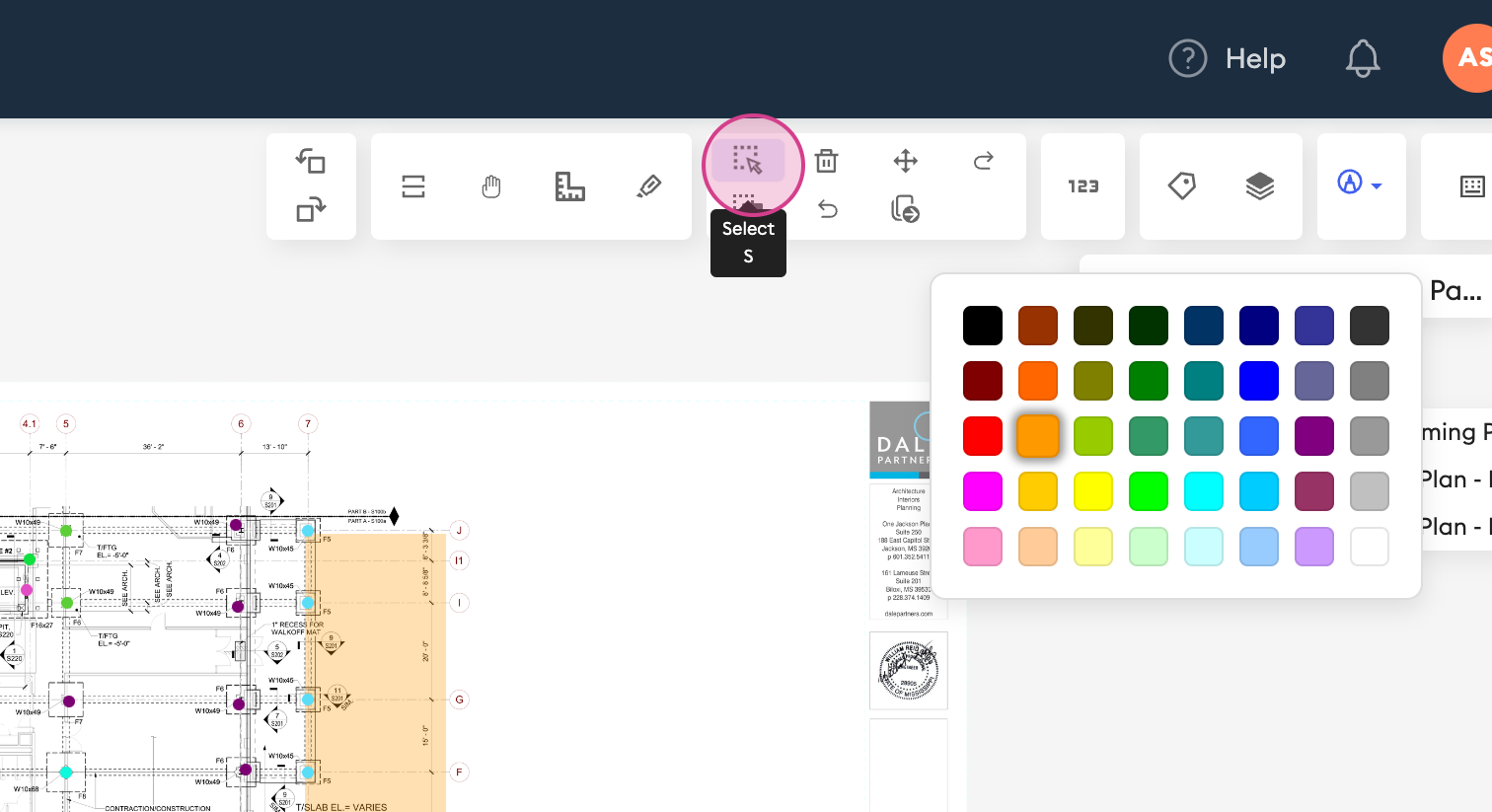
Next, you can use the Highlight tool to create color-coded boxes around key areas to highlight them. You can change the color too.
And that’s it! From freehand drawings to team notes, the Markup Tool in Beam AI gives you everything you need for fast, effective collaboration on your plans.
Was this article helpful?
That’s Great!
Thank you for your feedback
Sorry! We couldn't be helpful
Thank you for your feedback
Feedback sent
We appreciate your effort and will try to fix the article