Hello! In this video, we're going to explore the editing toolbar new UI of the Beam AI platform.
We have various tools available in the editing toolbar, which can be categorized into two groups: those available when editing is enabled, and those available when editing is disabled. Let's start with the latter.
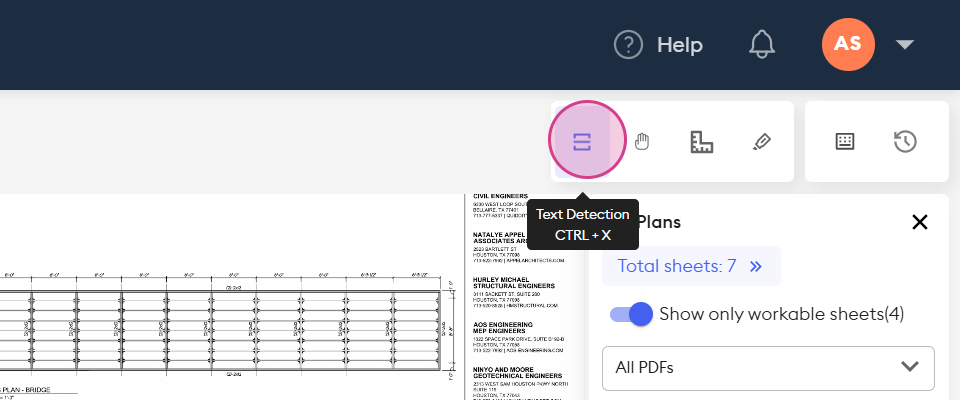
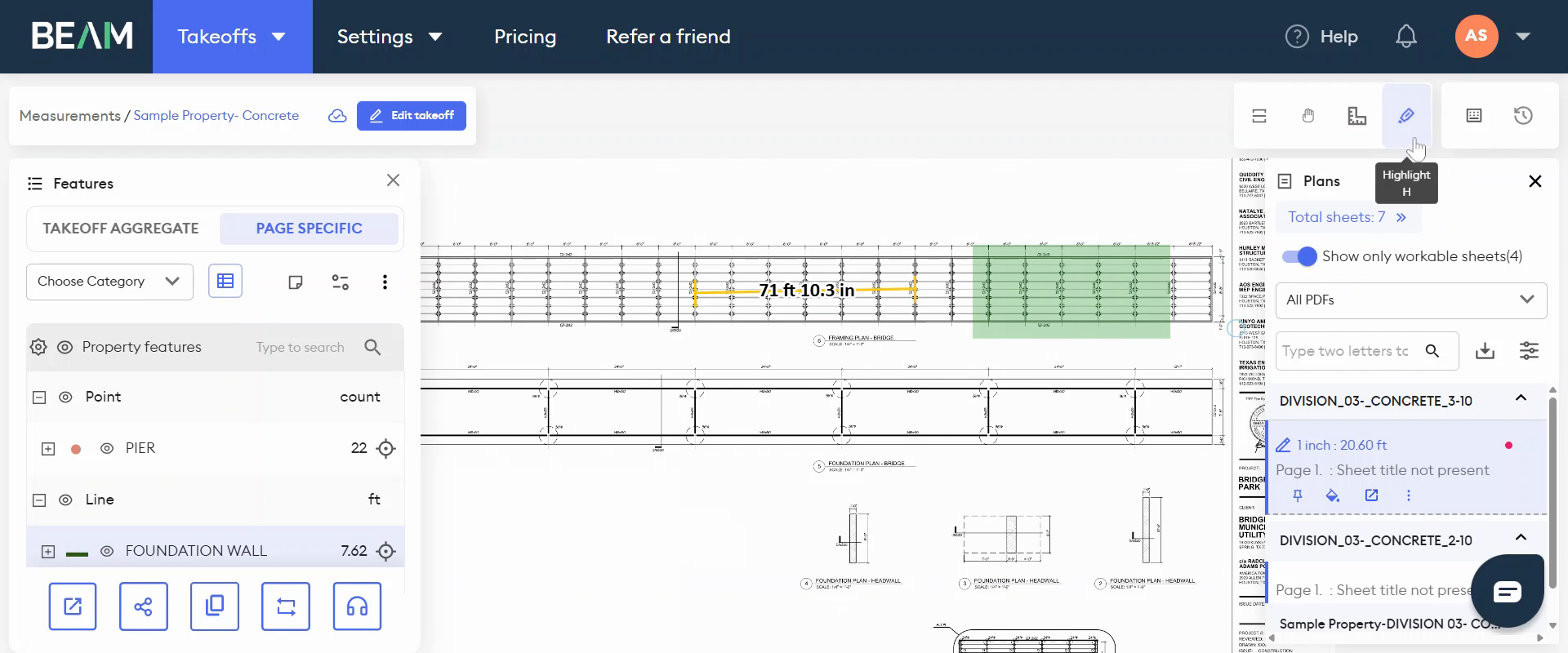
When editing is disabled by default, we have a range of tools positioned in the top right corner.
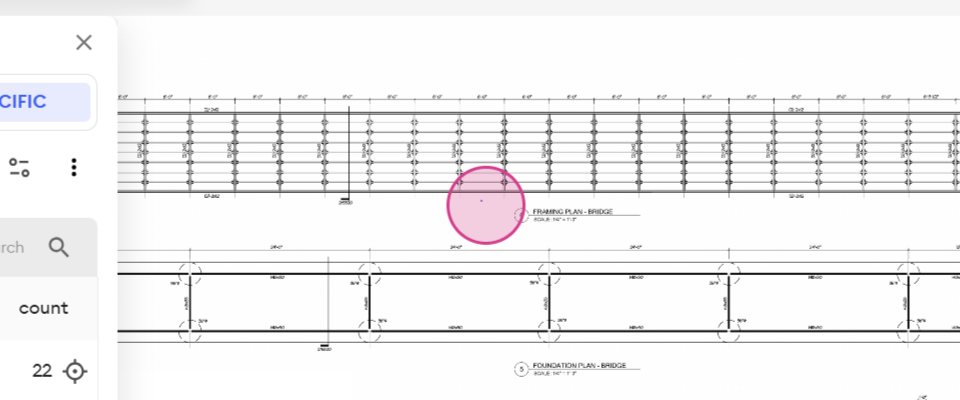
The first tool is the text detection tool, which allows you to copy information from the plan. By drawing a box around a specific text, the text is copied to your clipboard, ready to be pasted wherever you need it.
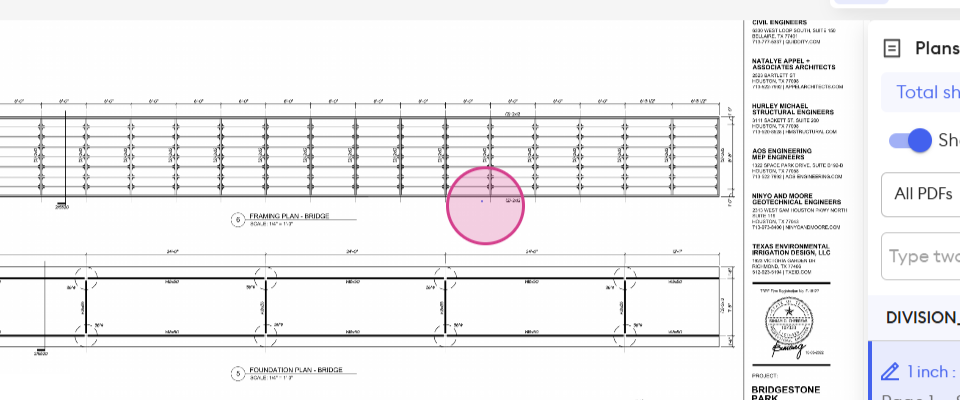
Next, we have the Pan tool.
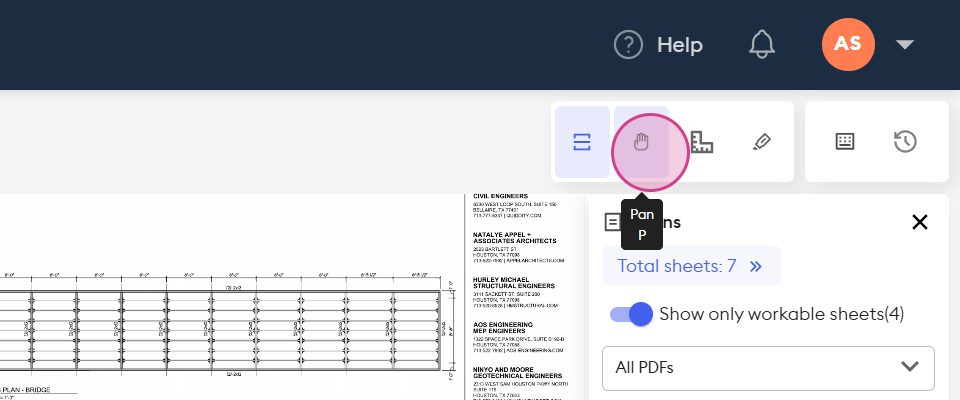
This tool is used for navigating around the sheet.
The Dimension tool follows, which is used for drawing measurements according to the scale attached to the sheet.
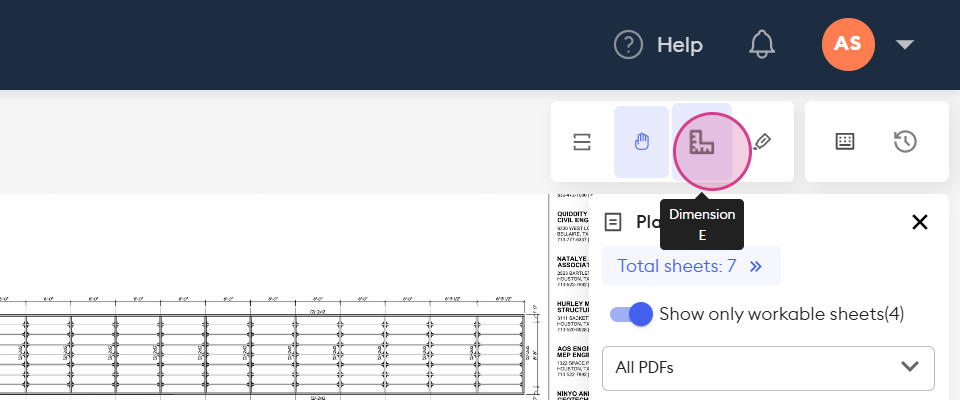
which is used for drawing measurements according to the scale attached to the sheet.
We also have the Highlight tool,
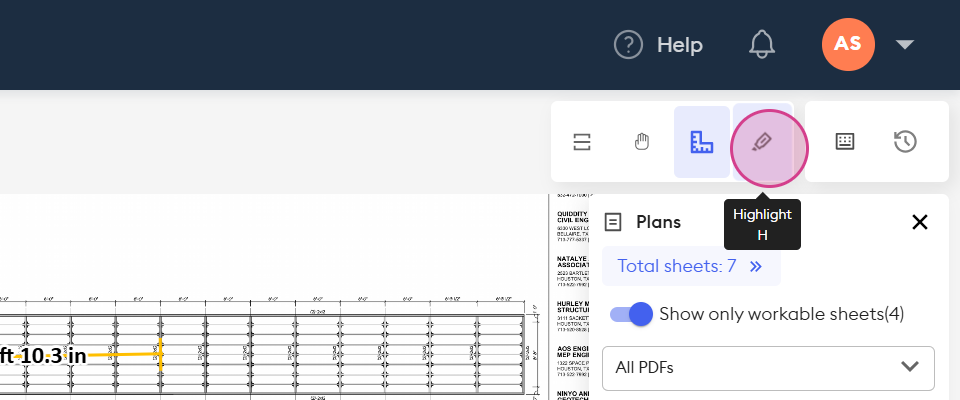
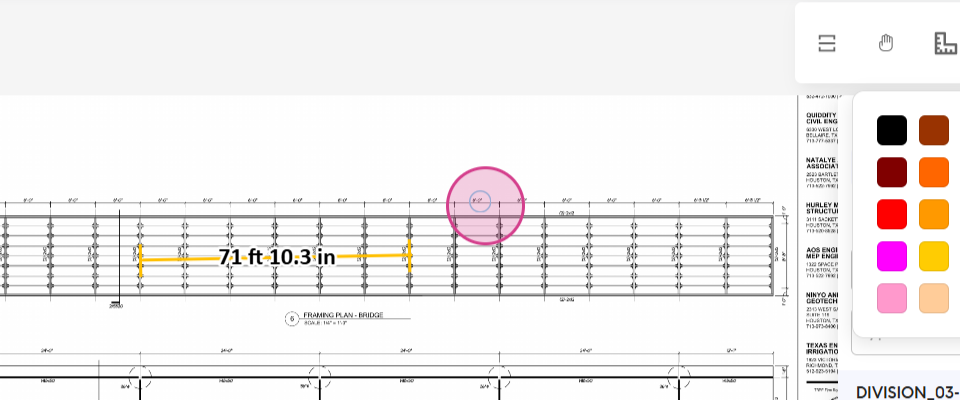
which can be used to draw colored boxes. This tool also allows you to change the color of these highlights,. It’s perfect for internal notes, flagging scope questions, or guiding teammates through key sections during a review.
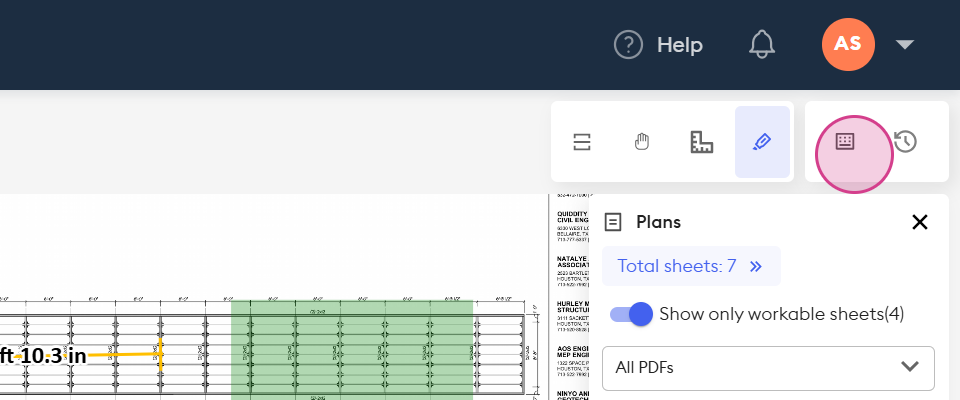
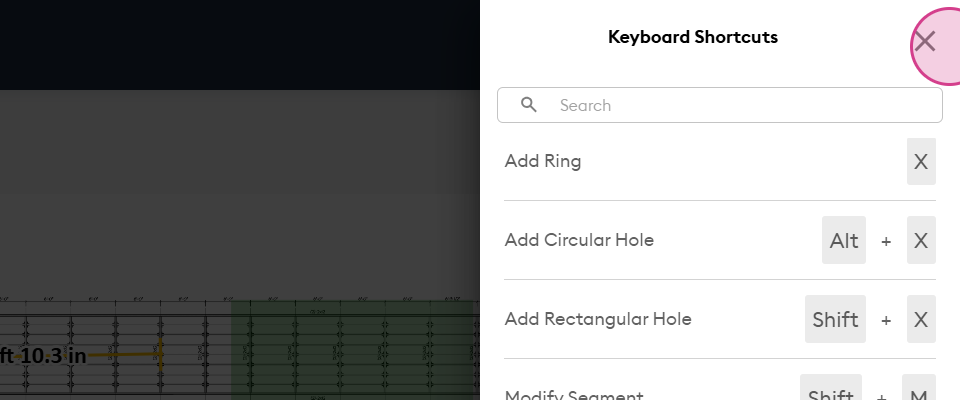
The Keyboard Shortcuts list displays all the shortcuts for the tools we currently have.
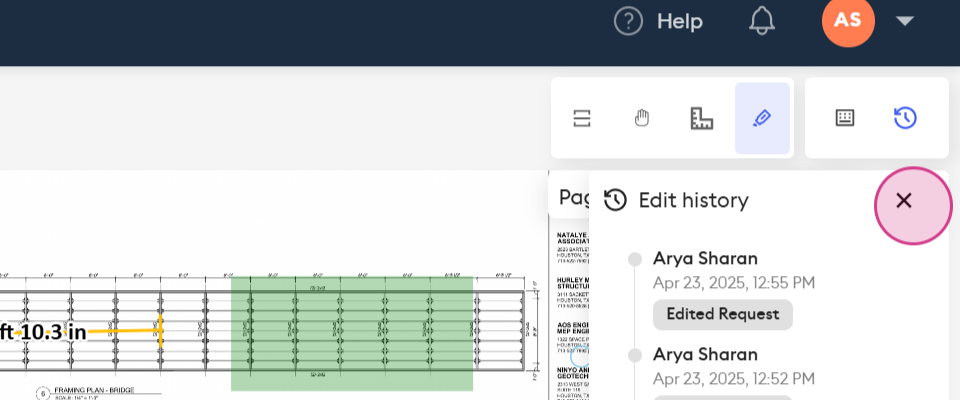
Finally, the Edit History menu
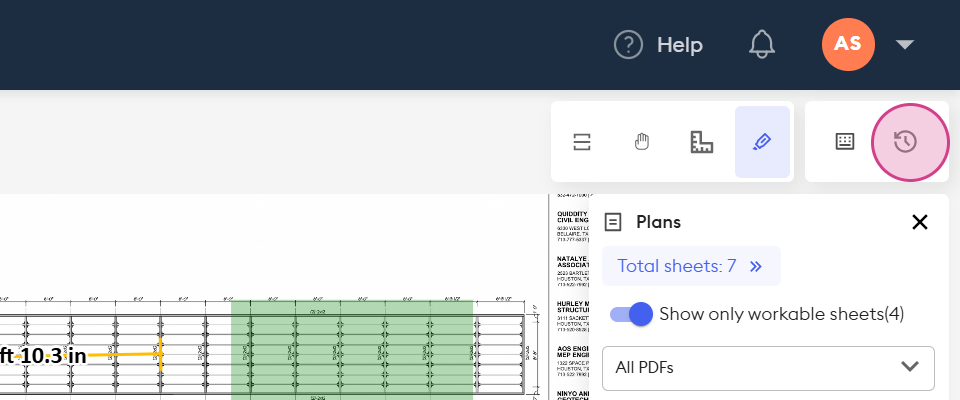
provides a list of all instances when editing has been enabled for this takeoff.
Was this article helpful?
That’s Great!
Thank you for your feedback
Sorry! We couldn't be helpful
Thank you for your feedback
Feedback sent
We appreciate your effort and will try to fix the article