Welcome to this video guide on exporting your takeoff on the Beam AI platform.
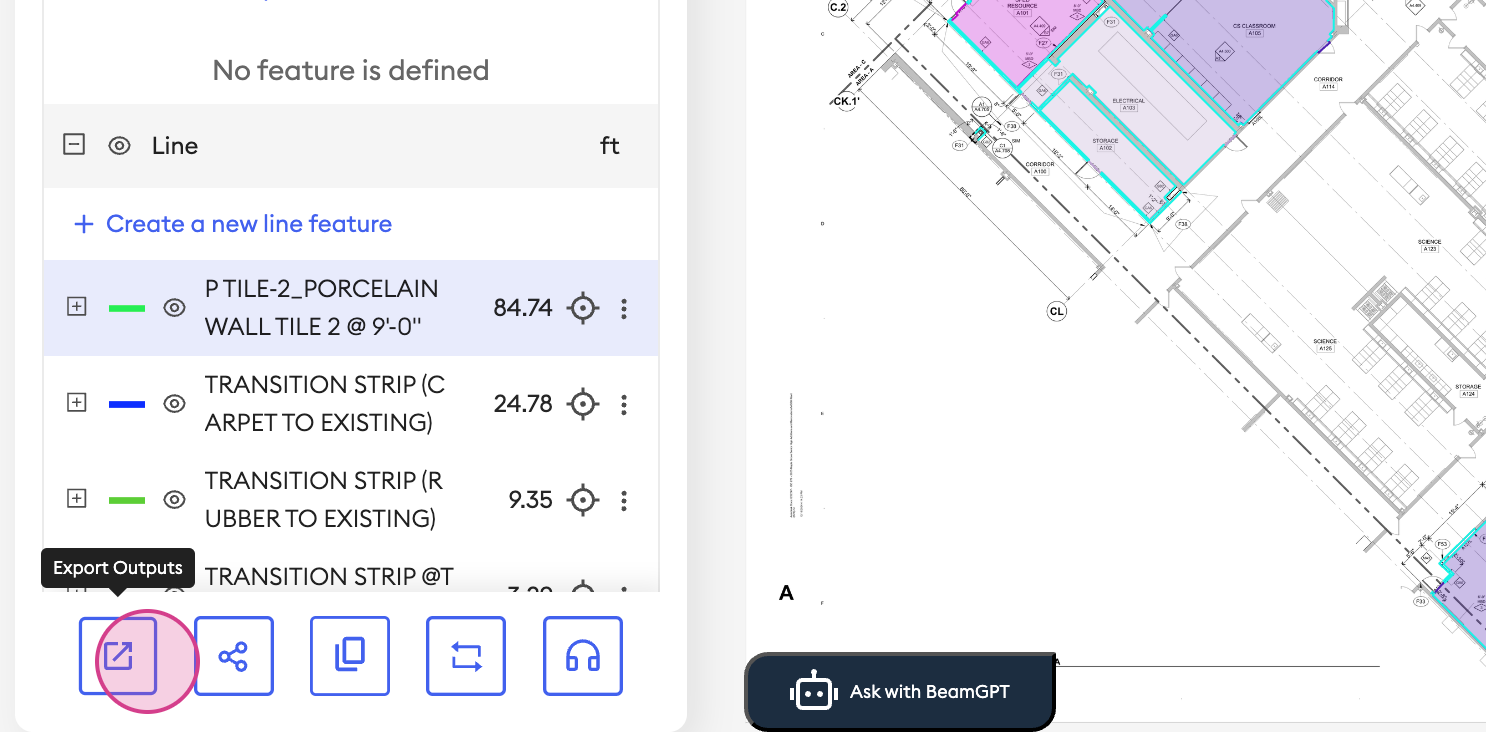
To begin enable the editing option. Click on the icon labeled 'export output.'
Step 1: This action will reveal multiple export options for your takeoff.
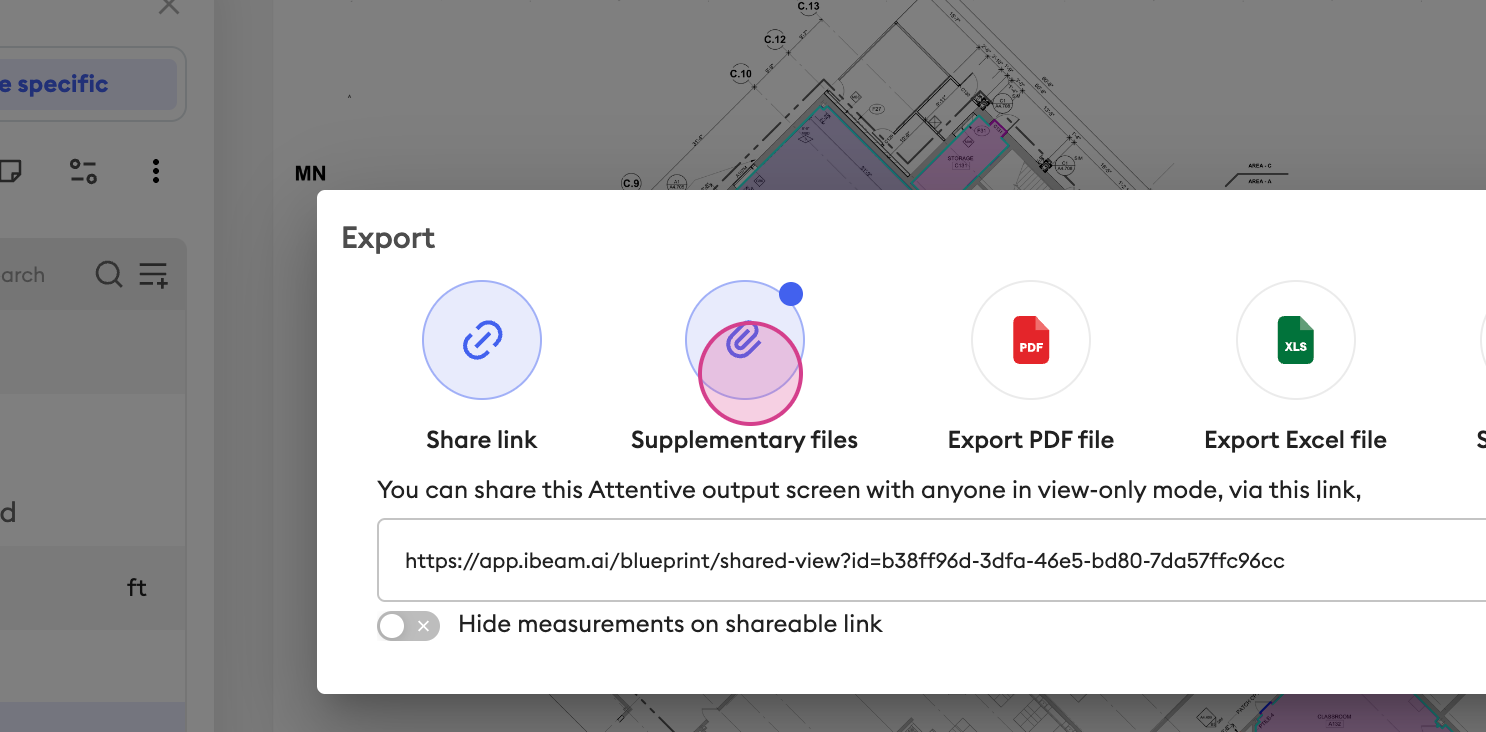
First, we have the shareable link, a handy tool for sharing your takeoff with suppliers, stakeholders, or colleagues.
Step 2:Simply copy the link and send it out as part of the bid package. This link allows anyone outside your organization to interactively view the takeoff. It also offers an option to hide the measurements in your takeoff and share it with your colleagues.
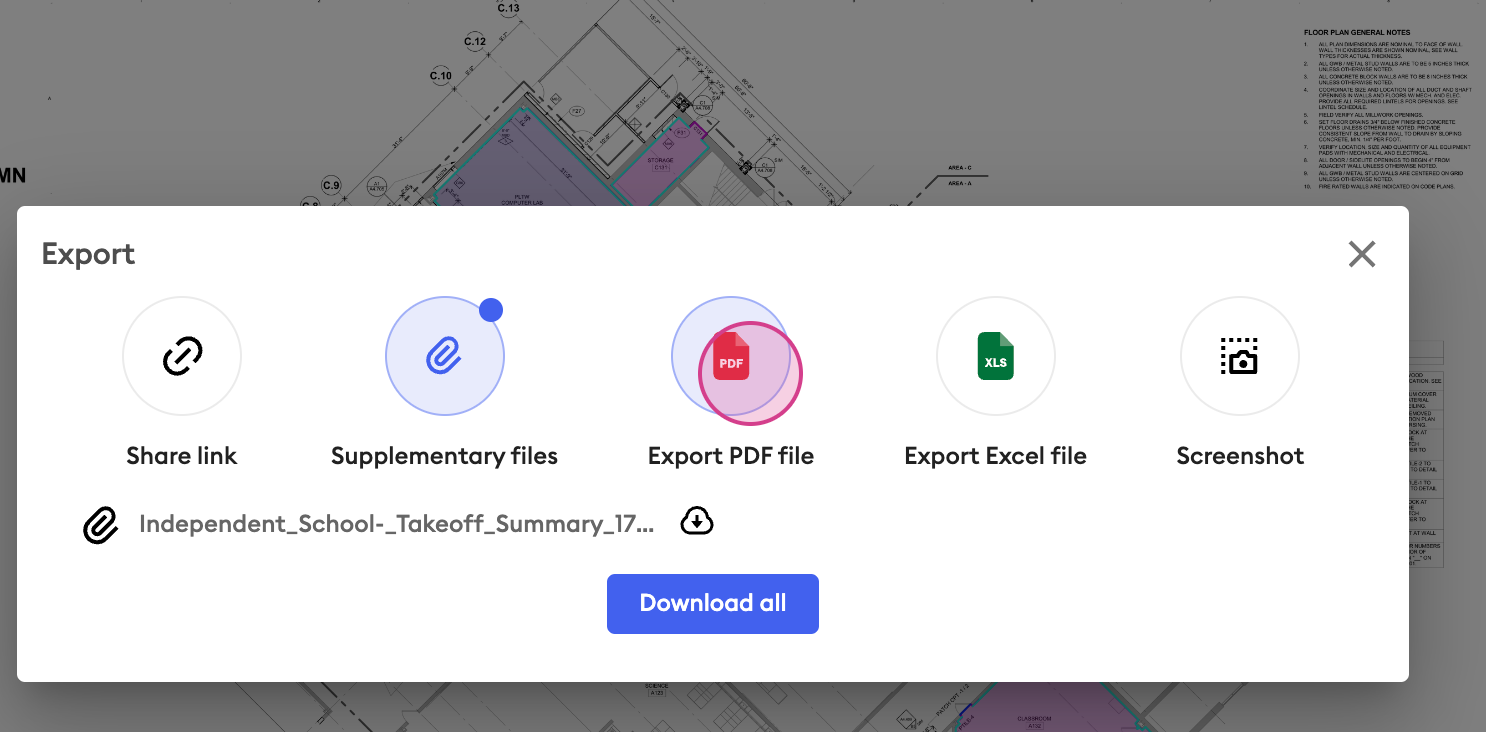
Step 3: Next format is supplimentry files. This feature enables you to utilize customized-for-you Excel reports to plug your takeoff data directly into your estimating software. Upon downloading, the sheet appears something like this.
Step 4: For PDF exports, select the 'Export PDF' option. The software offers three distinct types of PDF export: A3, A4, and true to scale. Choose the option that suits your needs and click 'download the report.
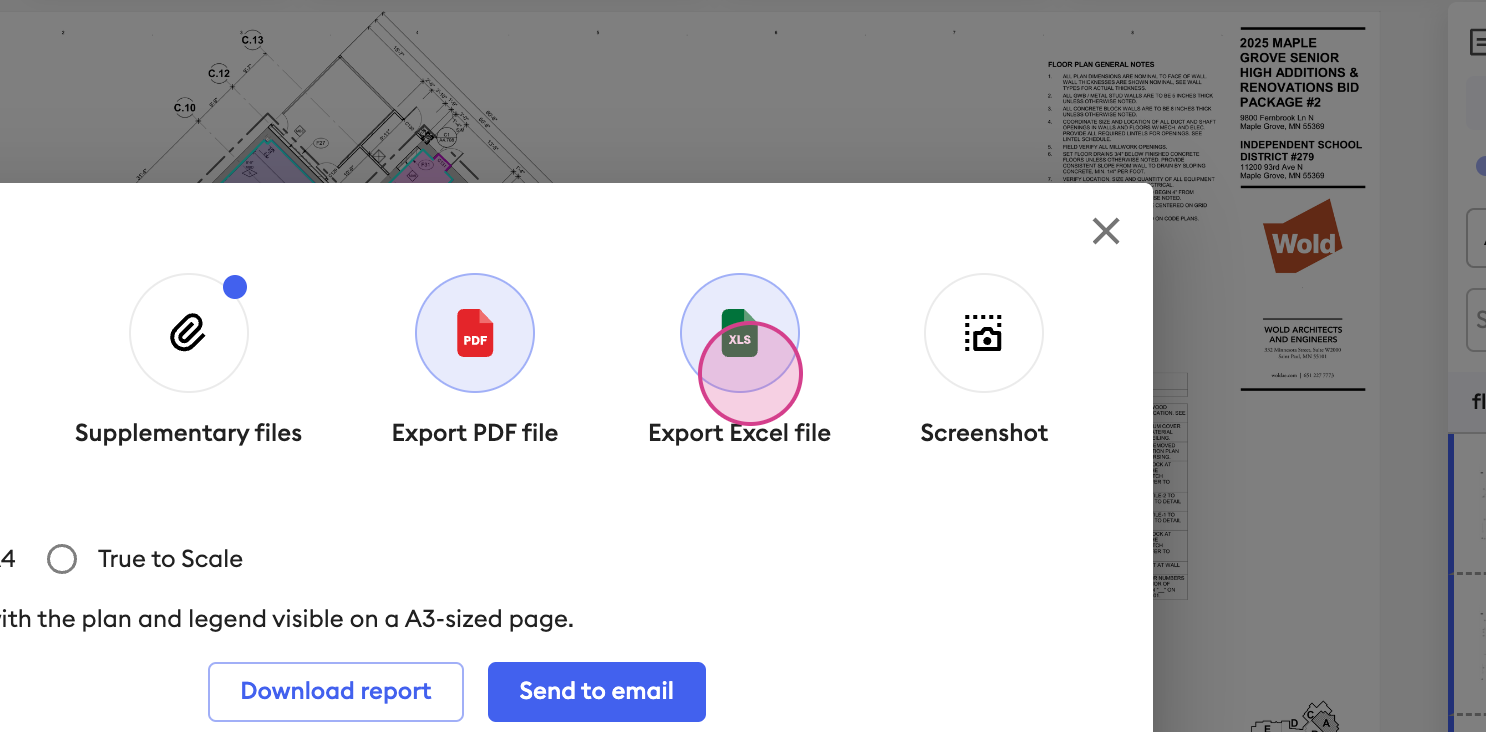
To export an Excel report, click on Excel, select ' Output' and 'download the report'. The platform will generate an Excel report and email it to you. Upon downloading the report, you'll find multiple tabs containing all the details of your takeoff. If you need to quickly send your takeoff in a picture format, use the 'Screenshot' export option. With a simple click, you can download a screenshot of your takeoff.
Was this article helpful?
That’s Great!
Thank you for your feedback
Sorry! We couldn't be helpful
Thank you for your feedback
Feedback sent
We appreciate your effort and will try to fix the article