Welcome to this tutorial on how to use the polygon drawing tools in Goose Creek. By the end of this guide, you'll know how to create, modify, and customize polygons to your liking.
Step 1: Expand the toolbar to reveal all editing options. Locate this on the left-hand side of your screen and click on it.
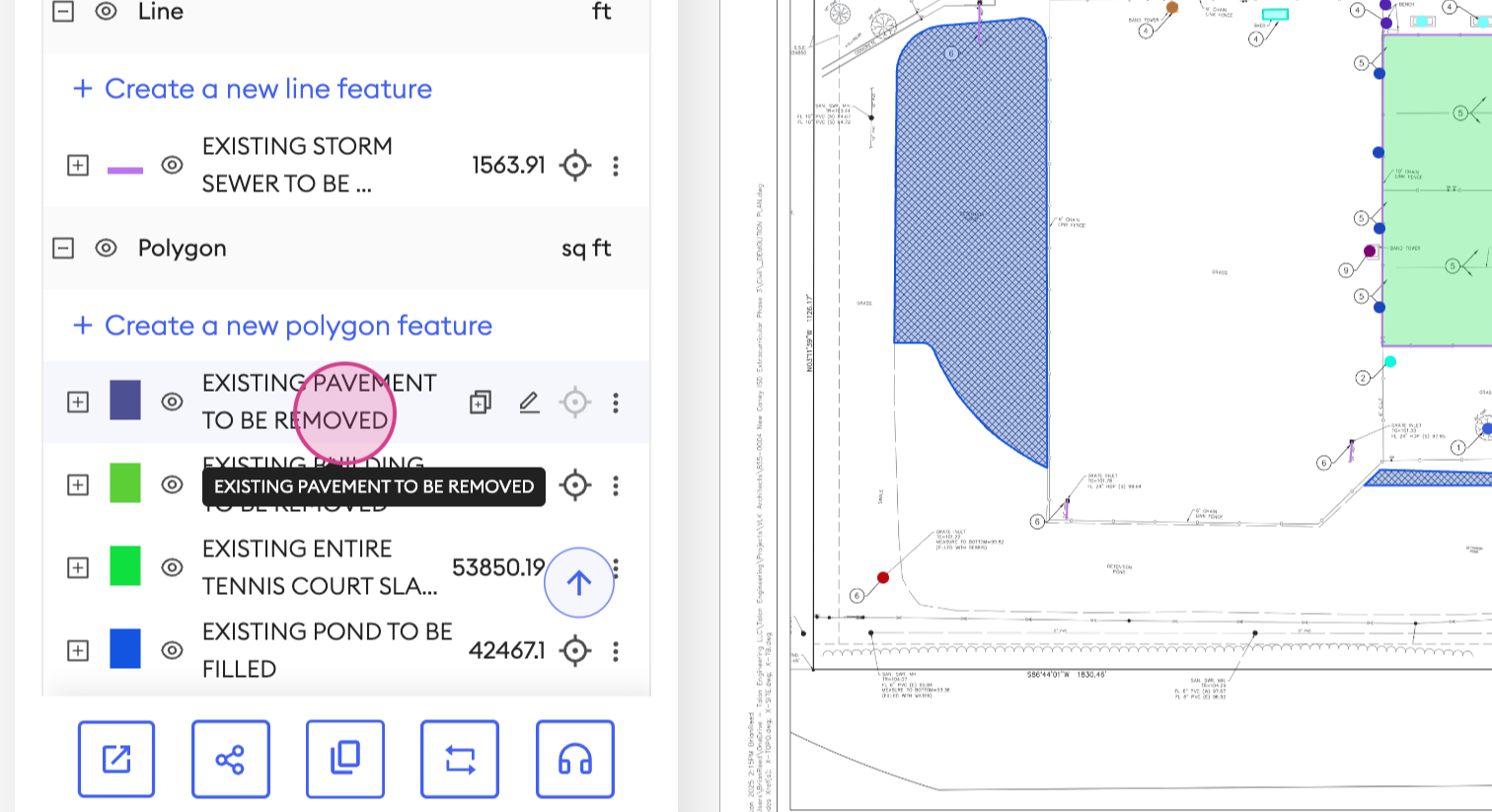
Step 2: Explore the various features available here.
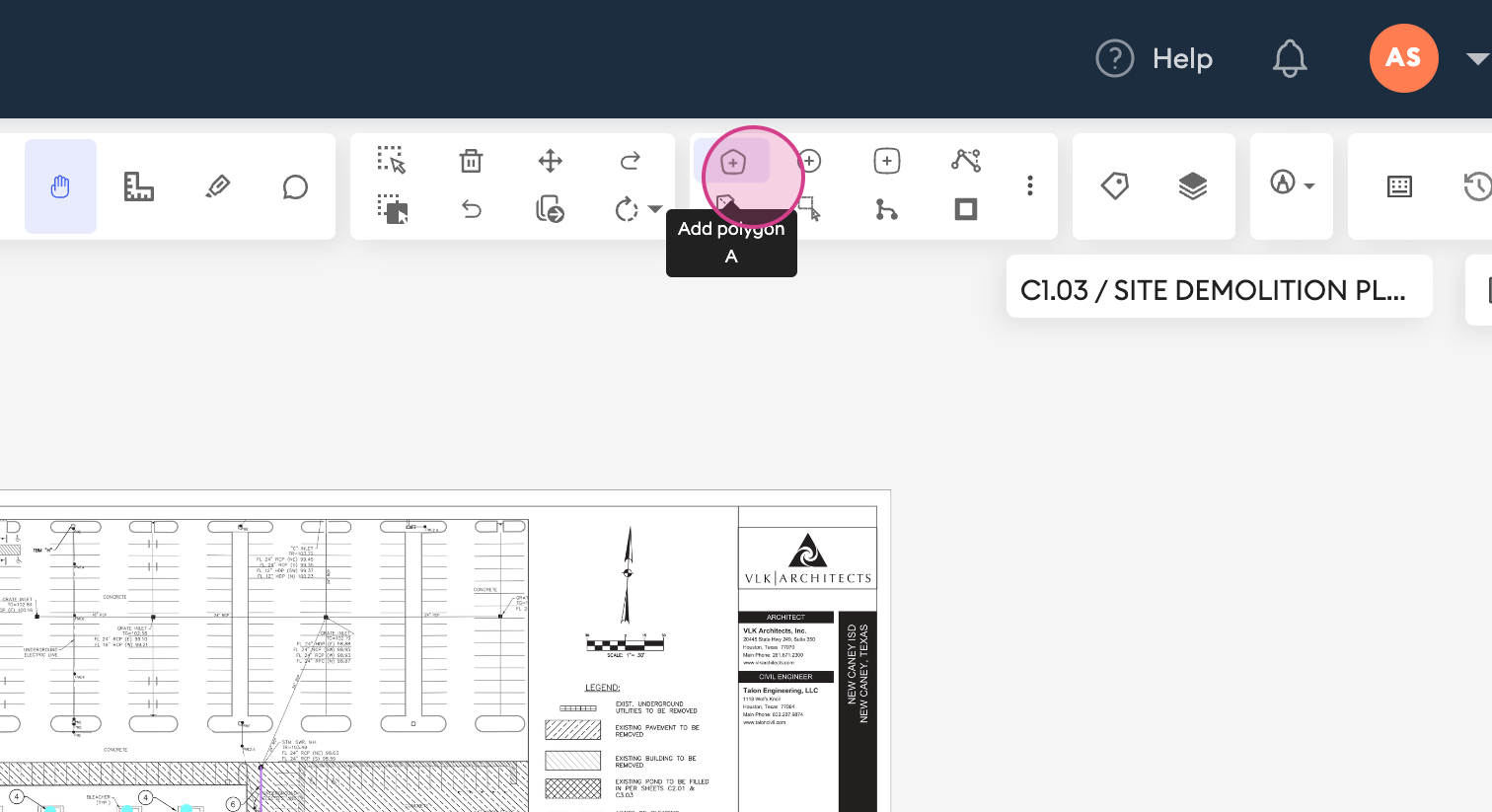
Step 3: Click on ADD polygon.
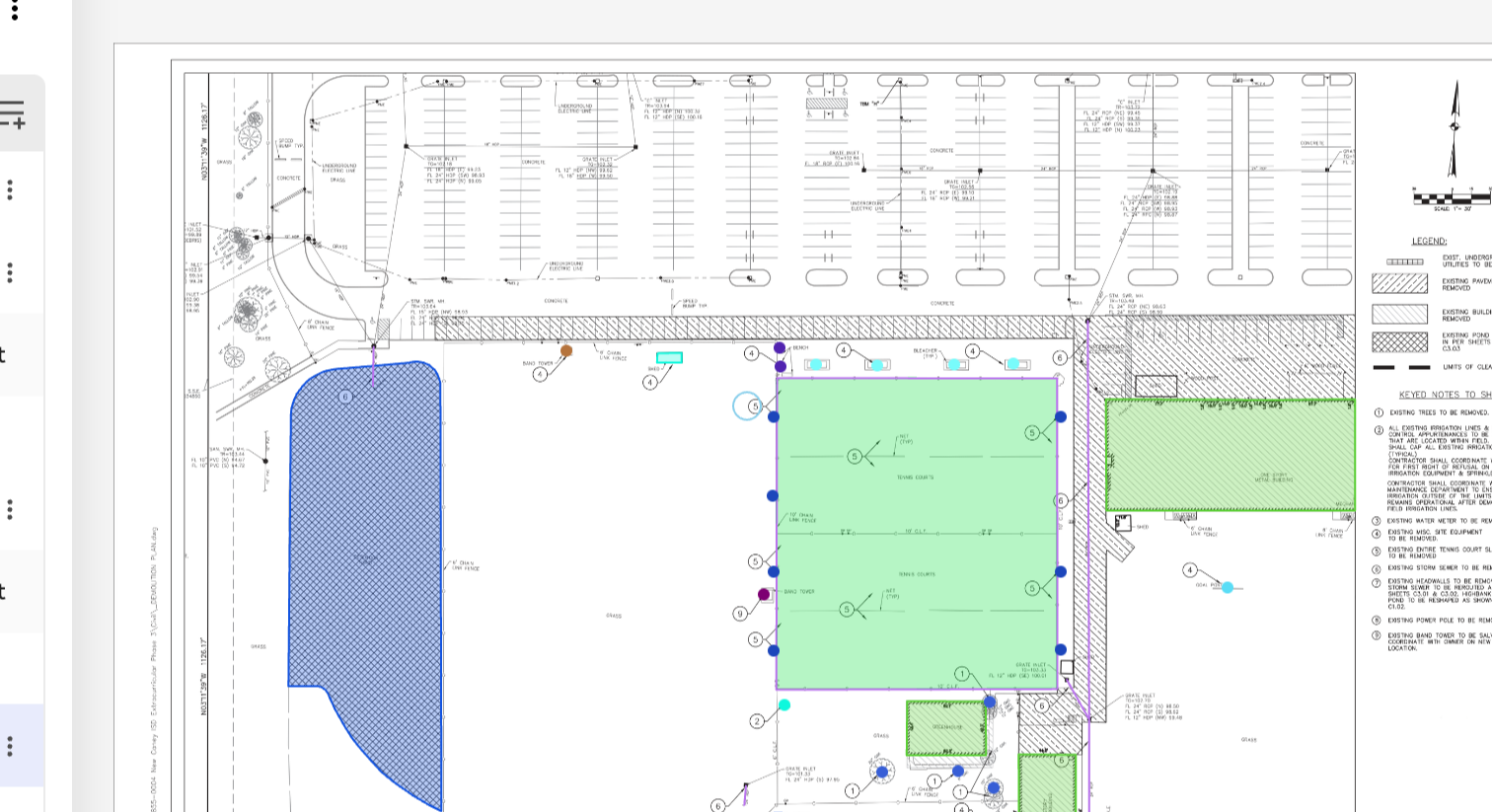
Step 4: Start creating your polygon. You're free to design any shape and size.
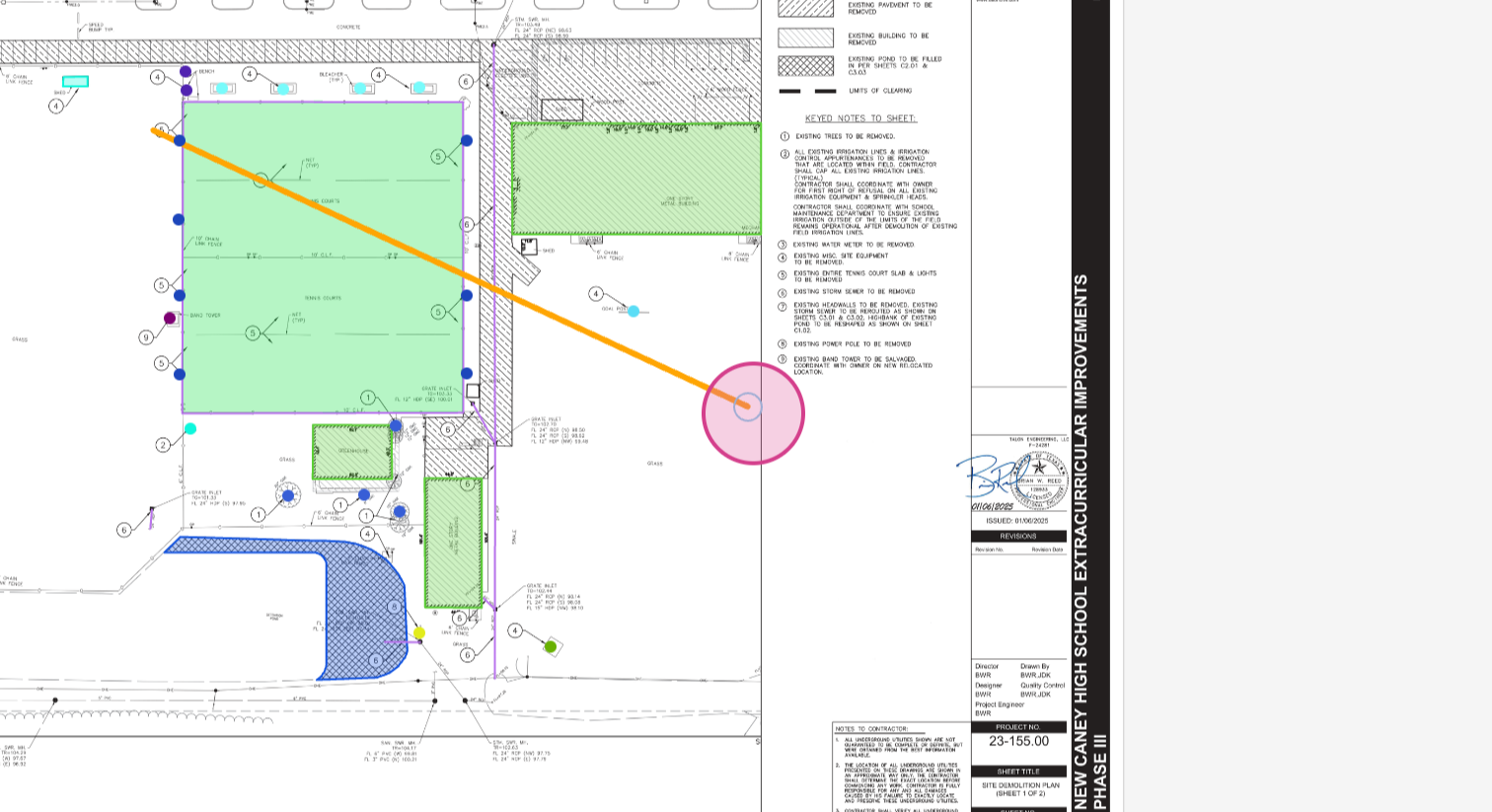
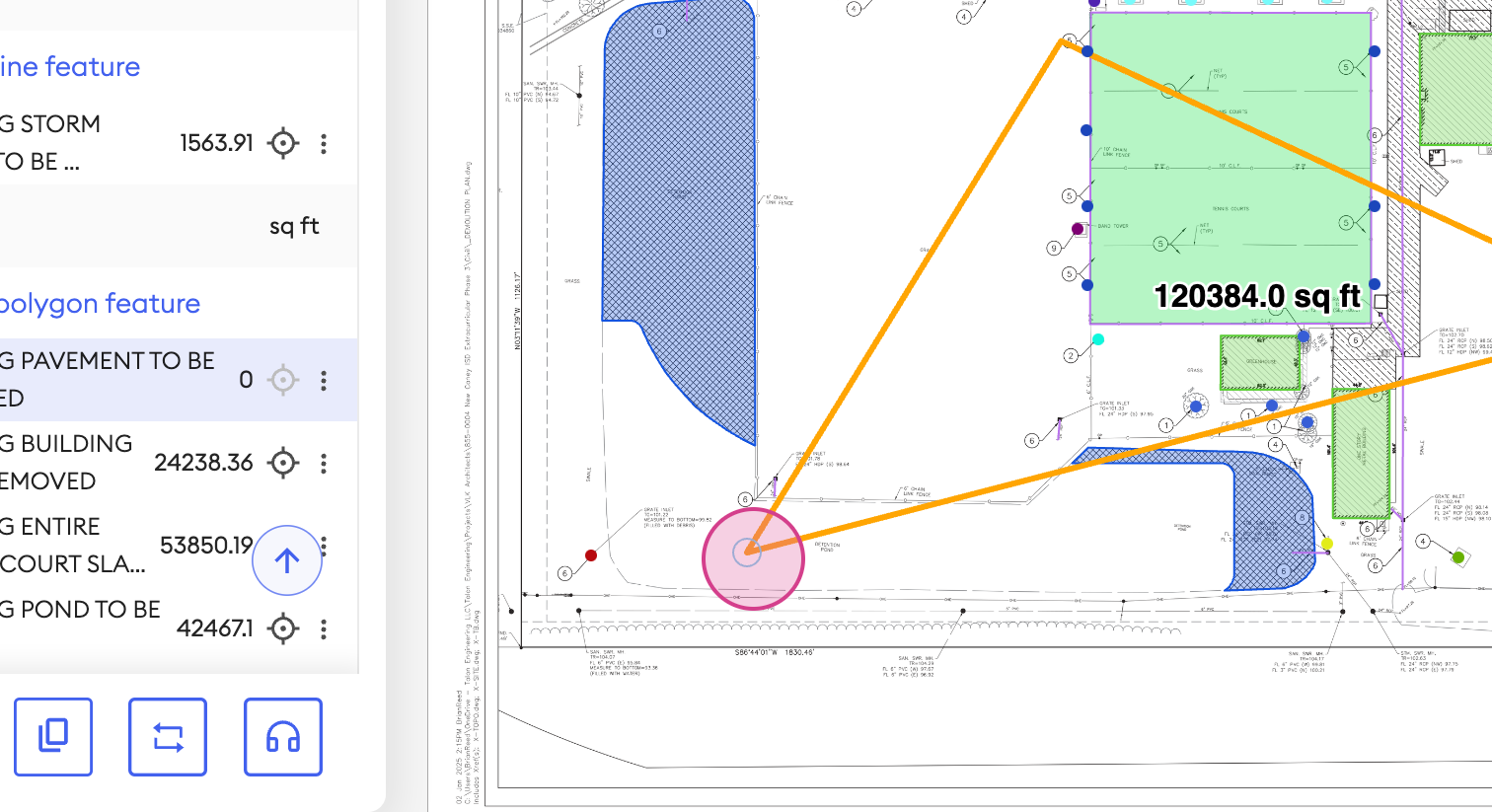
Step 5: Click on the Draw option.
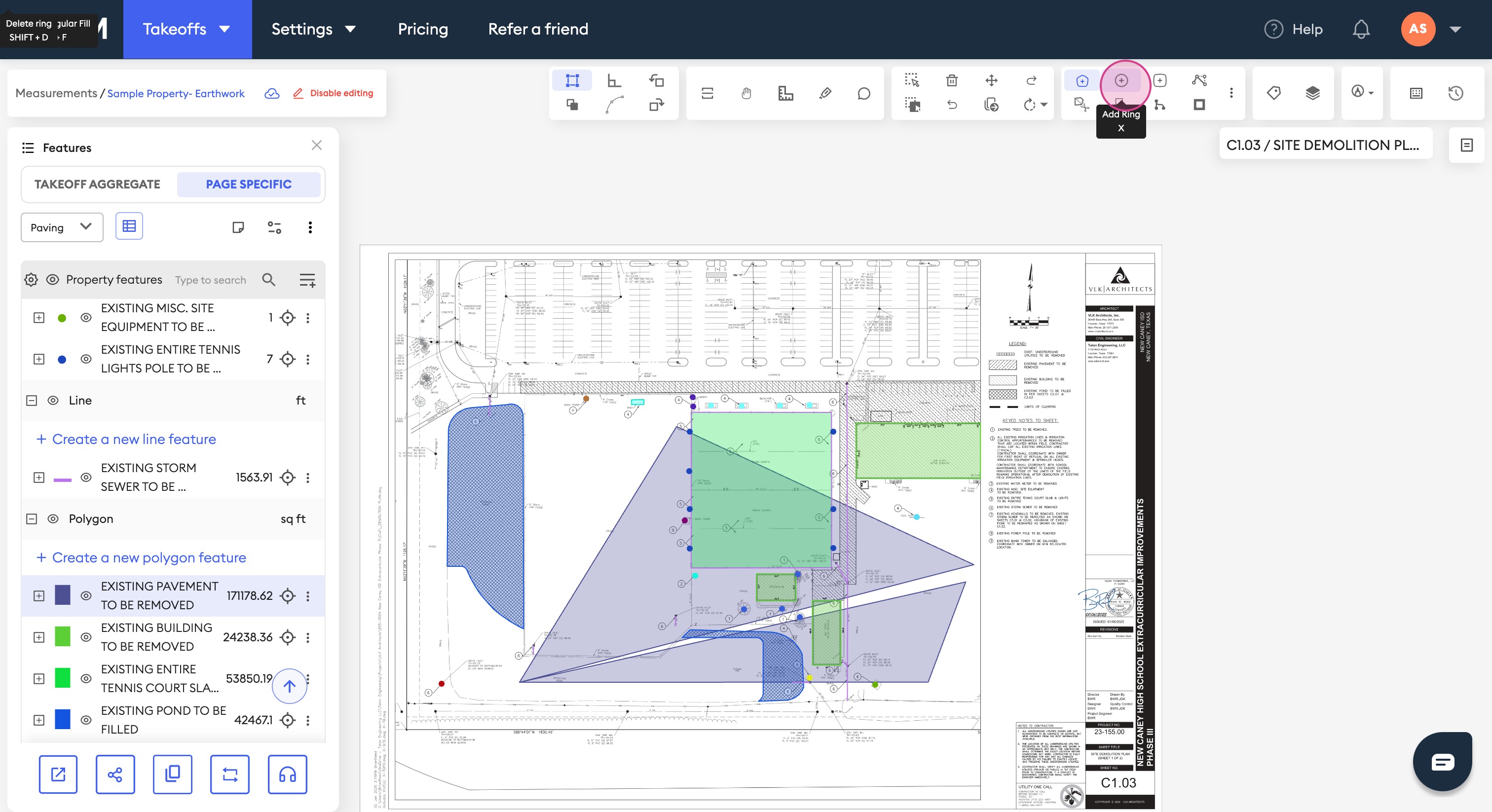
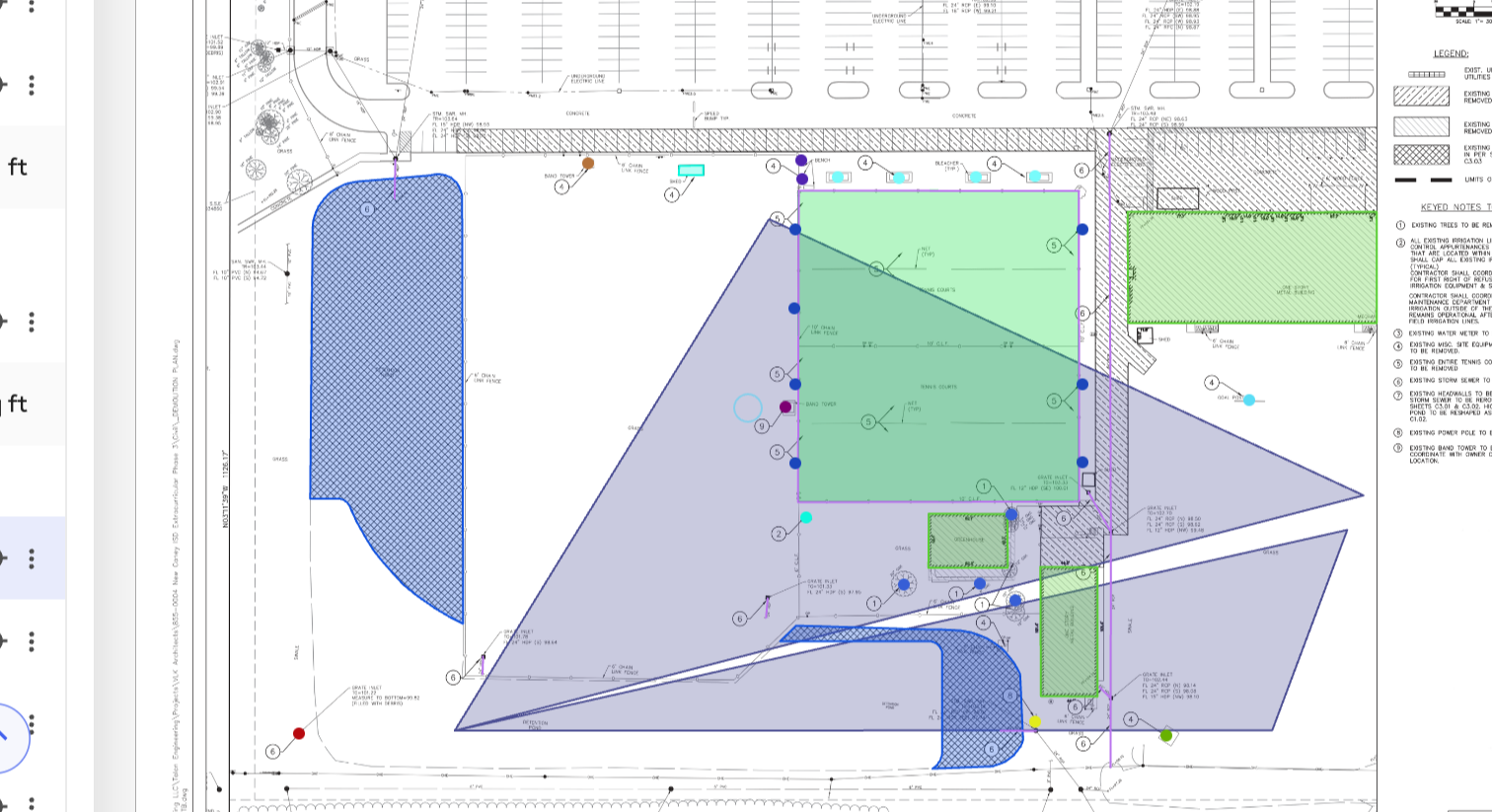
Step 6: Draw within the polygon.
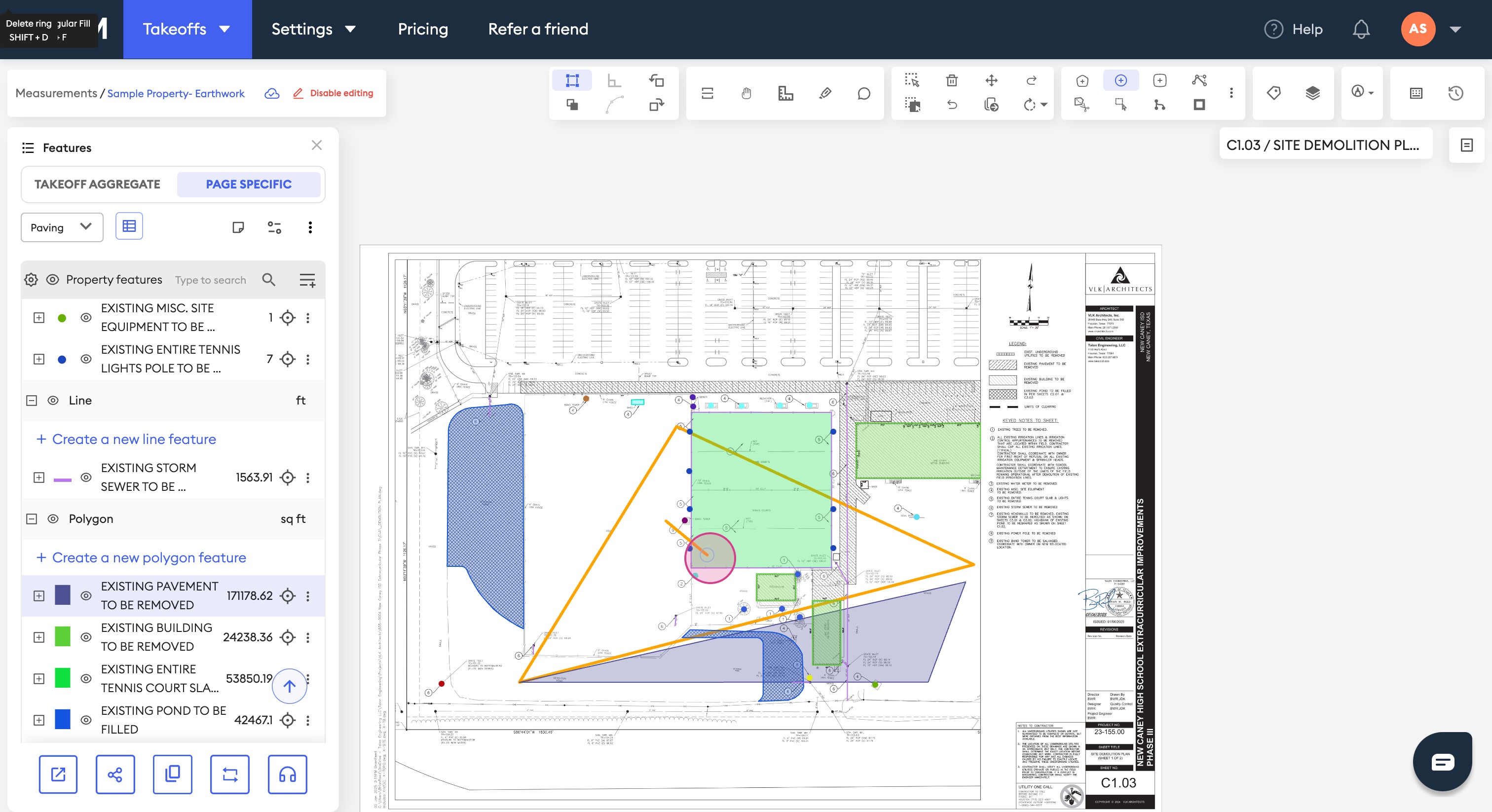
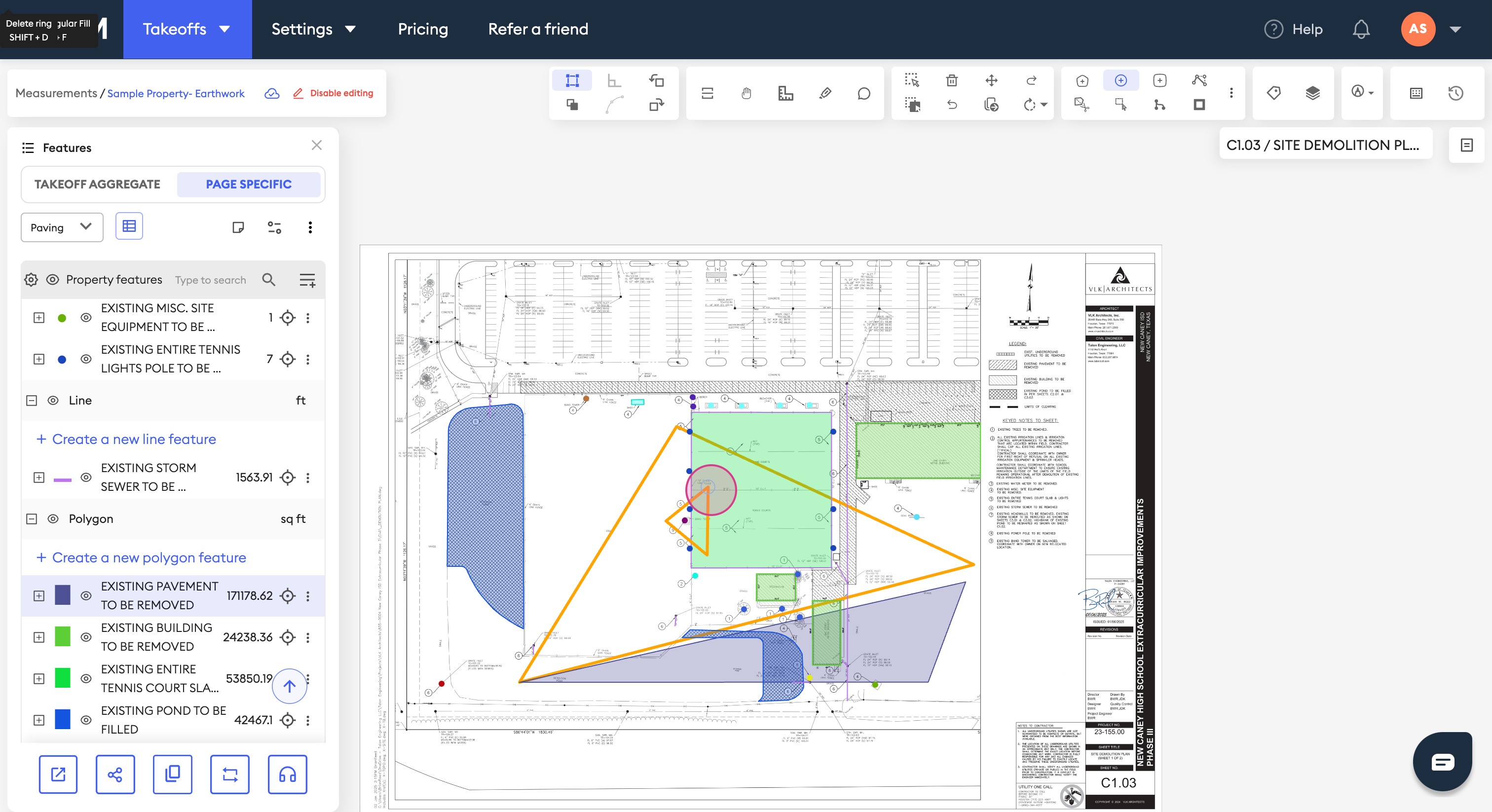
Step 7: Add a rectangle to your polygon by clicking on Add Rectangle.
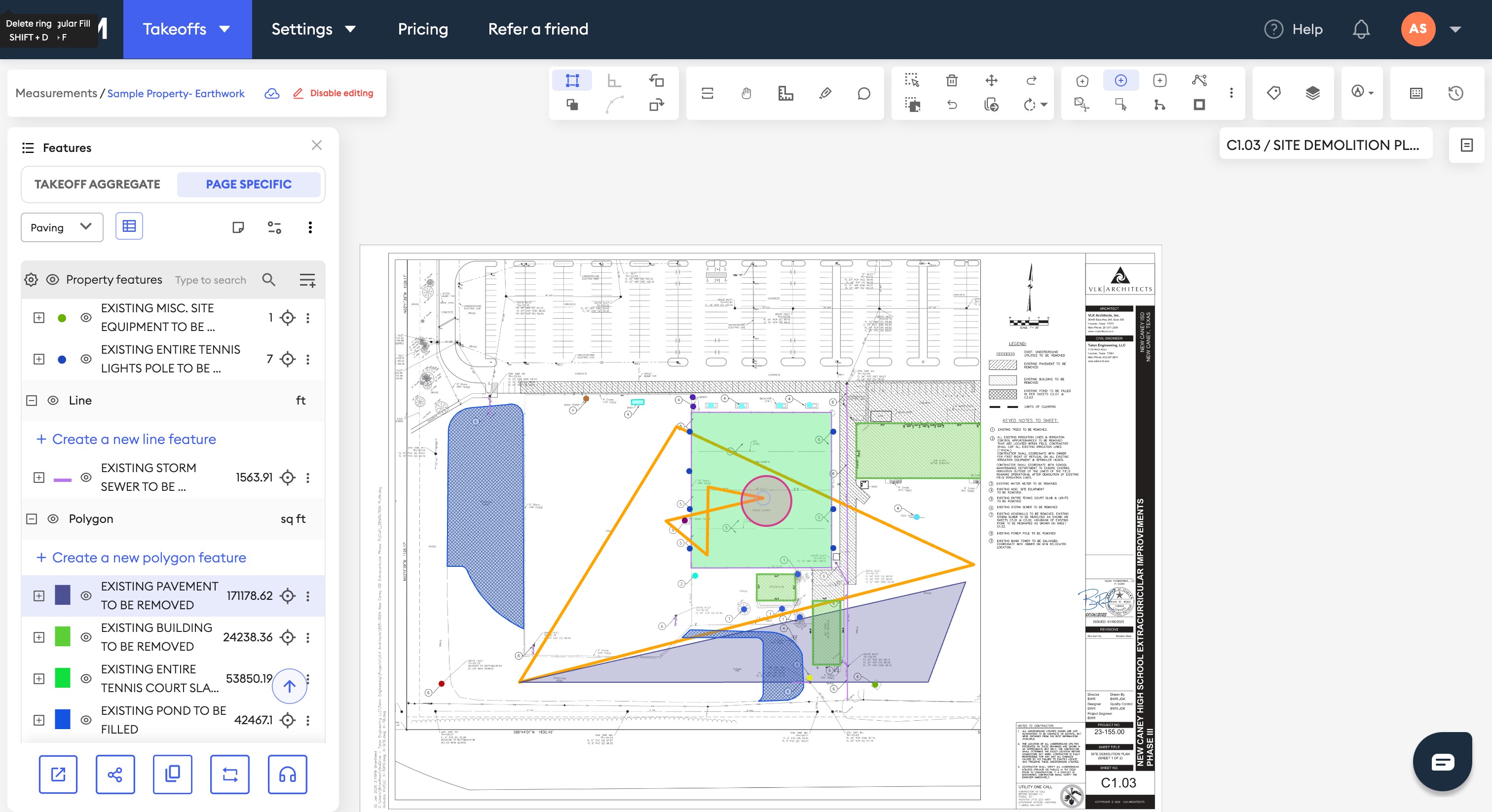
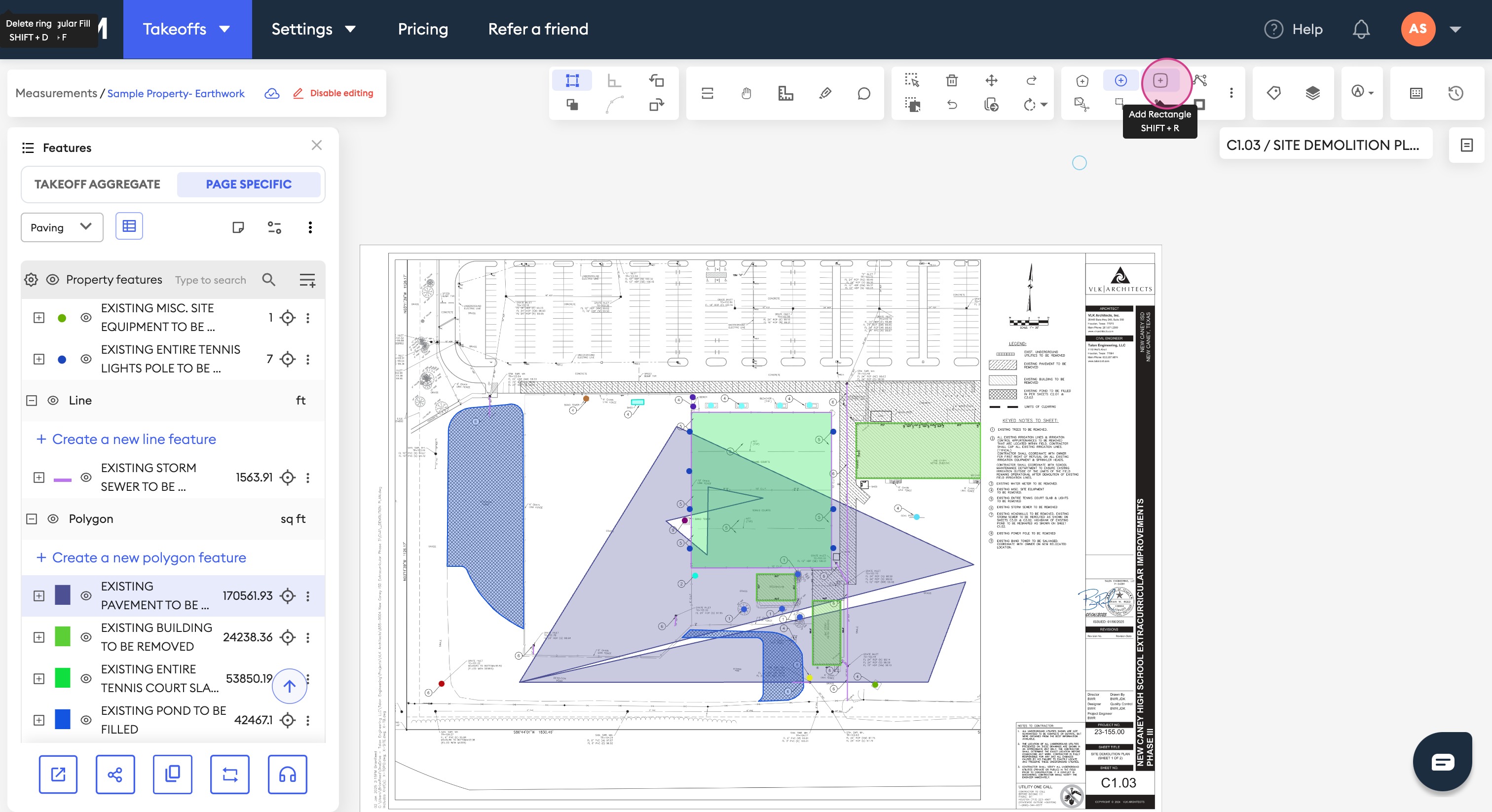
Step 8: Draw a perfect rectangle inside your polygon.
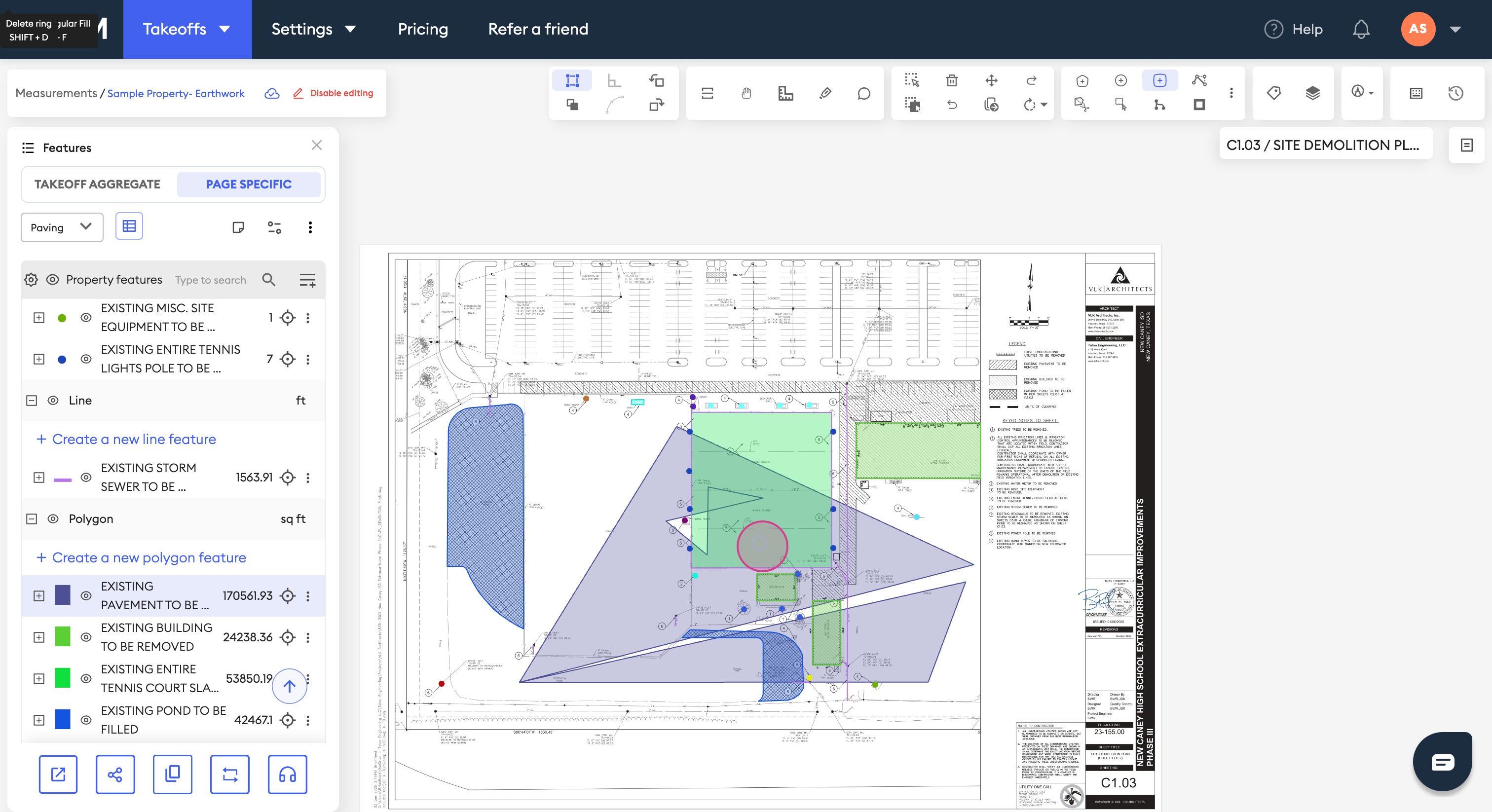
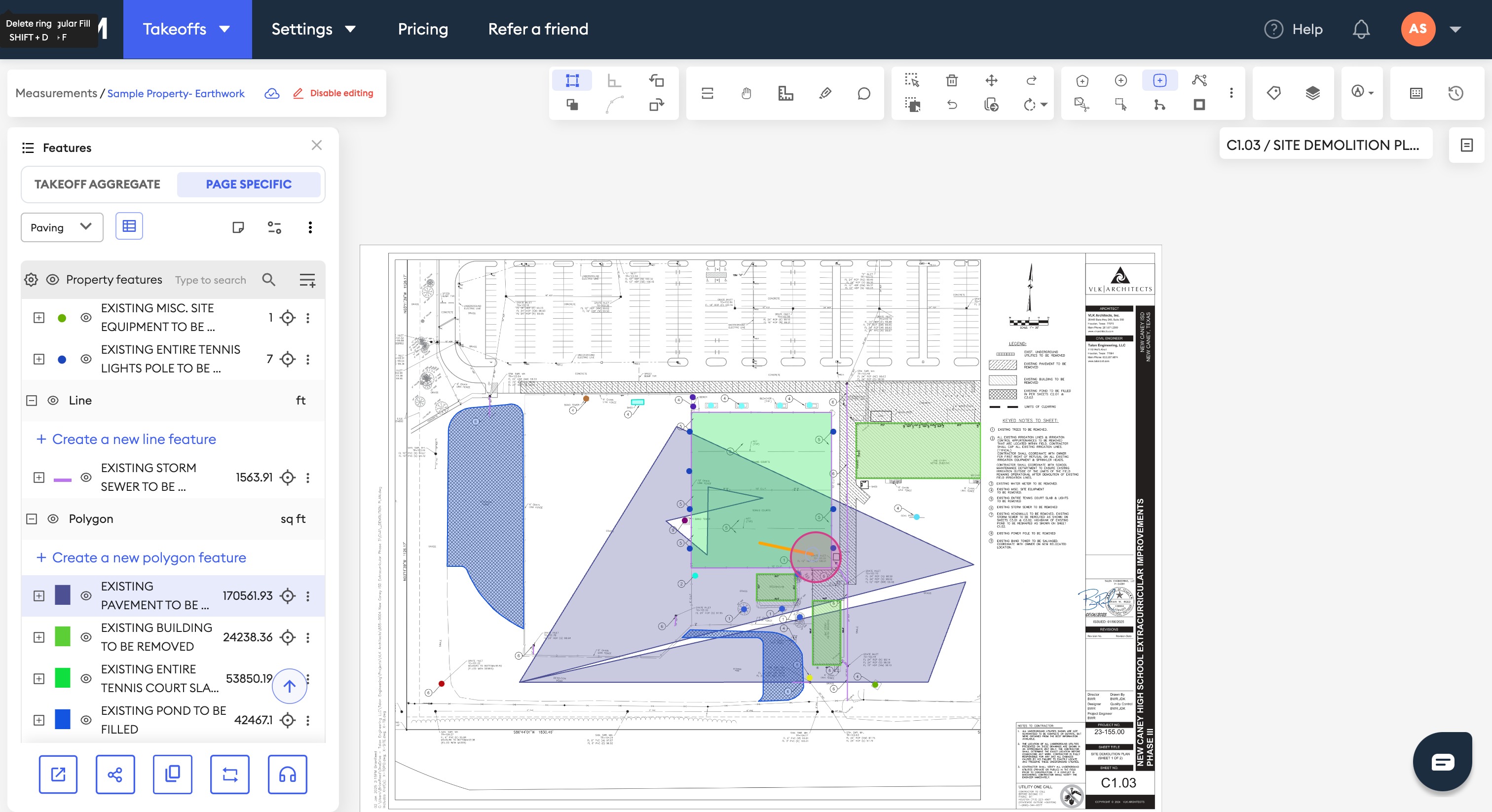
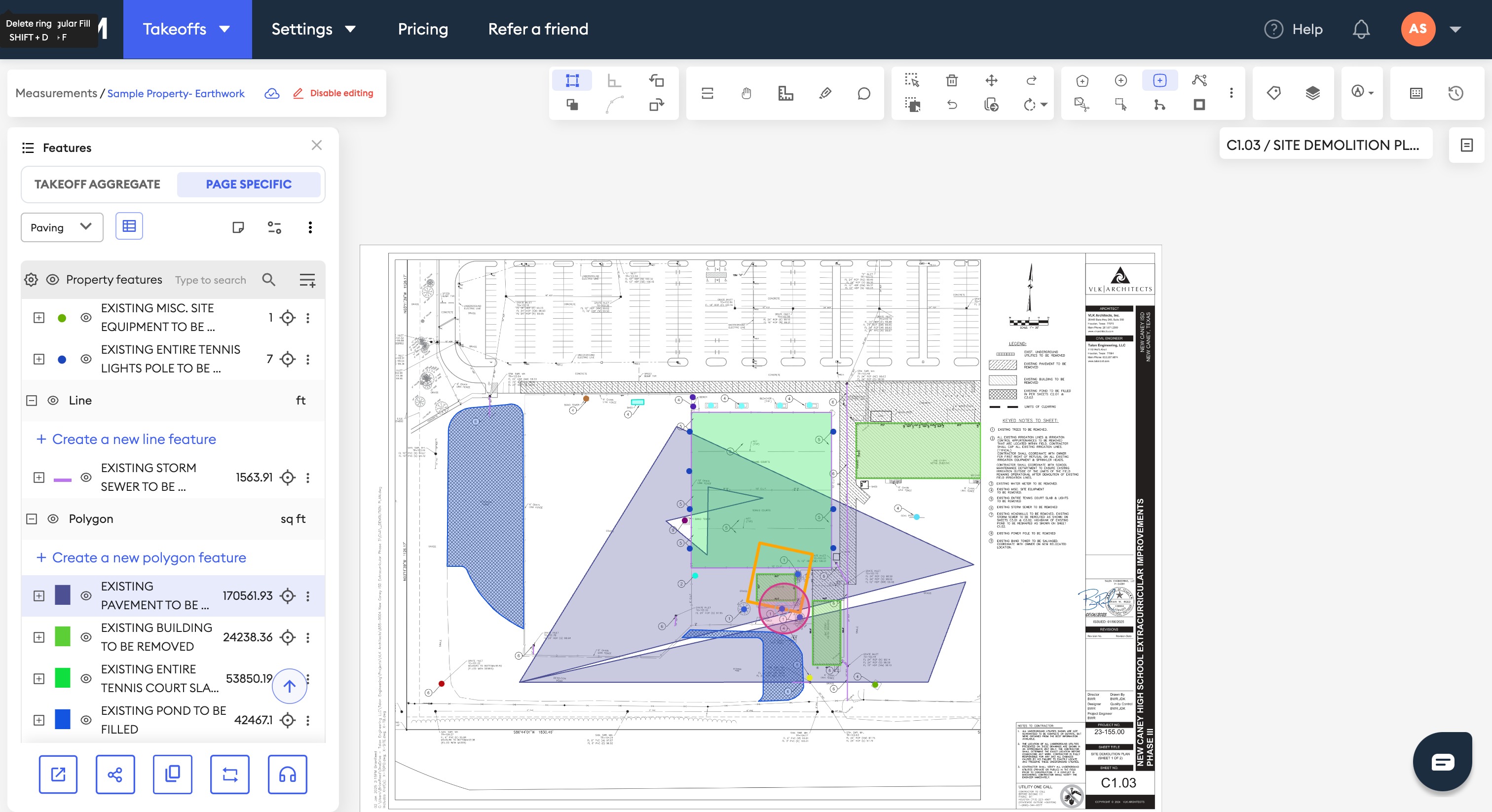
Step 9: Modify the segments of your polygon using the Modify Segment option.

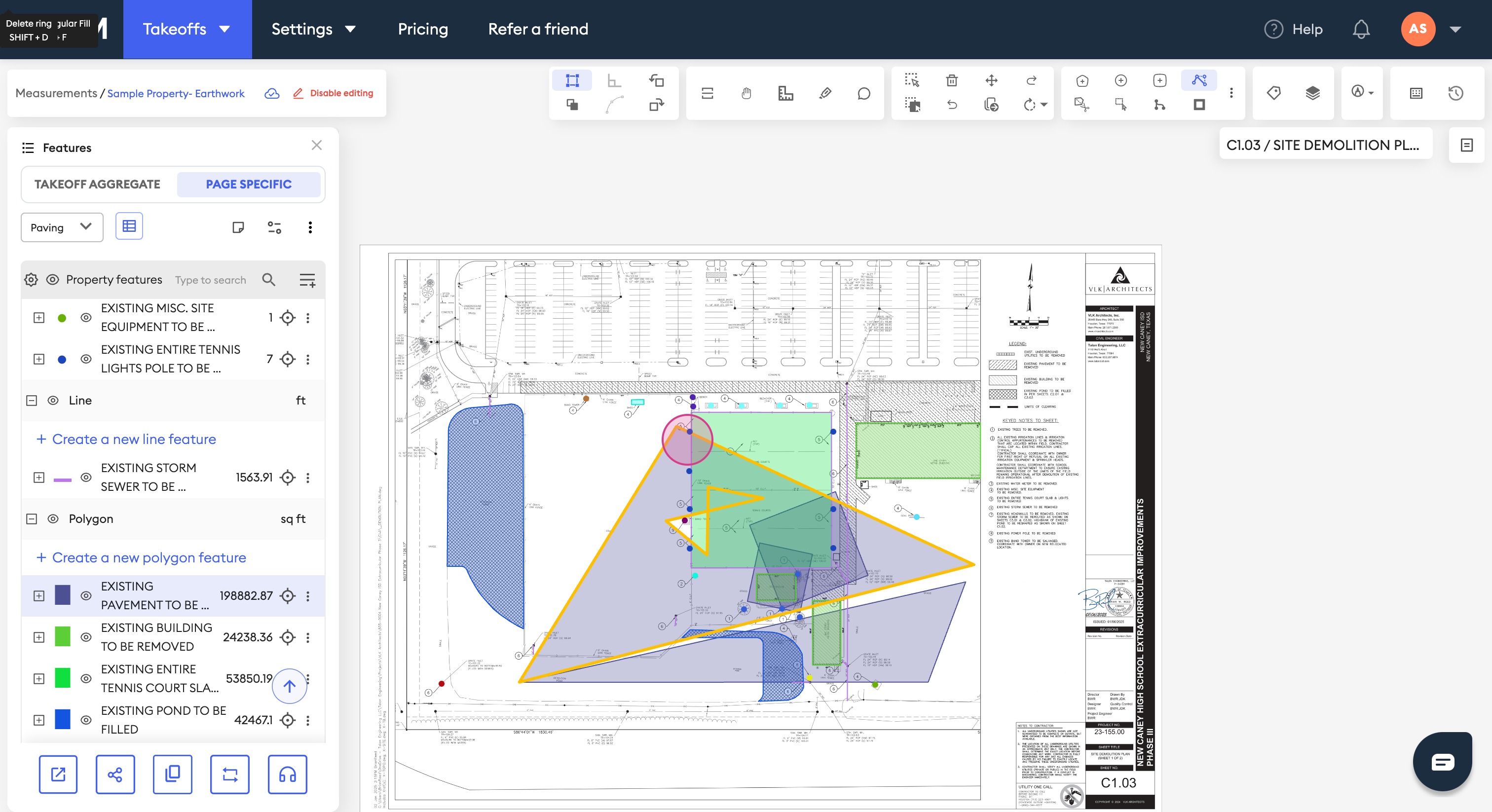
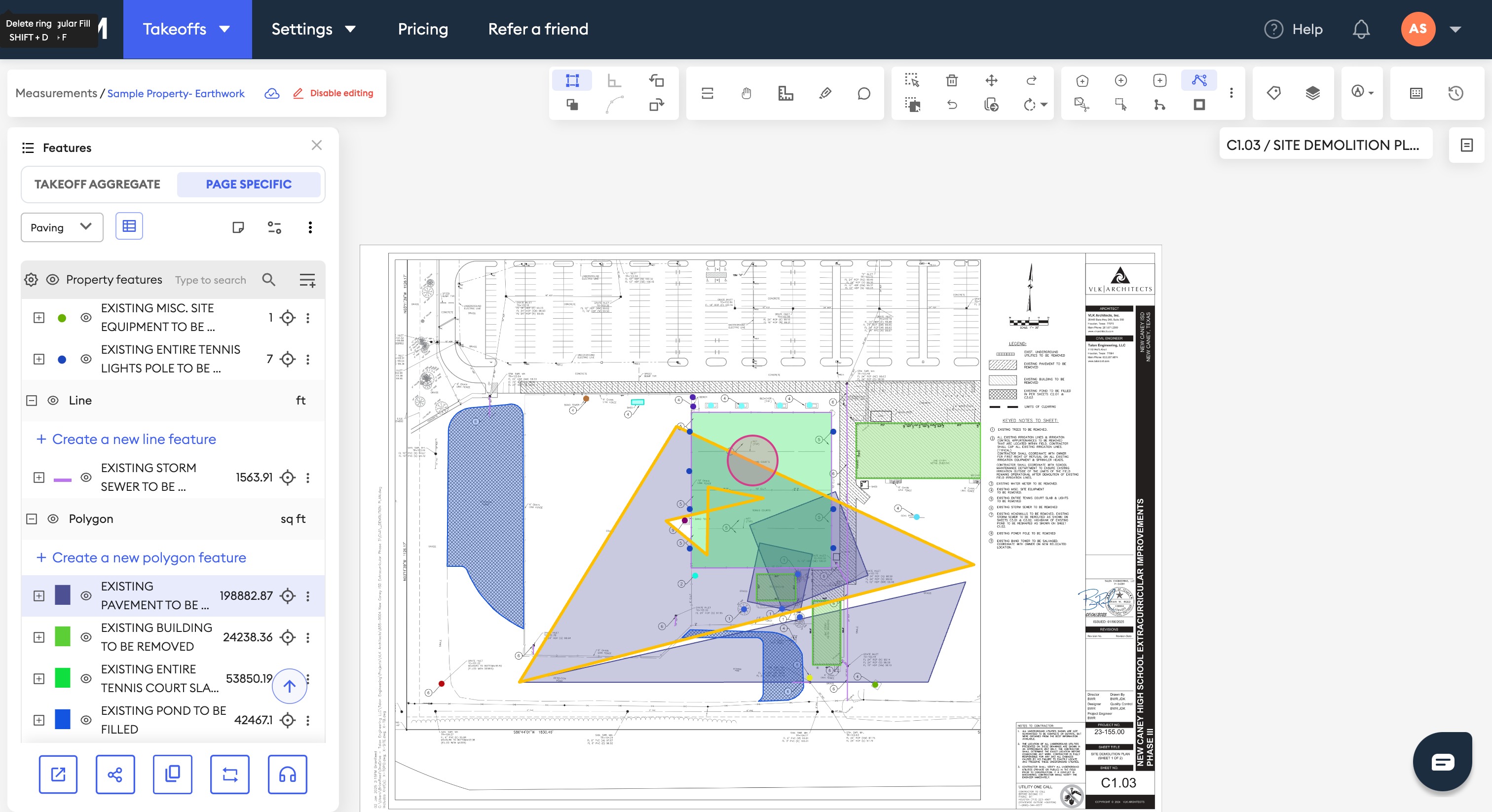
Step 10: Adjust the shape of your polygon.
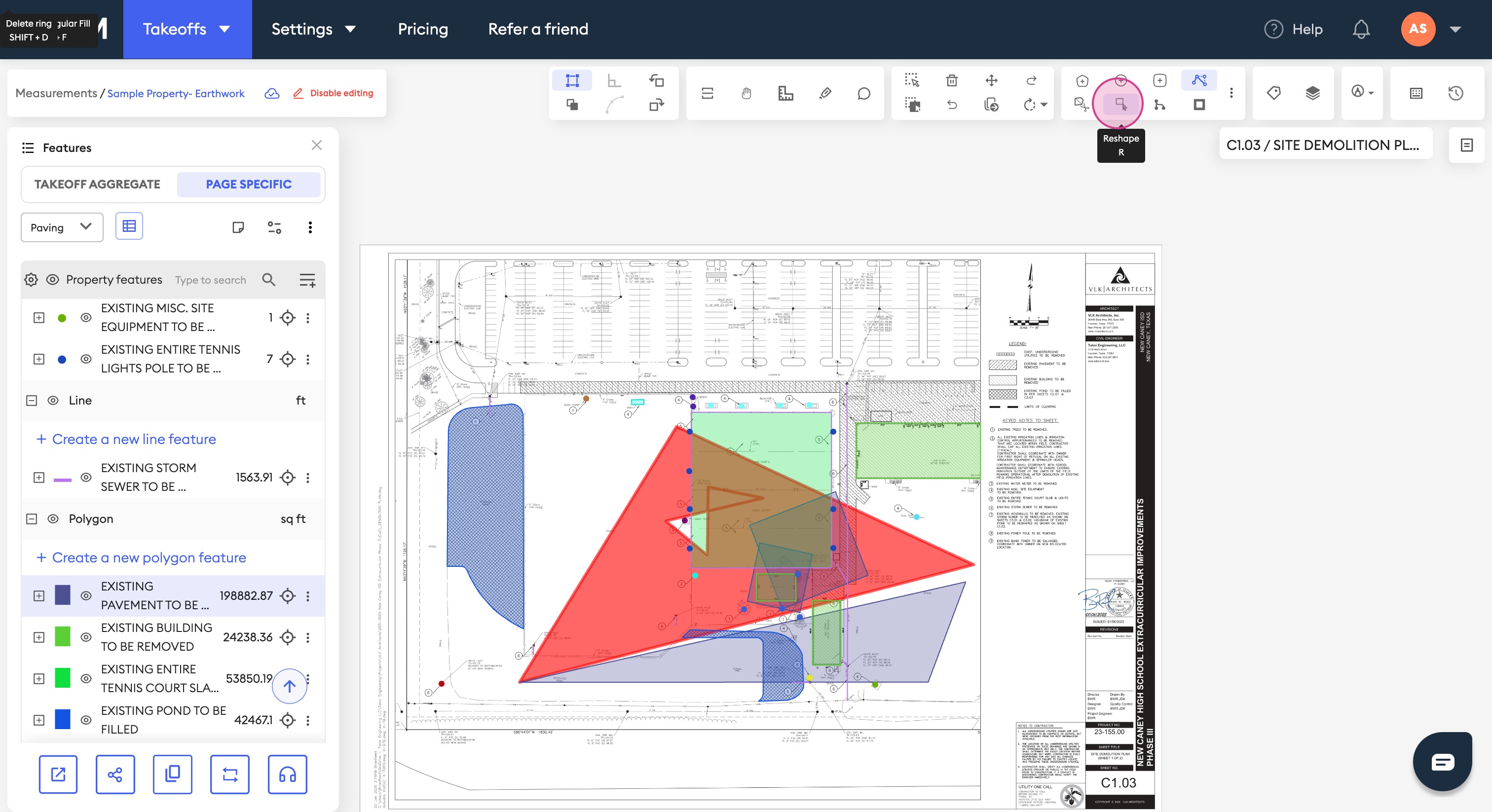
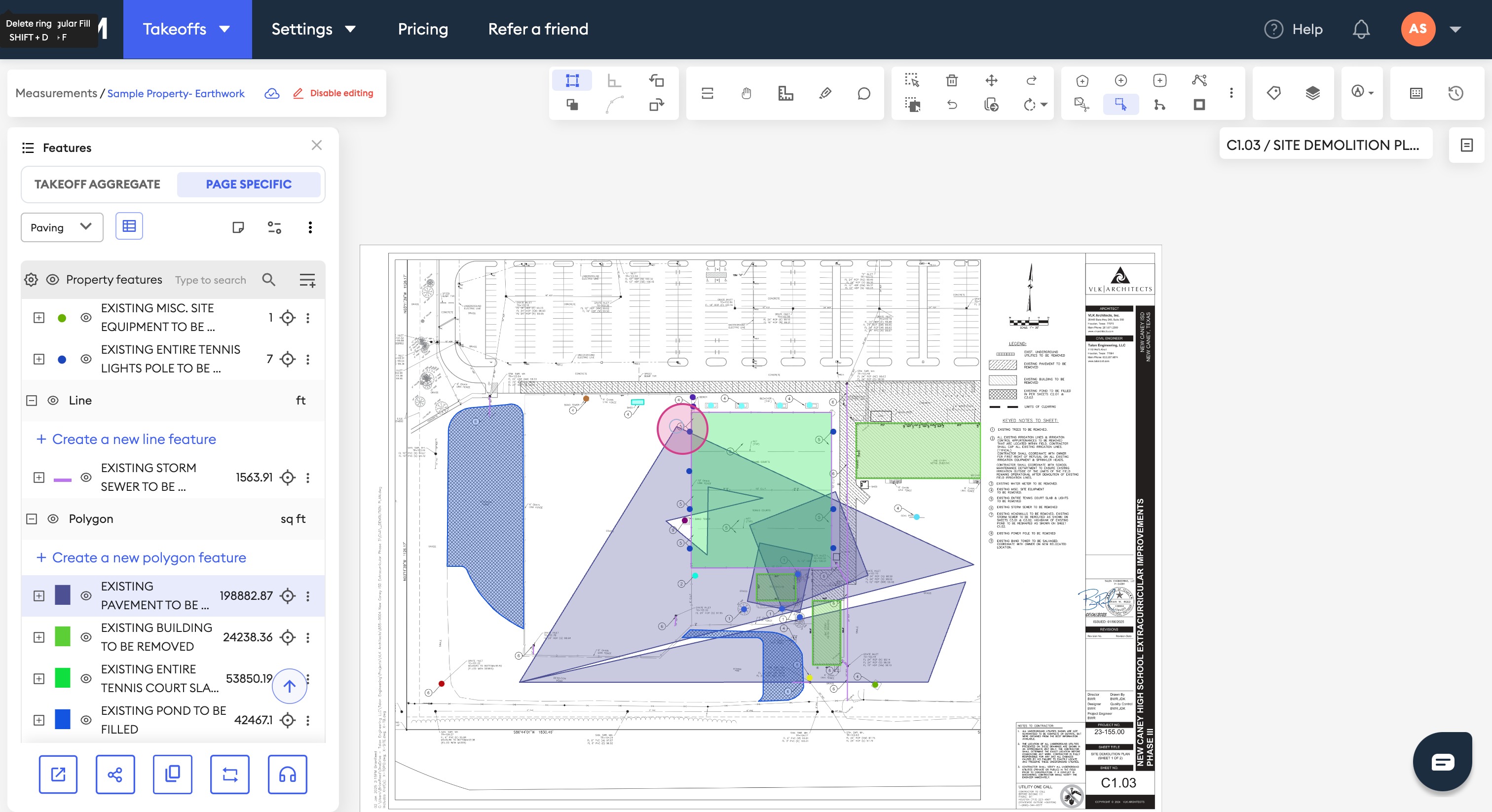
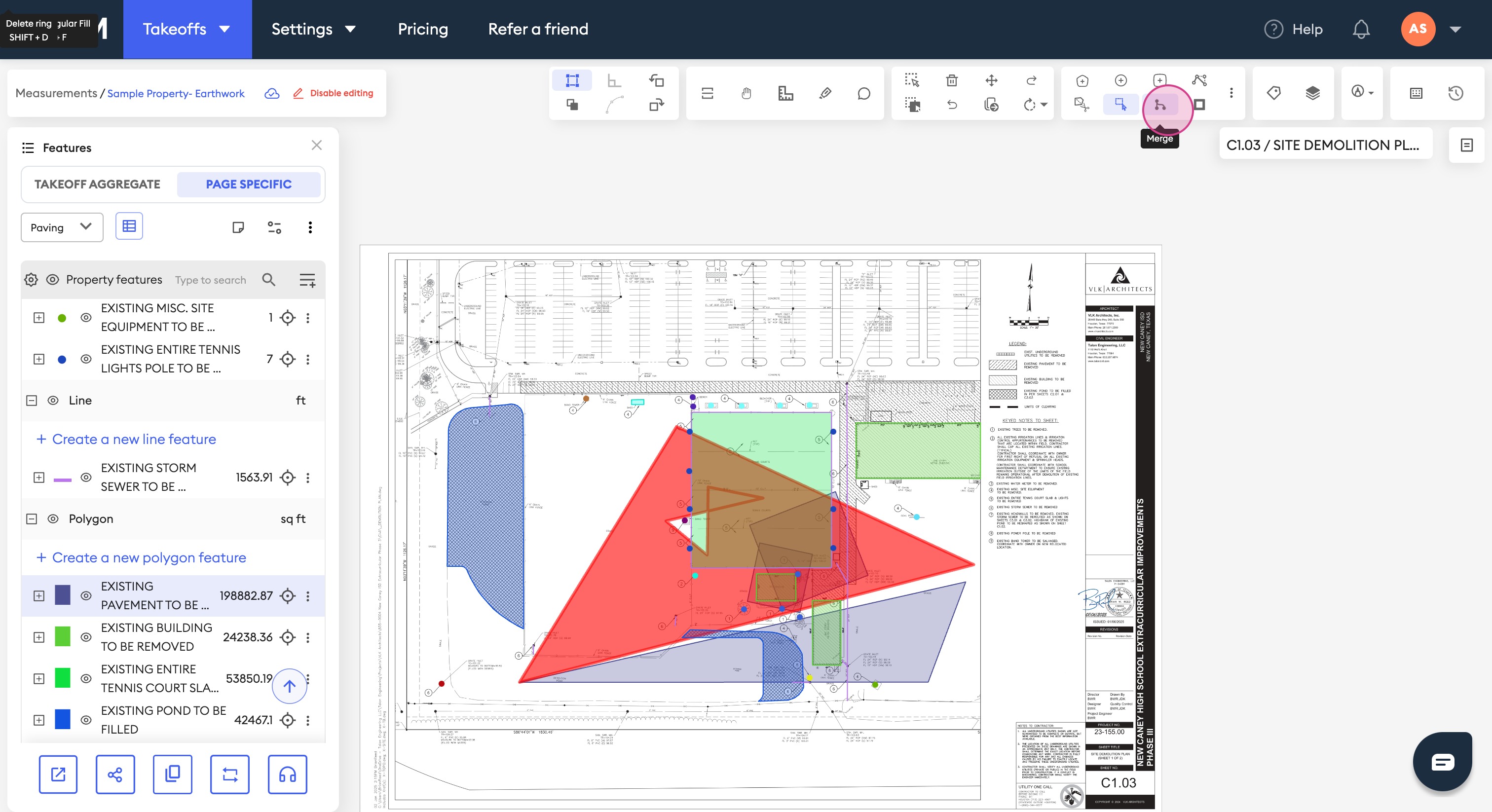
Step 11: Merge two of your polygons.
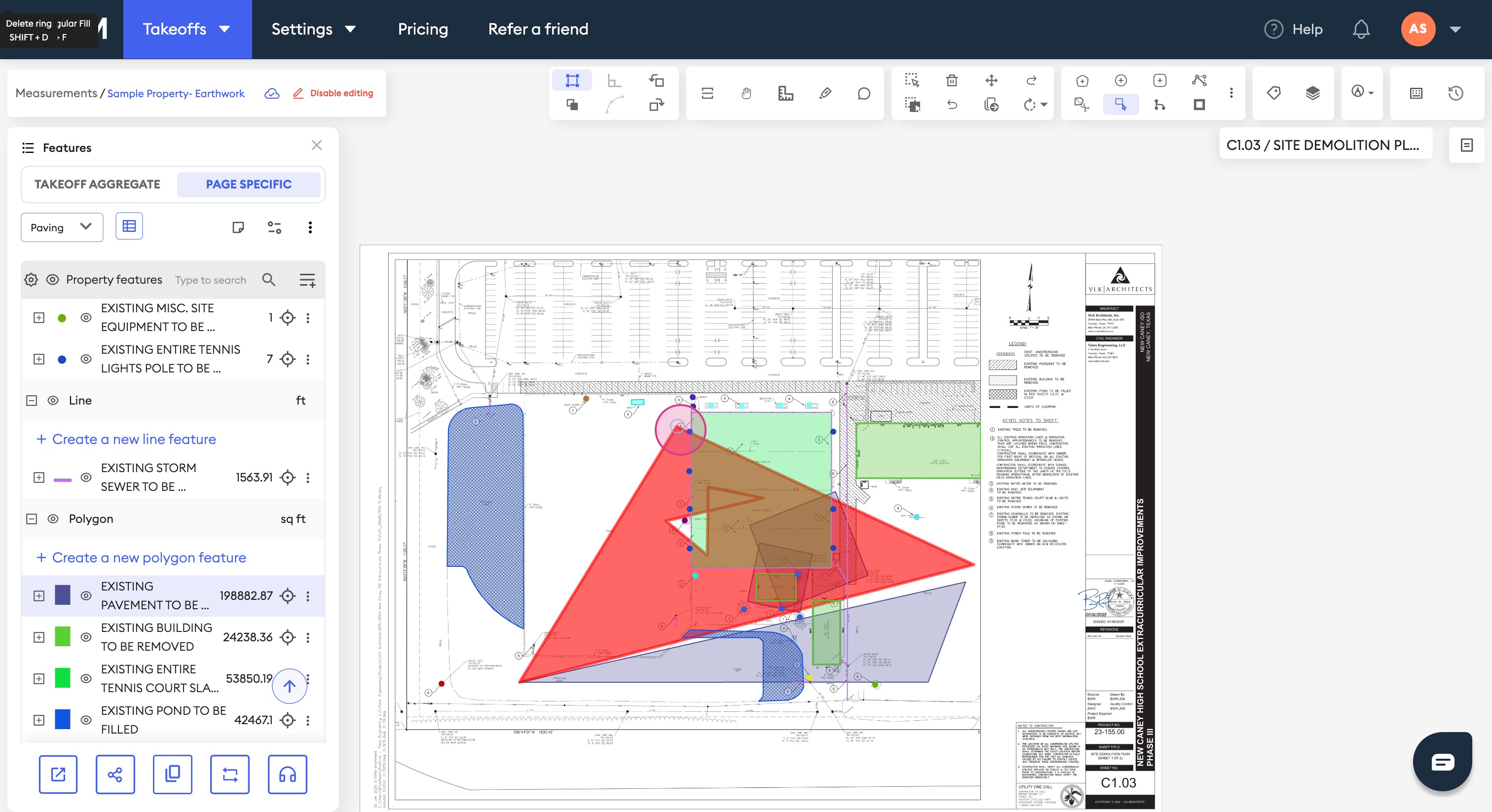
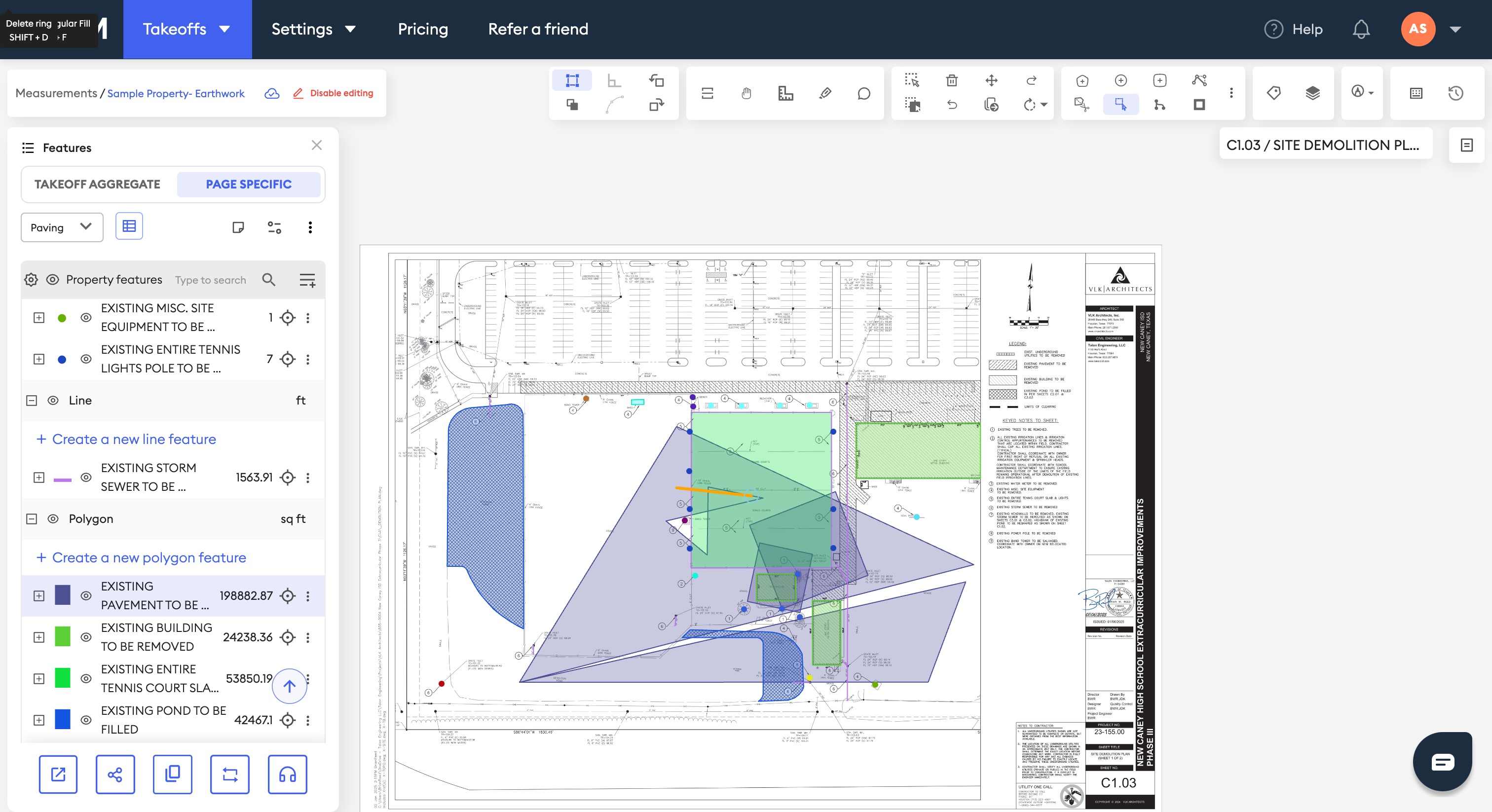
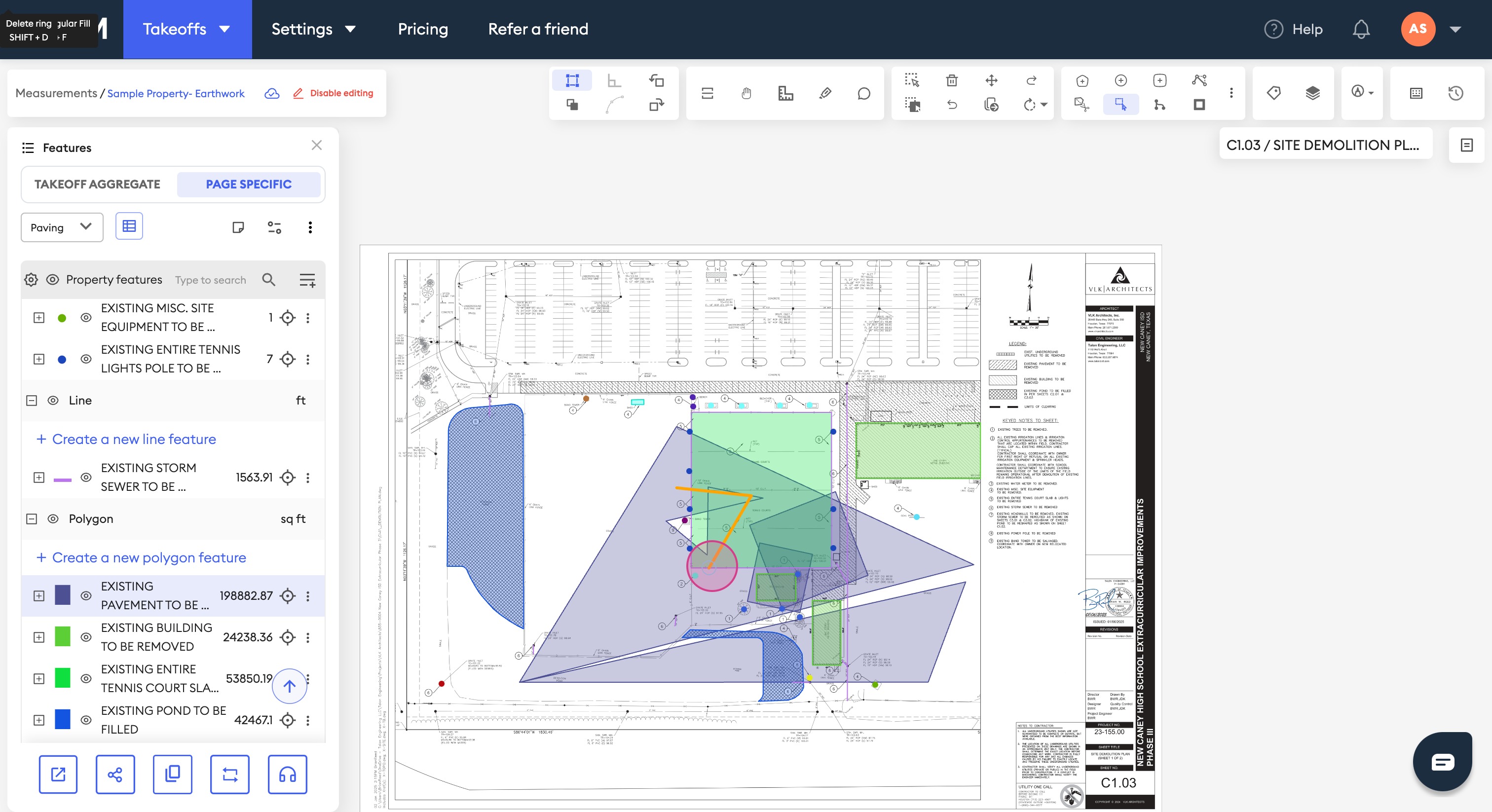
Step 12: Add another rectangle to your polygon.
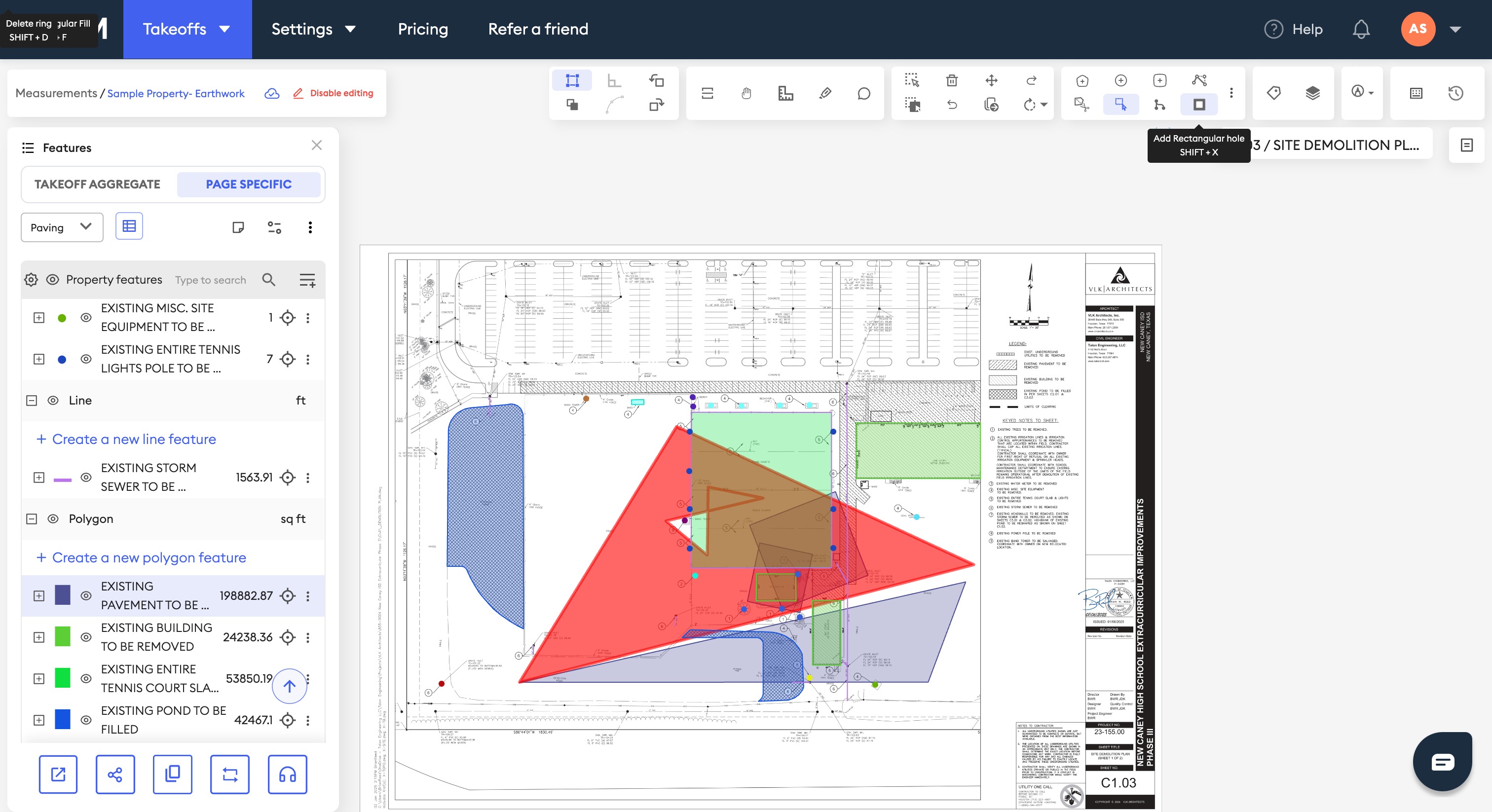
Step 13: Create rectangular holes in your polygon.
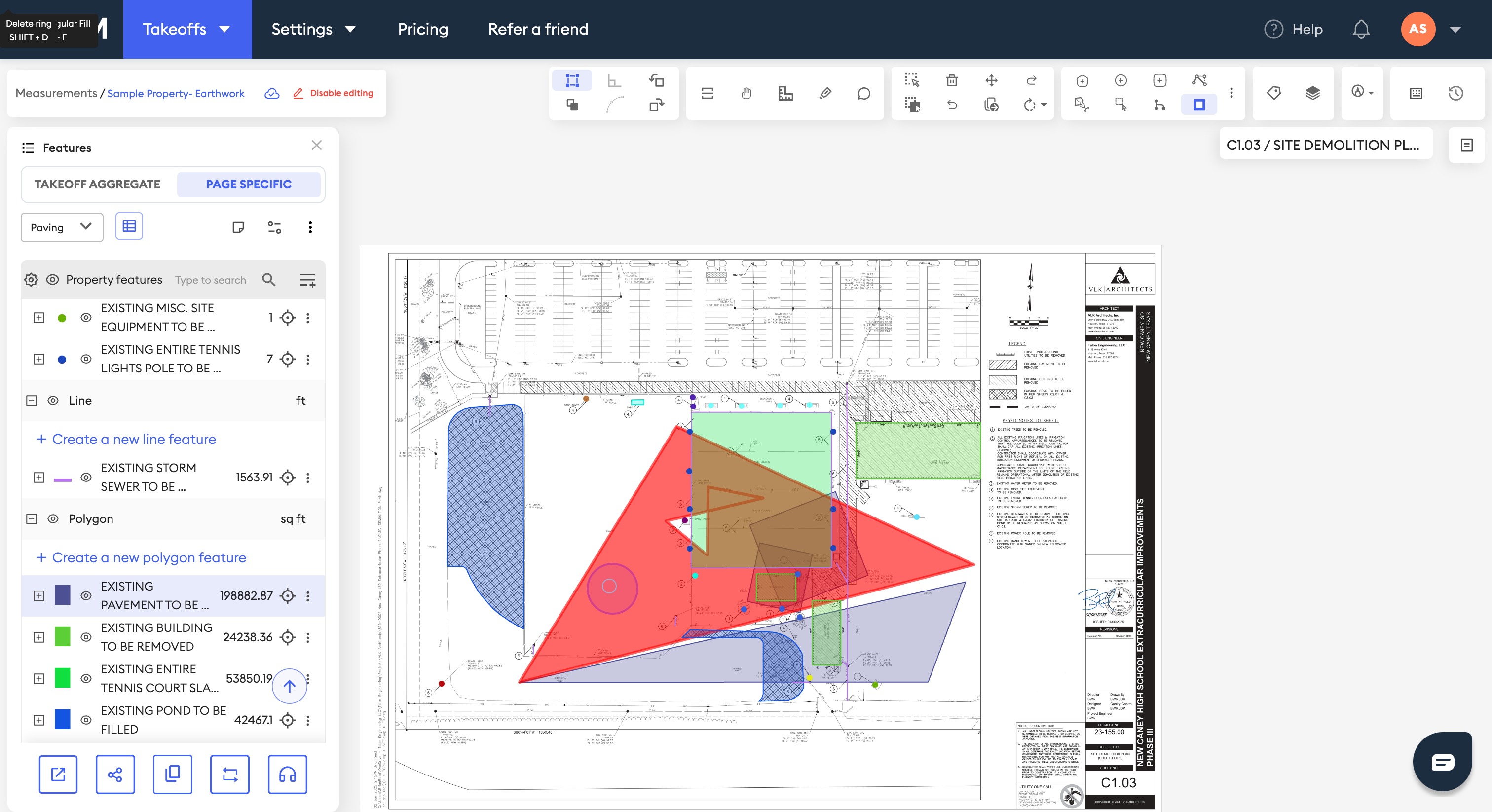
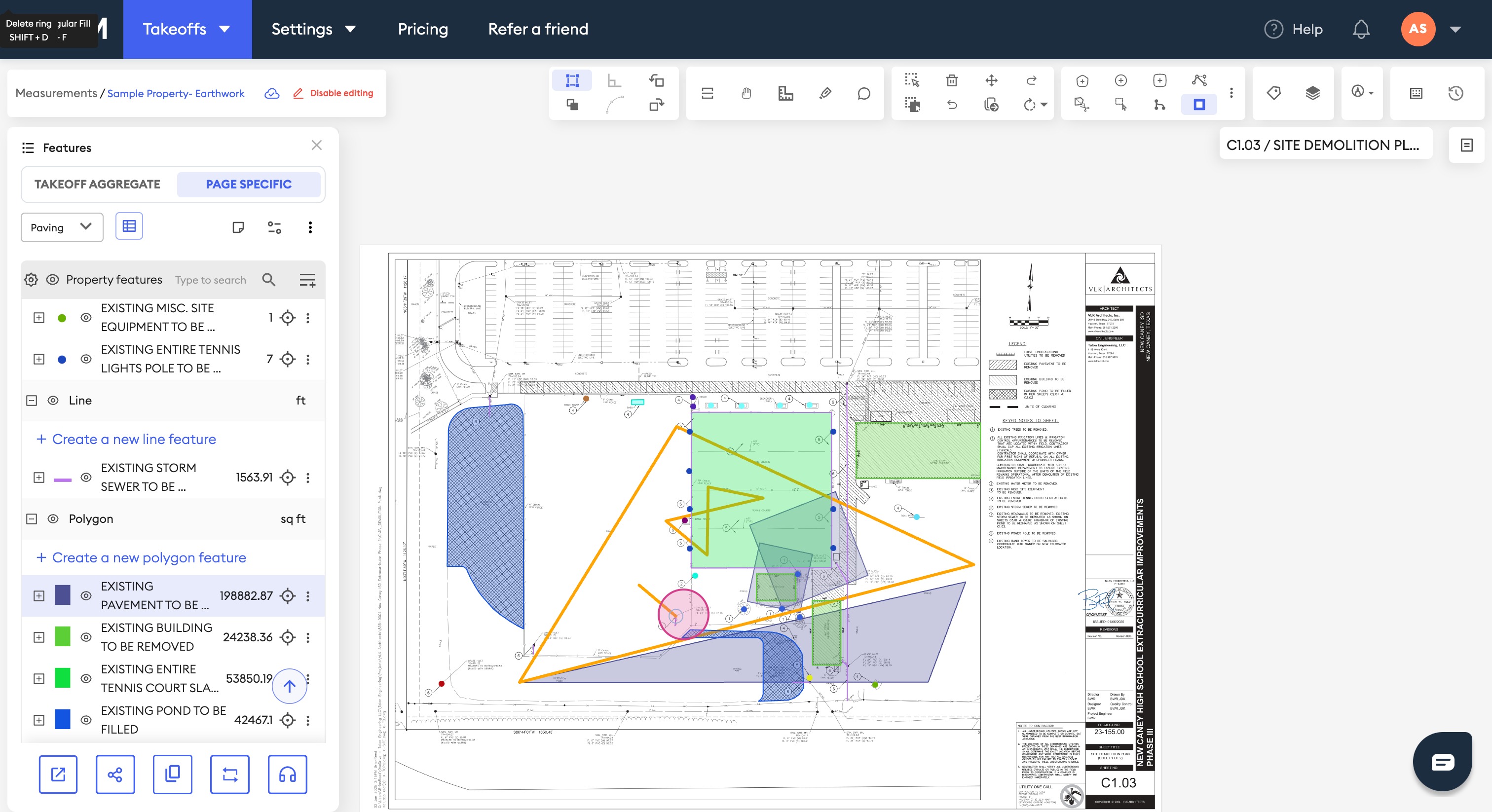
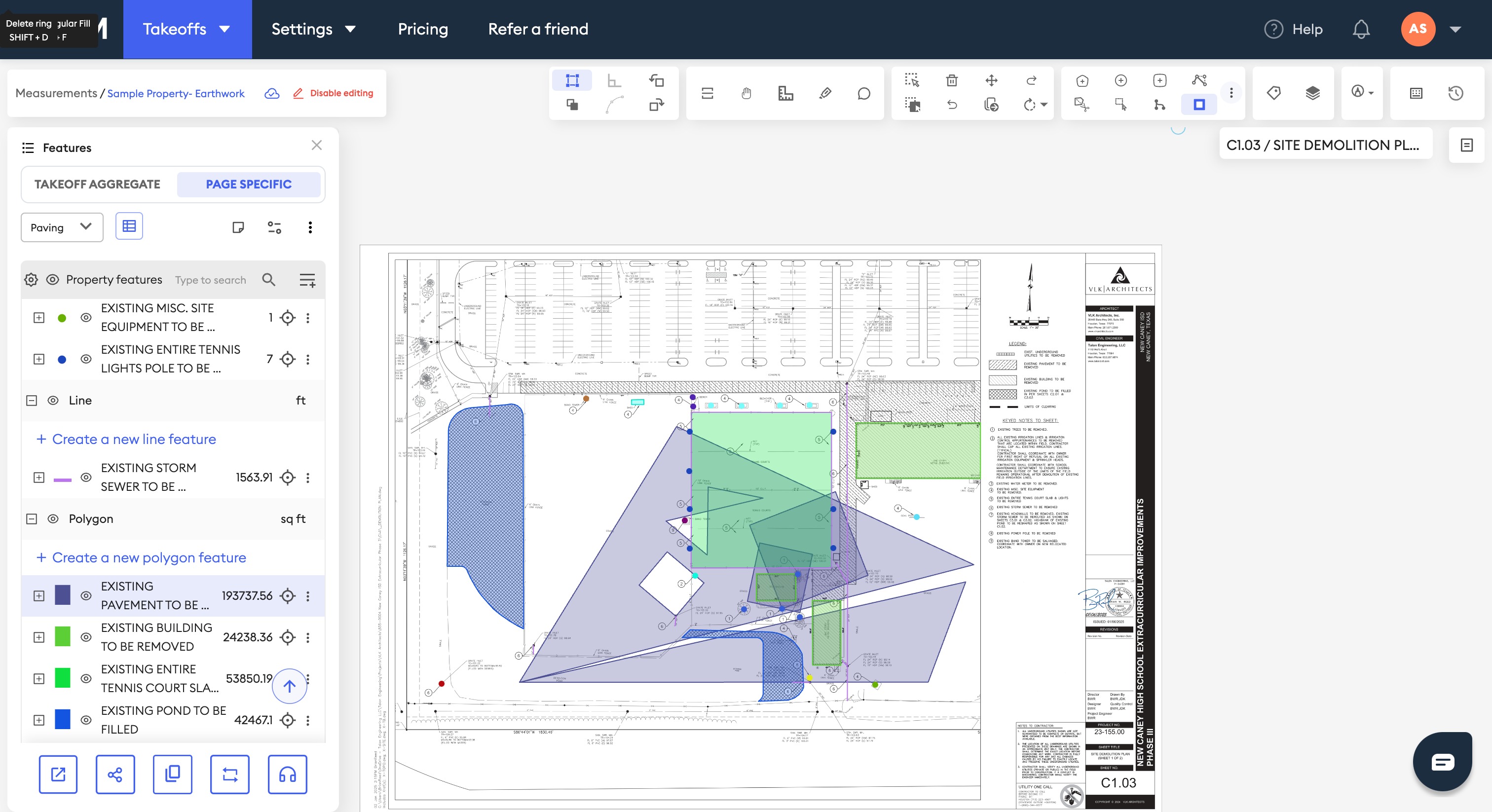
Step 14: Modify the vertices of your polygon using the Modify Vertex option.
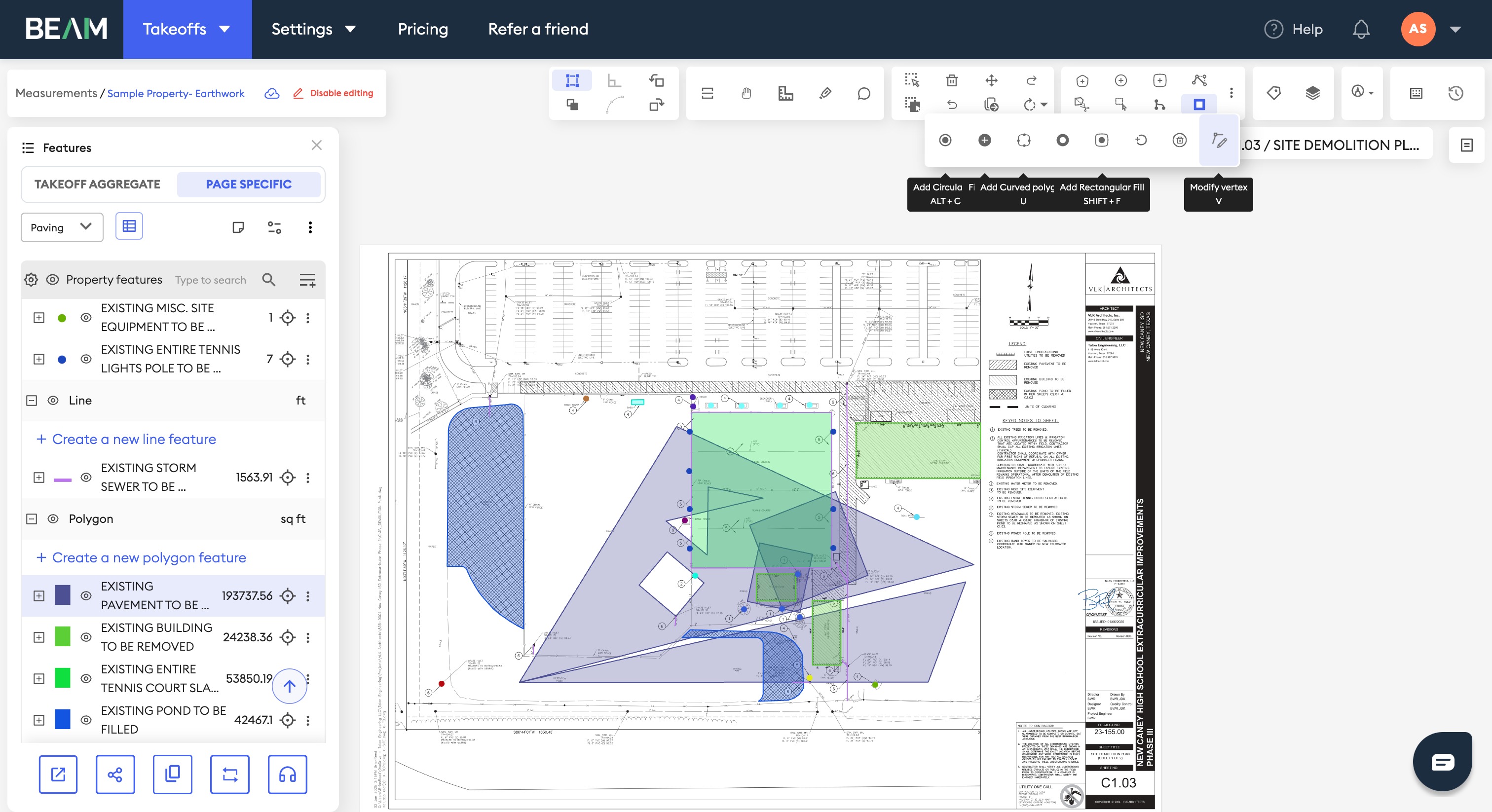
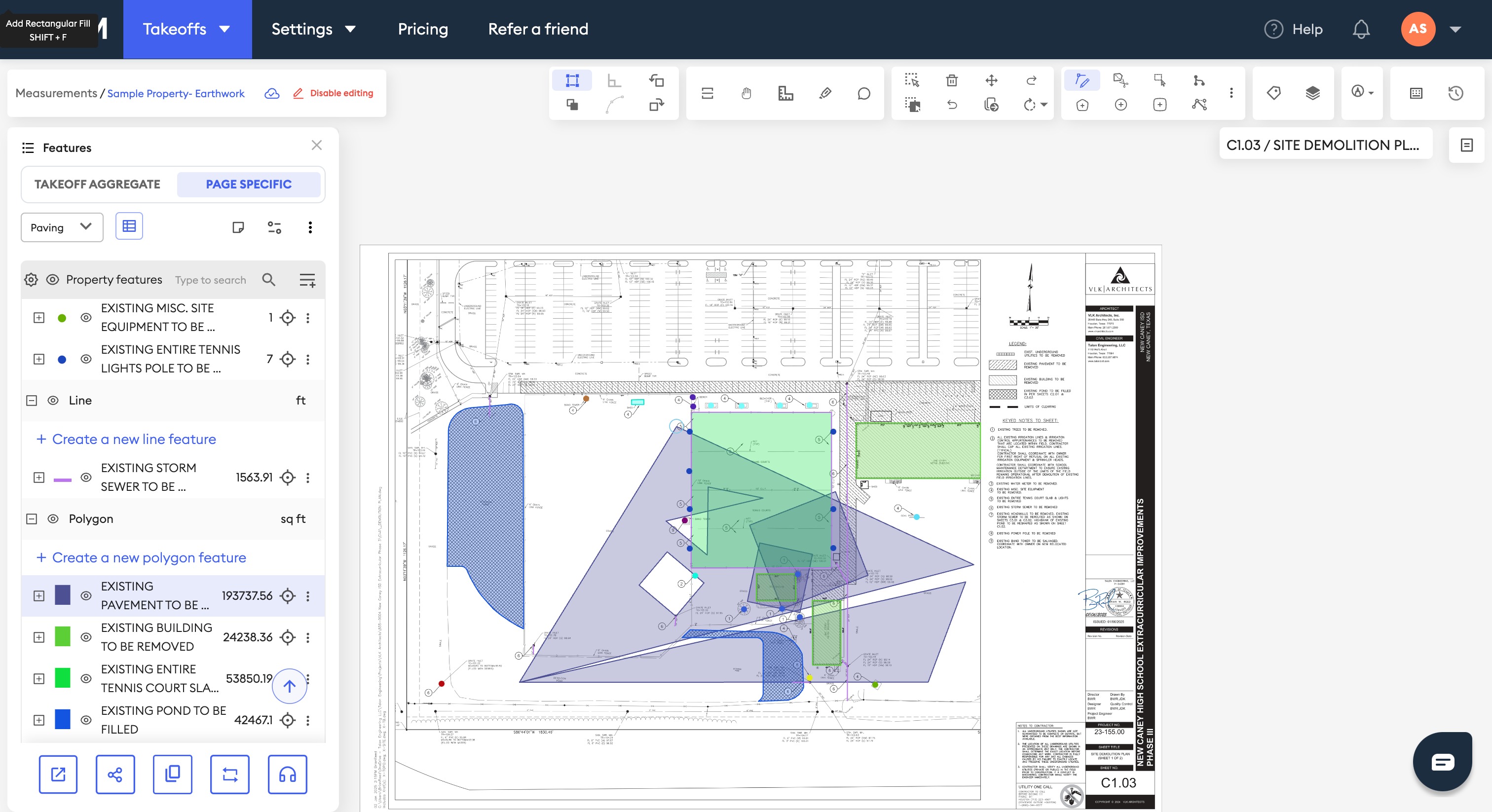

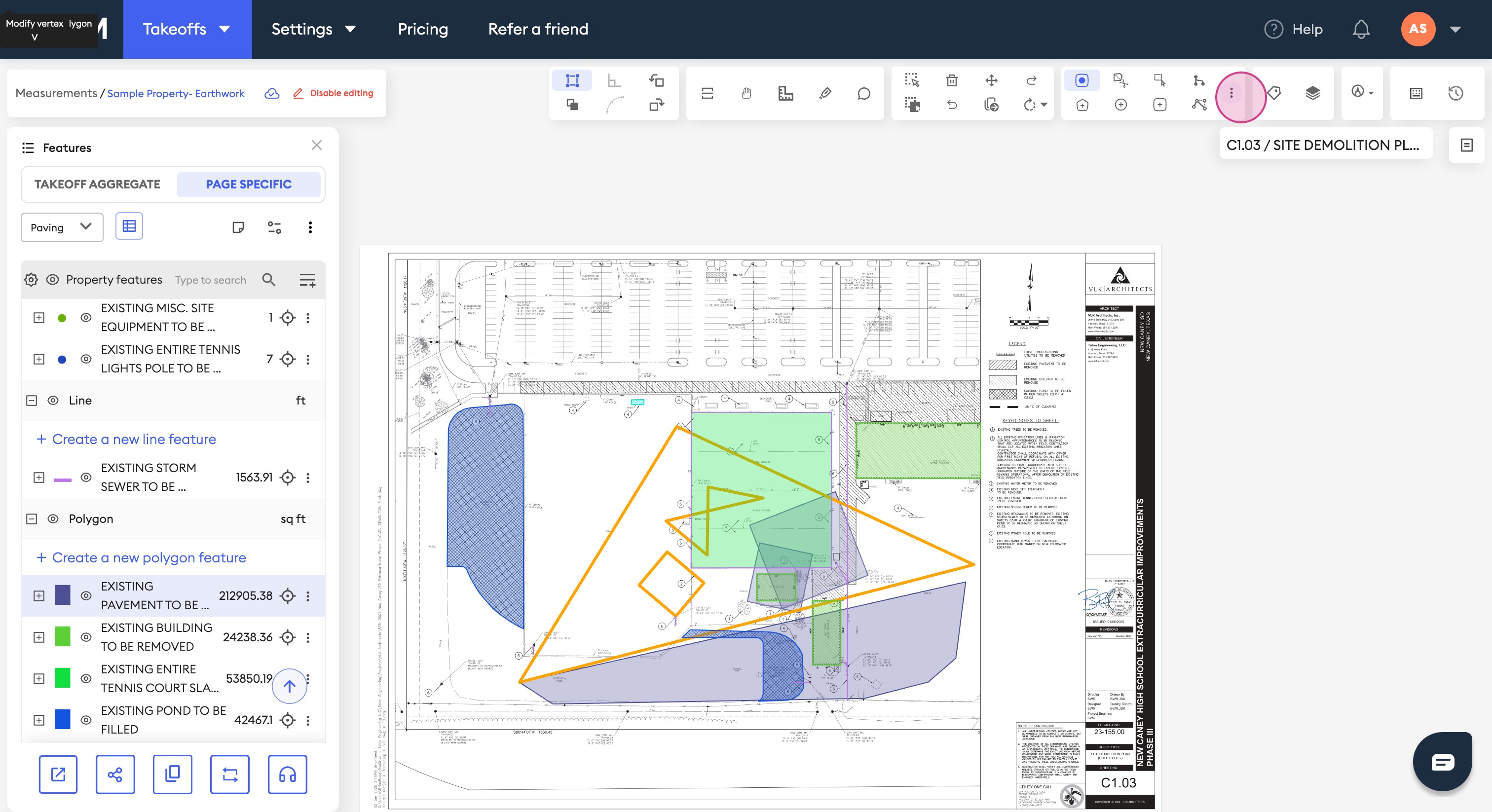
Step 15: Explore more drawing options.
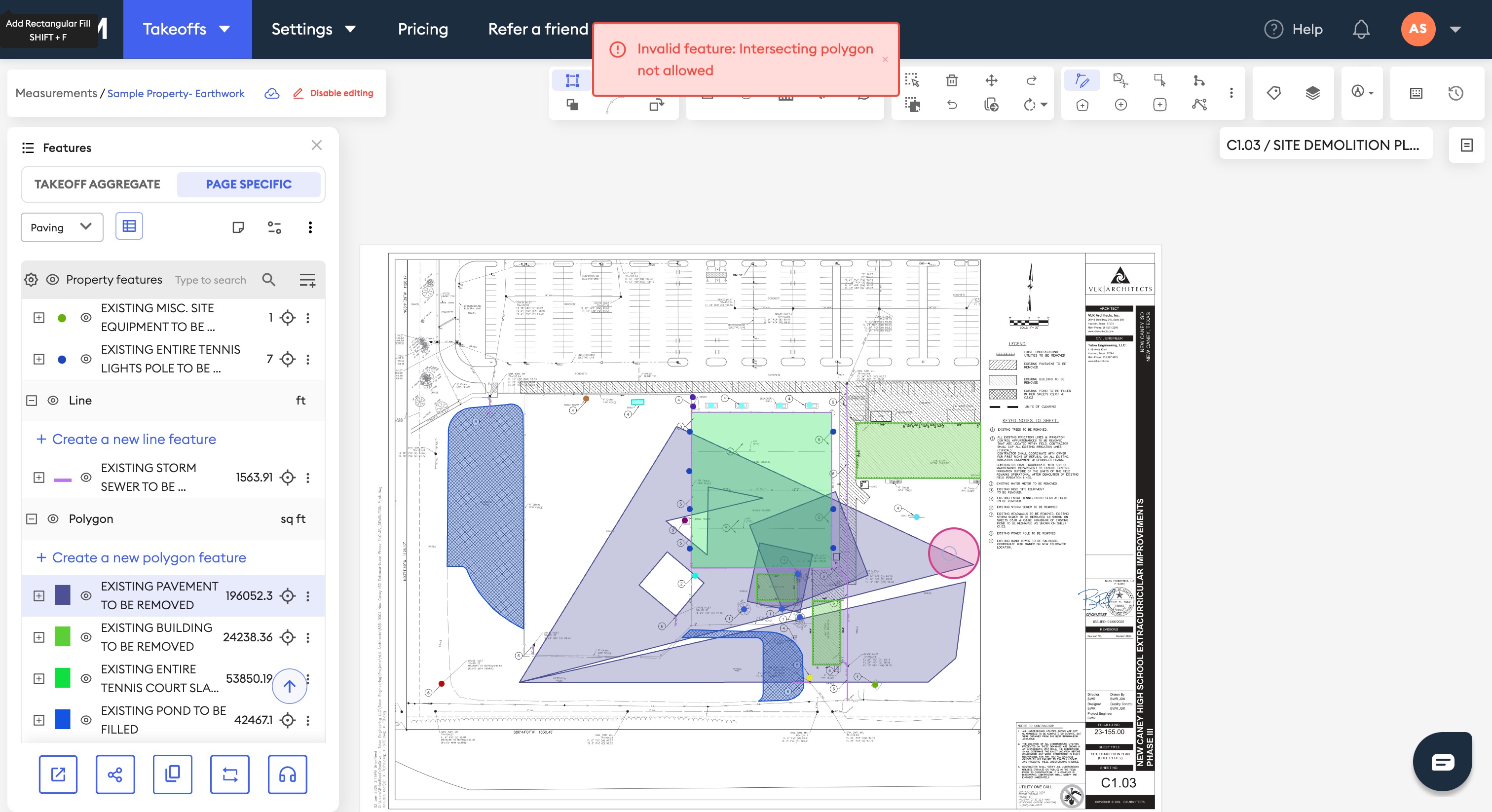
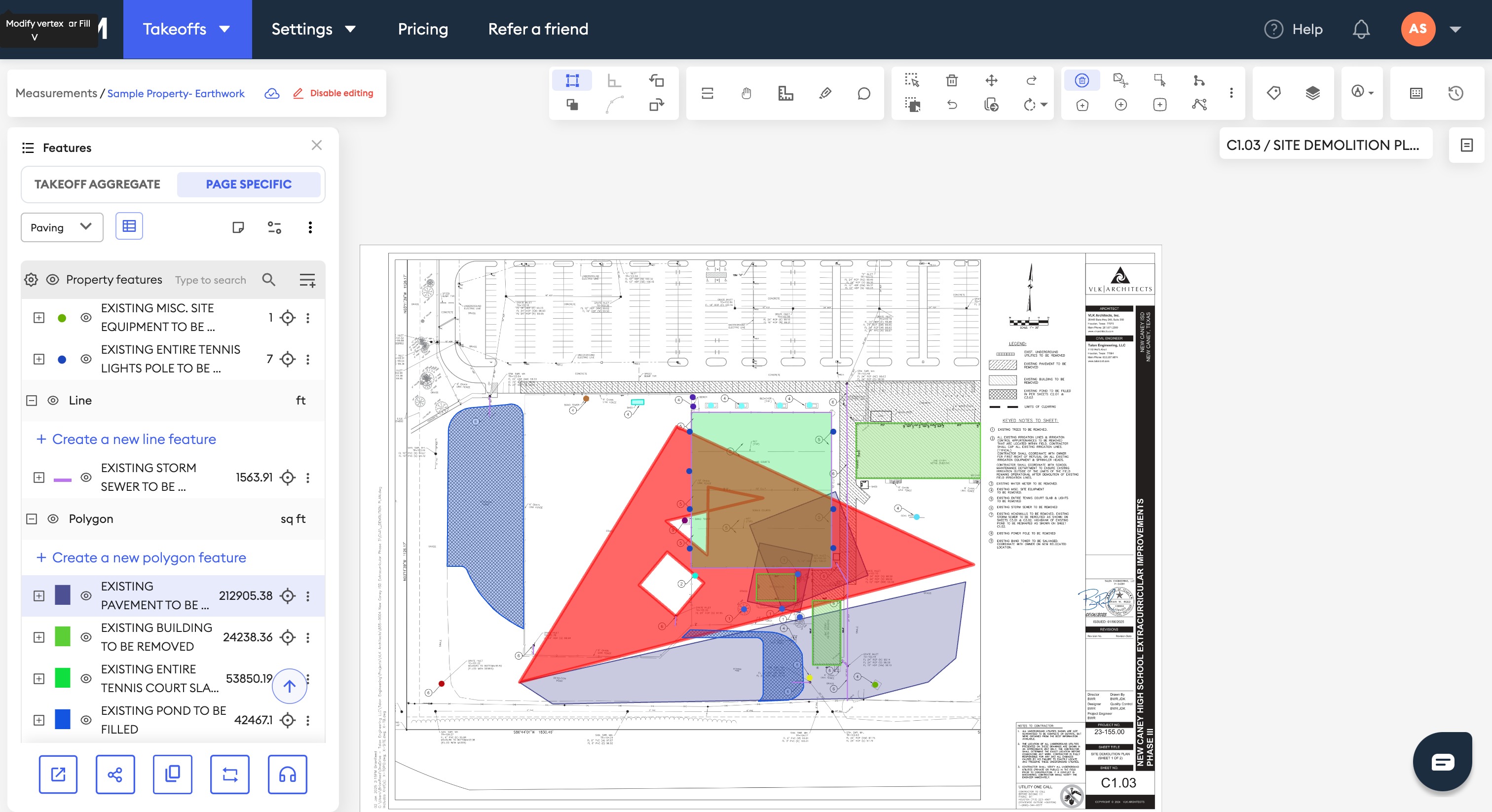
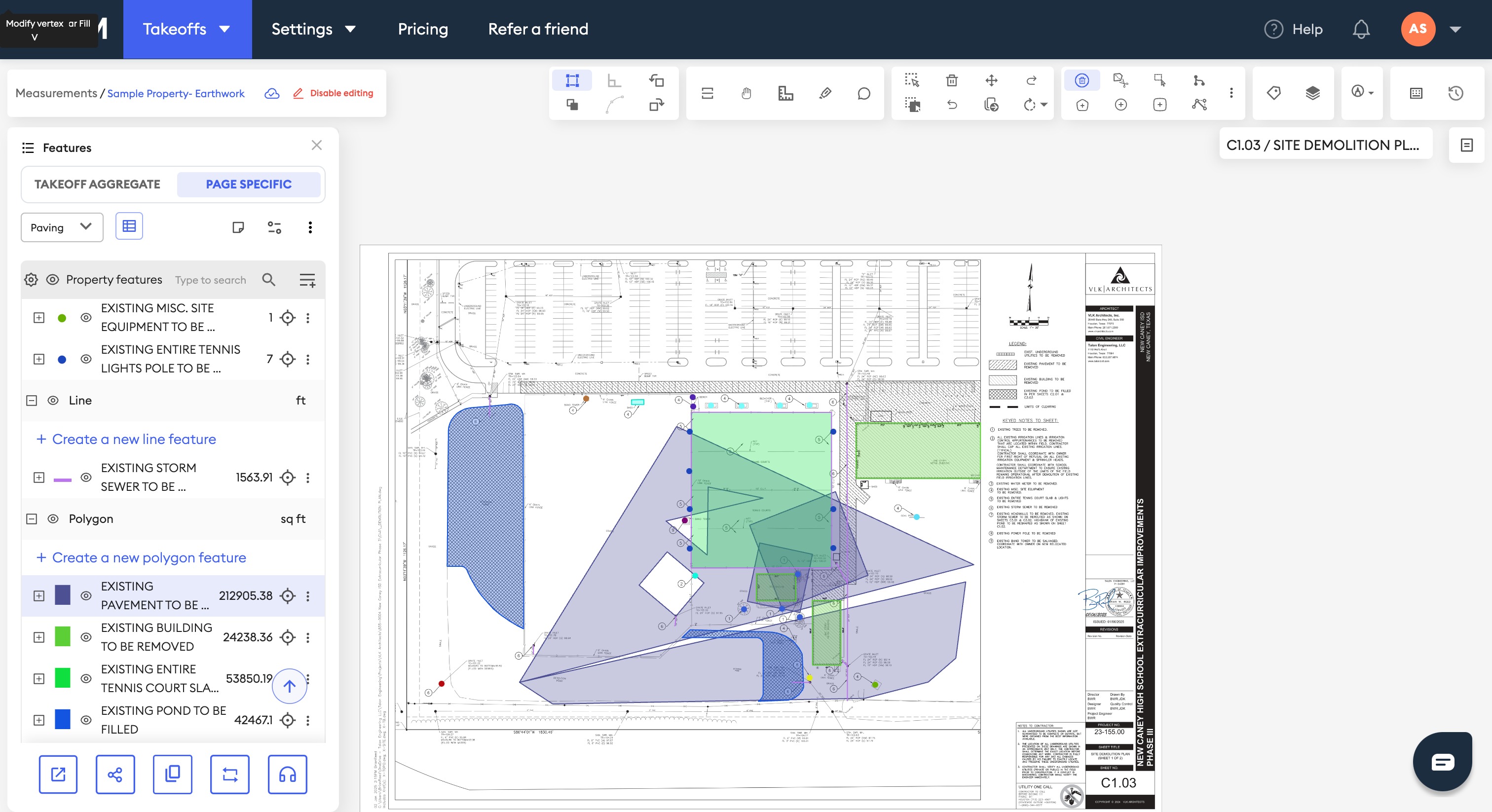
Step 16: Customize your polygon further.

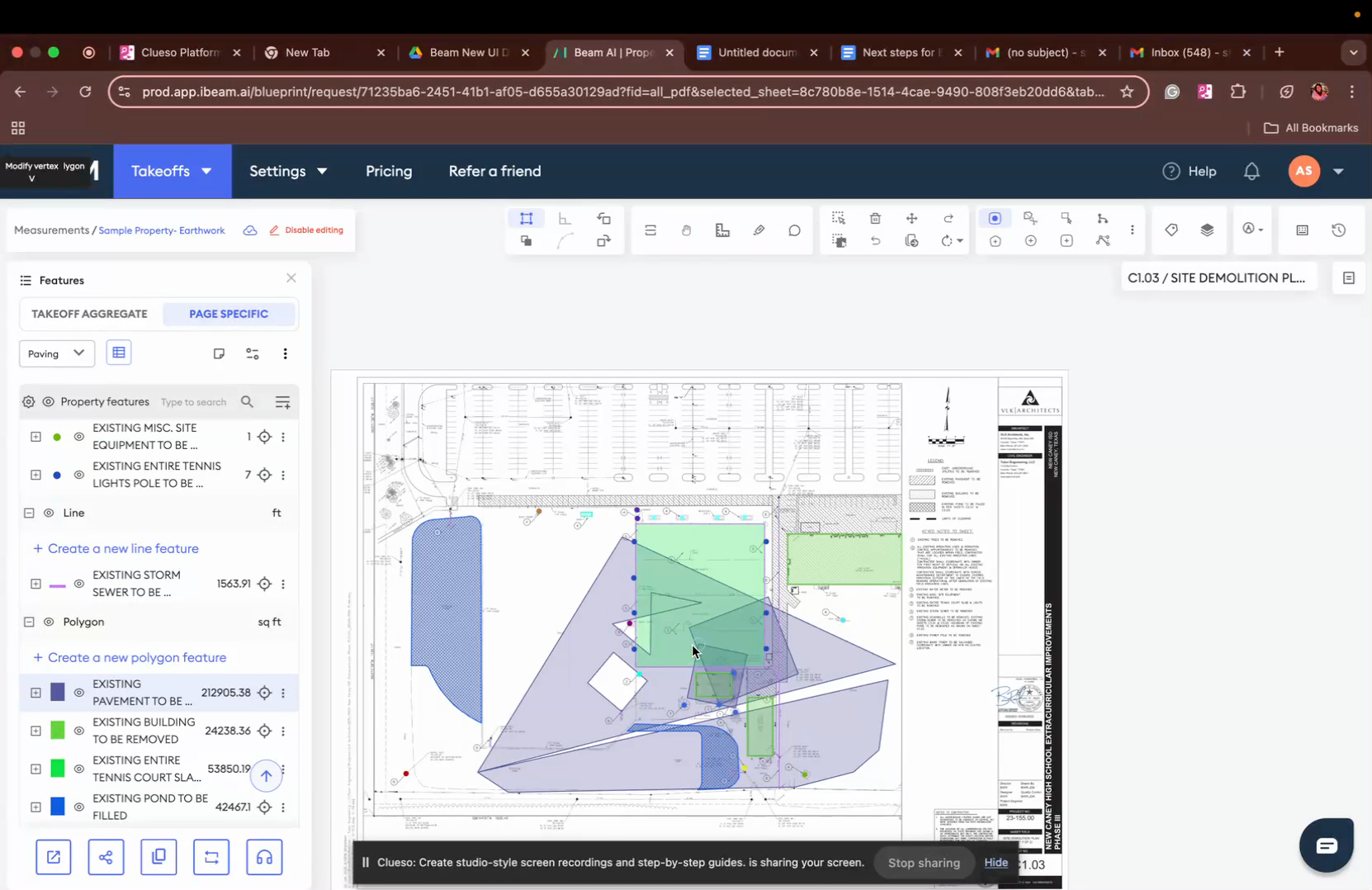
Step 17: Fill your polygon as desired.
Was this article helpful?
That’s Great!
Thank you for your feedback
Sorry! We couldn't be helpful
Thank you for your feedback
Feedback sent
We appreciate your effort and will try to fix the article